

You know that sinking feeling you get when your Snapchat message shows a “failed to send” error? You’re not alone. The good news is that this is usually a pretty simple problem to solve, and we’ve got eight ways to fix the Snapchat failed to send error.
How to Fix the Failed to Send Snapchat Error
It should only take a few minutes to try each of these methods for fixing the failed to send Snapchat error. We recommend working your way through each method in order until you find the solution that works for you.
Check Your Internet Connection
It might sound obvious, but have you checked your device’s internet connection? A dropped connection is one of the most common reasons for the Snapchat failed to send error. Check that your device is connected to the internet, and also check your router, if you’re at home, to ensure that everything is working properly.
If your router is operating normally, but your device has no Wi-Fi connection, try turning your Wi-Fi off and on again on your phone to see if this resolves the problem. Or you could turn off Wi-Fi on your phone and try sending your Snap using mobile data instead.
Check if Snapchat Is Down
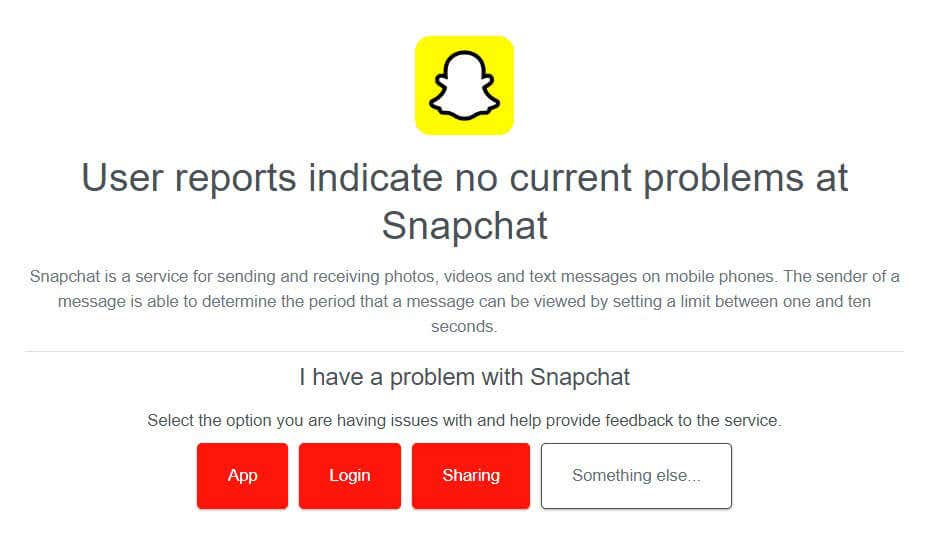
Internet connection all good, but still unable to send Snaps? It could be that the Snapchat service is down. The easiest way to check this is to use a site like Downdetector, which will let you know of any outages reported over the past 24 hours. If the service is down, that explains why you’re seeing the failed to send Snapchat error.
Try Logging Out of Your Account
One thing you can try if you’re seeing the Snapchat failed to send error is logging out of and back into your account. Here’s how to do that.
- Open Snapchat and select your Account icon at the top left of the app.
- Tap the Settings icon at the top right.
- Scroll down and choose Log Out.
- You’ll see a pop-up asking, “Are you sure you want to log out?”
- Tap Log Out to confirm.
- Close the app.
- Restart the app and log back into your account (you’ll need your Snapchat password or email).

Force Stop Snapchat
If none of the above methods work, you could try force-stopping Snapchat. This is a good option if your Snapchat is crashing or not working as expected. Here’s how to do this on most Android phones:
- Select the Settings icon on your phone.
- Tap Apps (or Apps & Notifications).
- To view all currently open apps, you may need to select See All Apps.
- Select Snapchat from the list of apps.
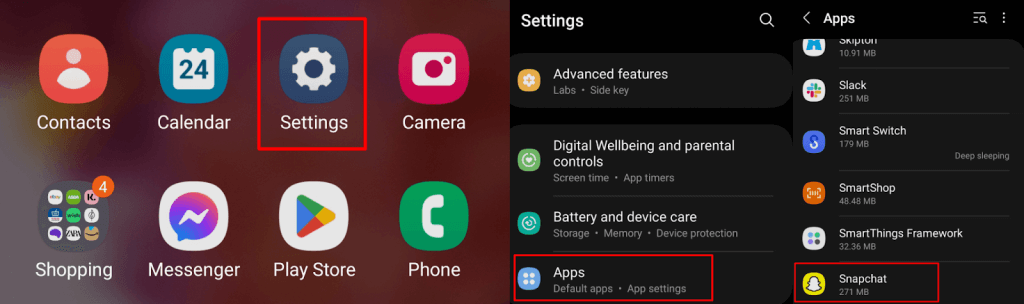
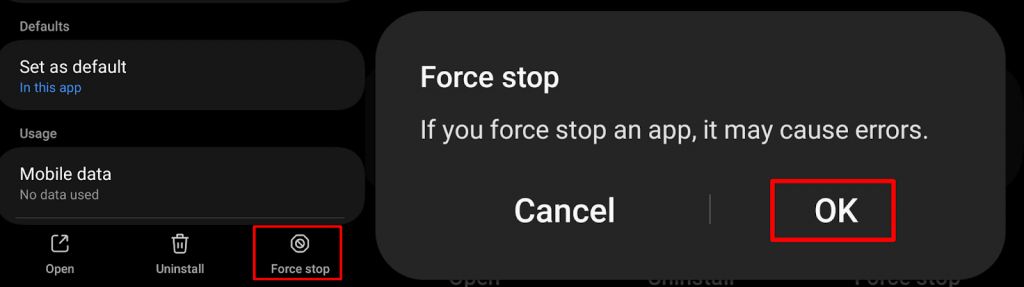
- At the bottom of the screen, Tap Force Stop.
- Select OK to confirm.
To force stop an app on your iPhone, here are the steps you need to follow:
- Swipe up from the bottom of the home screen and hold.
- Swipe horizontally, and you’ll see a list of open apps.
- Find Snapchat, then drag the app’s preview card to the top of the screen to close it.
Clear the App Cache
Another thing worth trying is clearing the app cache. Snapchat stores frequently used data in this cache on your phone, and clearing it can help troubleshoot the Snapchat failed to send error. The below steps are the same for most phones.
- Open Snapchat and select your Account icon at the top left.
- Tap the Settings icon at the top right.
- Now, scroll down to Account Actions.
- Tap Clear Cache.
- Choose Continue to confirm you want to clear the app cache.

Reinstall Snapchat
If all else fails and your Snapchat is still not working, you can try deleting the app from your device and reinstalling it. There are two easy ways to uninstall an app on your Android or iOS device.
- You can either tap and hold the Snapchat app icon, then select Uninstall.
- Or, you can go to Settings > Apps > Snapchat and select Uninstall.

To reinstall Snapchat:
- Go to the Google Play Store or Apple App Store and find the Snapchat app.
- Select Install to install Snapchat.
- Once the app is downloaded and installed, open it and log back into your account.
- Hopefully, you’re now able to send Snaps without the failed to send Snapchat error appearing.

Restart Your Phone
The final thing to try if none of the above options have worked is to restart your phone. Often restarting your device can solve a myriad of problems, so it’s a good go-to if nothing else seems to fix a problem.
Contact Snapchat Support
Still seeing the failed to send Snapchat error message? It might be time to reach out to Snapchat support to see what the issue is. It’s worth checking out any other posts on the Snapchat Support Twitter account, as it may be that other users are experiencing the same issue.
We hope that one of the above methods has fixed the Snapchat failed to send error and that you can carry on sending Snaps to your friends and family. Remember, if nothing else works, Snapchat Support should be able to help you get up and running again.