
Discord has become the go-to chat platform for gamers, businesses, and much more. While the platform is usually reliable, there are times the audio quality drops. The good news is that you can make a pre-emptive strike to improve Discord audio quality.
Changing the bitrate, purchasing a better microphone, and other similar tweaks can improve your input audio quality while also making it clearer what others are saying in chat. If you aren’t happy with the way Discord sounds, try some of these changes.
Change the Bitrate
The “bitrate” of a server refers to the number of bits of audio information transferred per second. A higher bitrate means higher audio quality, but it also means more bandwidth usage. If your Discord audio is poor, adjust the bitrate. Remember that only server administrators can do this, however.
- Hover over an audio channel and select Edit Channel.
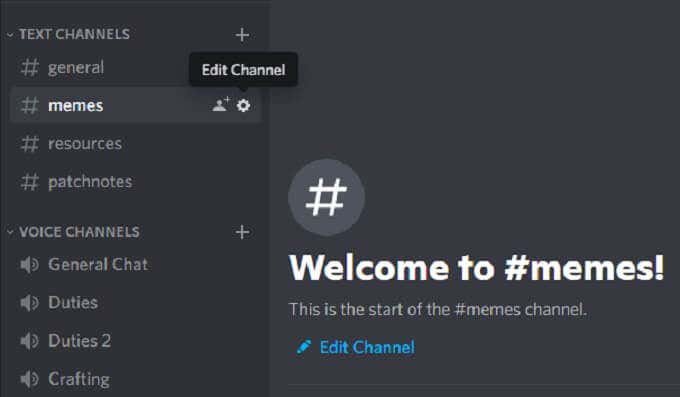
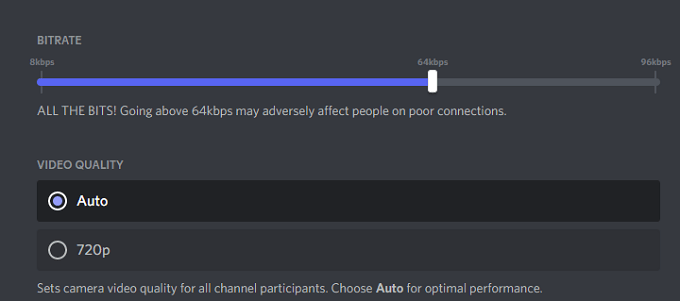
- Select the bitrate slider and move it to a higher number. It defaults to 64kbps.
- Select Save Changes.

All Discord channels can range from 8kbps to 96kbps. However, if a channel receives enough Nitro Boosts, it can receive higher bitrate options of 128, 256, and 384kbps.
Enable Noise Suppression
Discord recently introduced a new feature that reduces unwanted background noise from your microphone, like the hum of a box fan or ambient noise from outside your home. While it doesn’t eliminate it, it can dampen the noise enough that no one else can hear. Here’s how to enable this feature.
- Open Settings.
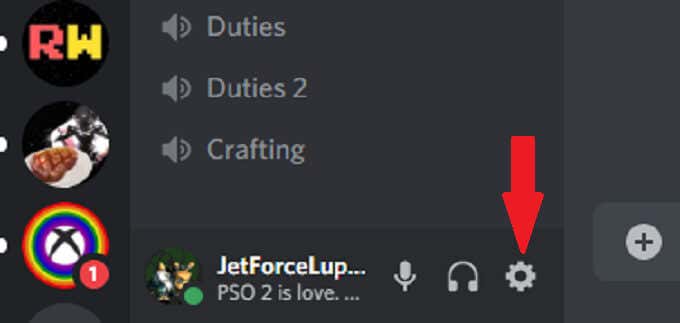
- Select Voice and Video.
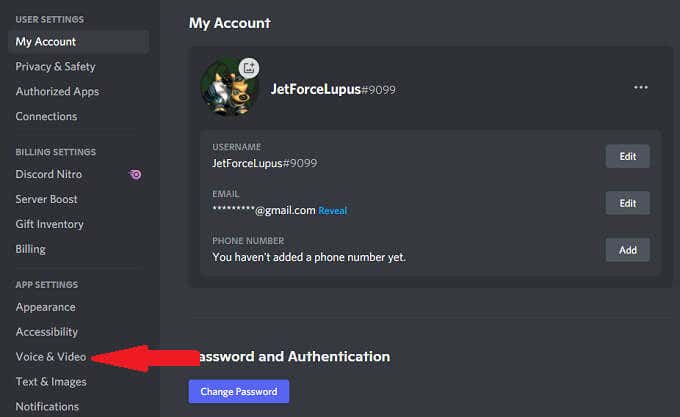
- Scroll down and ensure the Noise Suppression toggle is activated.
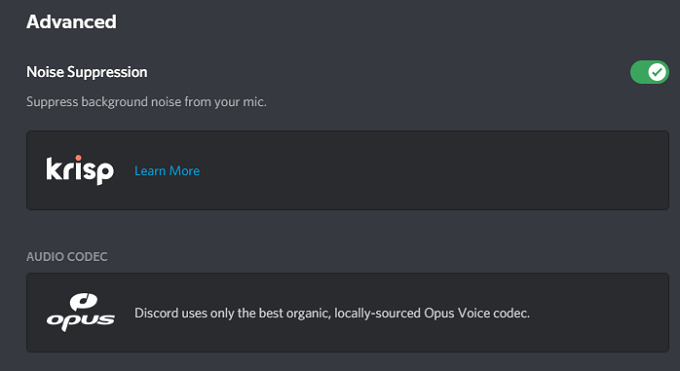
After you do this, Discord will automatically begin filtering out unwanted background noise.
Enable Push to Talk
Believe us: no one wants to hear you eating chips or listen to your breath if your mic is too close to your face. The push-to-talk function guarantees no unwanted sound passes through your mic unless you want it to. This should be one of the first things you activate to improve your audio input quality.
- Open Settings.
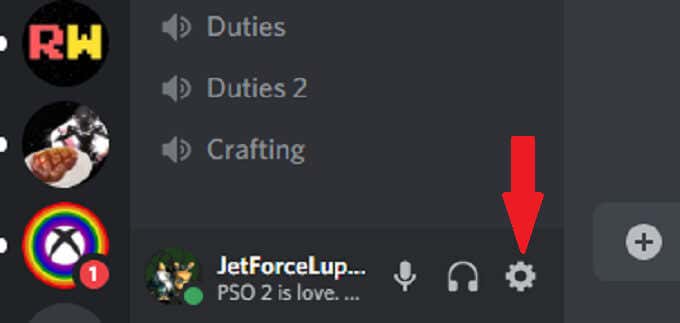
- Select Voice and Video.
- Select Push To Talk.
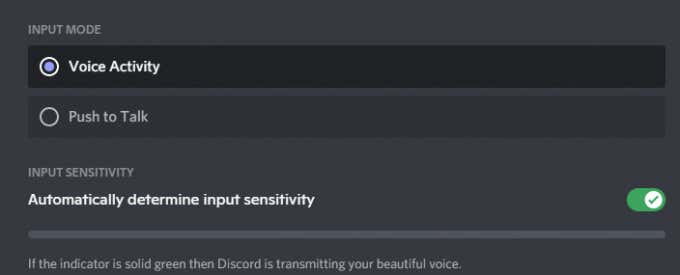
- Select Shortcut and enter the key you want to use to chat.
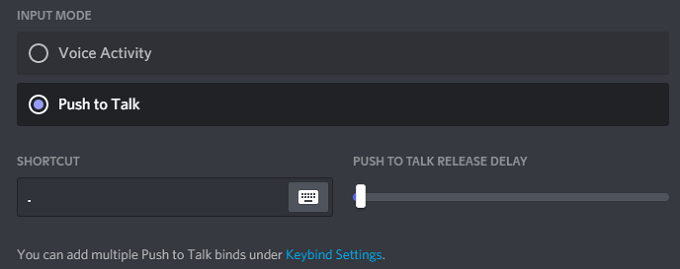
When you want to speak to your friends, all you have to do is press and hold that key to transmit audio. The moment you let go of the key, your transmission ends. This gives you more privacy in a chat, as you won’t accidentally transmit anything you don’t intend to.
Adjust Advanced Voice Processing Settings
Discord’s voice processing software can help clear up many of the input problems and make you sound like you’re using a professional-grade microphone, even if you’re using an inexpensive setup. Here’s how to modify them.
- Open Settings.
- Select Voice and Video.
- Scroll down until you see the Voice Processing header and ensure Echo Cancellation is enabled.
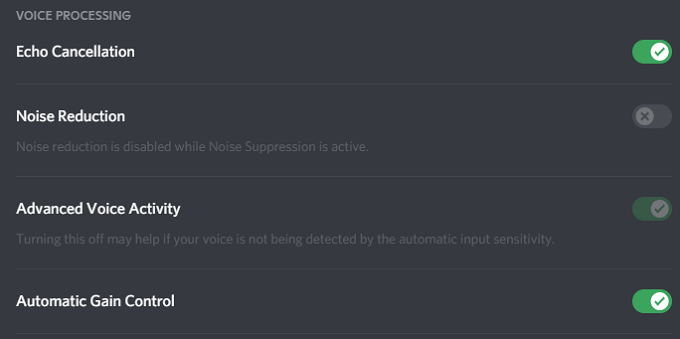
- Ensure that Automatic Gain Control and Advanced Voice Activity are also both active.
If you activate Noise Suppression, it automatically disables Noise Reduction.
Enable Quality of High Service Packet Priority
When you’re gaming with friends, the importance of audio quality is second only to your gameplay. Discord has a setting that allows you to give audio packets from Discord higher priority than other packets on your network.
- Open Settings.
- Select Voice and Video.
- Scroll until you see the Quality of Service header and select the Enable Quality of Service High Packet Priority.
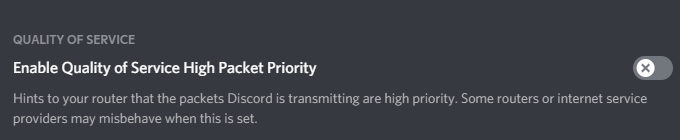
Selecting this setting tells your router that transmissions from Discord take a higher priority on your network, which will result in clear audio input and output.
Adjust Attenuation Settings
In a tense multiplayer game, what’s more important: hearing your teammates relay information or the game audio? For most people, the answer is easily their teammates. The attenuation setting within Discord allows you to reduce the audio of other applications when someone speaks. Here’s how to adjust it.
- Open Settings.
- Select Voice and Video.
- Scroll to Attenuation and adjust the slider.
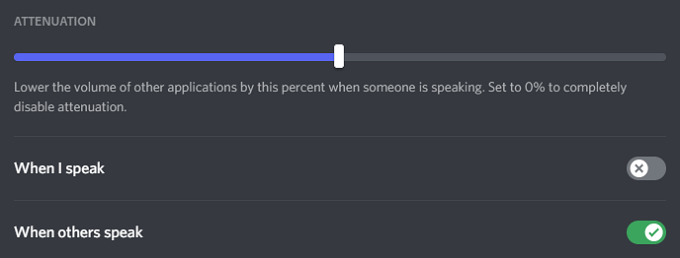
- Ensure When others speak is toggled On.
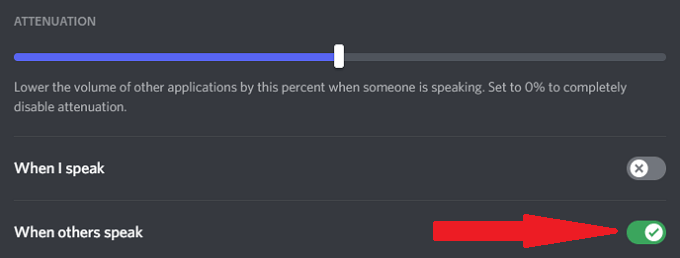
The slider reduces the volume of other applications when someone else is speaking. This can cut out background noise so that you can better hear other players. Ensuring When others speak is toggled on will guarantee the option works, but there is no need to silence your applications when you talk.
Invest in a Better Microphone
The single best thing you can do to improve the quality of your audio is to invest in a better microphone. Many people rely on their computer’s built-in microphone or low-quality Bluetooth earbuds for Discord chats.
Take the time to research the best microphones in your price range. A proper microphone, especially one equipped with a pop filter, will improve your audio quality by leaps and bounds. A few tweaks to your input settings will make you sound more like a radio newscaster instead of someone gaming with friends by eliminating background noise and more.
Don’t Settle for Bad Audio
You might not be an audiophile, but high-quality sound matters. Try any of these seven tips to improve your Discord audio quality. Your ears — and your friends — will thank you for the dramatic improvements you’ll get just by tweaking a few settings.
Who knows? You might even see improvements in your gameplay if you can better hear what your teammates are saying to you.