It's a very valuable security feature

Data Execution Prevention (DEP) is a system-level security feature included in Windows machines. The main purpose of DEP is to monitor processes and services to protect against malicious code exploits by shutting down any program that doesn’t run properly in memory.
The feature, which is also known as executable space protection, comprises a set of hardware and software technologies that carry out extra system memory checks to stop malicious code from running.
Table of Contents

Whenever a harmful program tries to execute code in specific system memory locations reserved for authorized programs and Windows, DEP marks them as non-executable and throws an error.
All this happens so as to prevent any damage to your computer from viruses and other security threats. However, DEP may sometimes conflict with legitimate programs like your antivirus, in which case you may have to disable the feature for specific apps.
How Data Execution Prevention in Windows 10 Works
DEP isn’t a comprehensive defense against all malicious code exploits; it’s just another tool you can use alongside your security software to secure your apps.
In many operating systems, there are reserved memory regions where critical programs and functions run. This memory space is limited, so if anything that isn’t written correctly or malicious code gets in, it could occupy too much space leaving you with a buffer overflow situation.
When that happens, it could give access to potentially critical data to users or programs that shouldn’t access it.

DEP steps in to counter such access or execution by any executable programs that aren’t allowed to load in the system memory areas. The feature raises an exception immediately when it detects suspicious code loading and prevents it from running.
The downside with DEP is that it may flag older non-Microsoft programs that rely on Windows Services. However, you can disable DEP or create an exception in your system settings in order to run such programs.
Note: Some DEP errors are caused by outdated device drivers in the system.
Types of Data Execution Prevention in Windows 10
There are two different methods of creating DEP:
- Hardware-based DEP
- Software-based DEP
Hardware-based DEP
A hardware-based DEP detects suspicious code that runs from memory regions as non-executable, intercepts and raises an exception to prevent any attacks to the system. The only exception is where the region specifically contains executable code.
Hardware-based DEP relies on processor hardware to mark memory with an appropriate set of attributes that indicate that code shouldn’t be executed from that memory.
In order to use hardware-based DEP, the following conditions must be met:

- Your computer’s processor must support hardware-based DEP. The actual DEP hardware implementation varies by processor architecture like AMD and Intel, whose Windows-compatible architectures are also DEP-compatible.
- Enable hardware-based DEP in the BIOS.
- Your computer must have Windows Server 2003 with Service Pack 1 installed or Windows XP with Service Pack 2.
- Enable hardware-based DEP for programs on your computer. In 32-bit programs, hardware-based DEP may be disabled depending on your configuration, but in 64-bit versions of Windows, the setting is always enabled for 64-bit built-in programs.
Not sure which version of Windows is running on your PC? Here are 4 ways to tell if you’re using 32-bit or 64-bit Windows.
Software-based DEP
Software-based DEP is an additional set of DEP security checks that help prevent malicious code from leveraging exception-handling mechanisms in Windows.
This type of DEP runs on any processor that’s capable of running Windows XP Service Pack 2, and protects only limited system binaries, regardless of your processor’s hardware-based DEP capabilities.
How to Know if DEP Is Active on Your Windows 10 PC
You can check the DEP status on your PC system using the following steps:
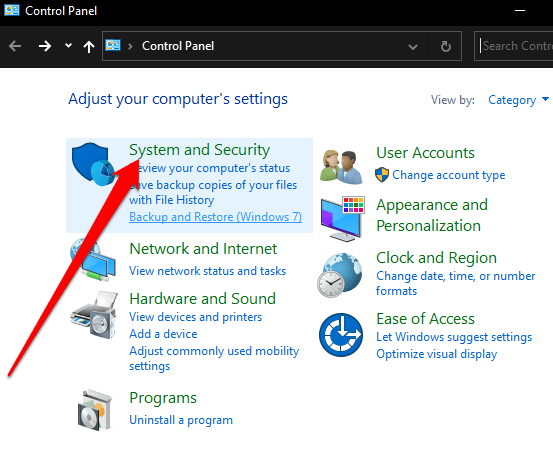
- Open Control Panel and select System and Security.
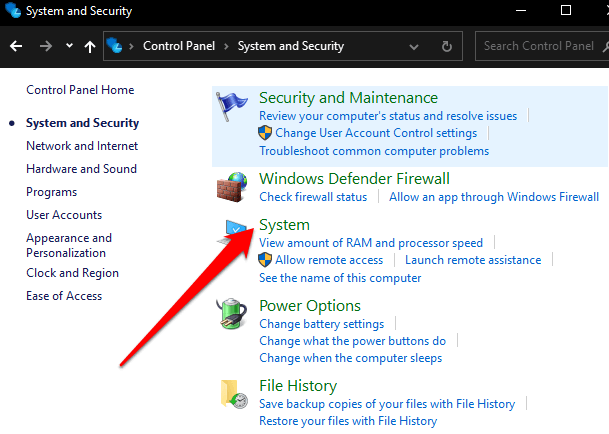
- Next, select System.
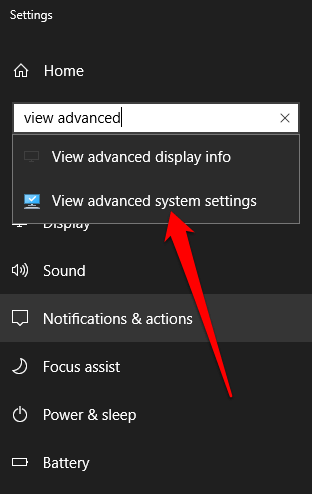
- Type View Advanced System Settings in the search box.
- In the System settings popup, select Settings under the Performance section.
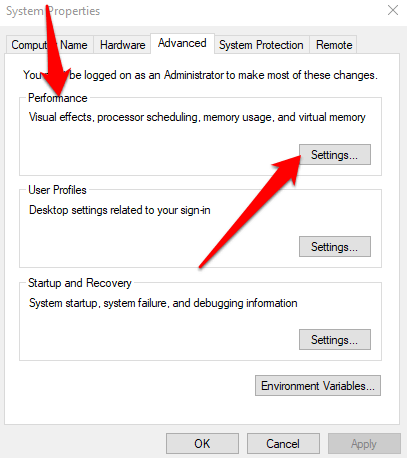
- Select Data Execution Prevention tab to open DEP settings.
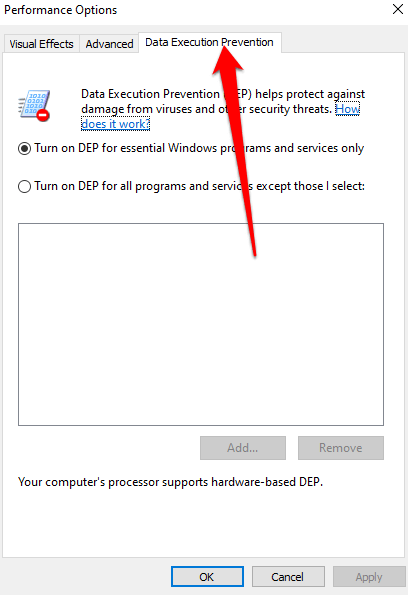
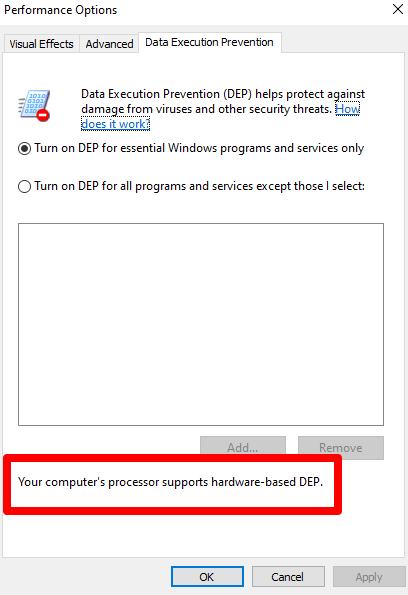
- You’ll see your current DEP status on your system, and whether or not your computer’s processor supports hardware-based DEP.
- You can also add exceptions to DEP if needed, but do this only if there are no other alternatives. To add exceptions, select Turn on DEP for all programs and services except those I select and then select Add. Choose the executable file you want excluded, and then restart your PC for the changes to take effect.
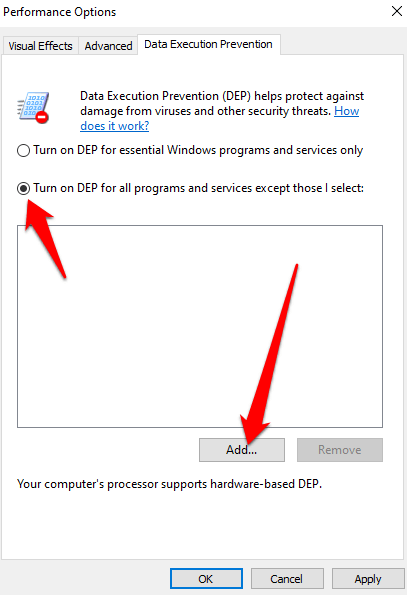
Note: Most conflicts are caused by 32-bit programs, and you can’t exclude 64-bit programs from DEP.
How to Enable or Disable DEP in Windows 10
You can disable DEP in Windows 10 so as to make specific exceptions or modifications for some applications to be used on Windows 10. This is not recommended, but if you must, the only way to do it at the present time is through a command line.
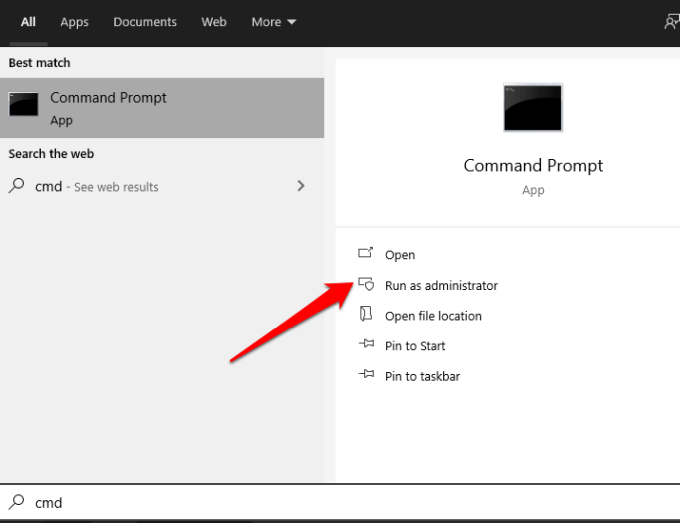
- To get started, select Start and type CMD to open the command prompt menu. Select Run as Administrator to open an elevated command prompt.
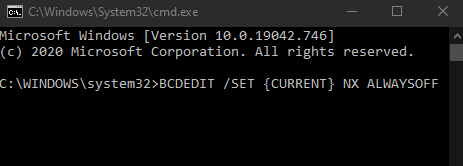
- In the Command Prompt window, enter this command: BCDEDIT /SET {CURRENT} NX ALWAYSOFF and press Enter. The change will take effect after your computer restarts. In some cases, you may need to adjust a BIOS setting to disable DEP via this command.
Note: If you want to turn off DEP for a program that you trust, check first whether the publisher has a DEP-compatible version available, or has updates available. If a DEP-compatible version or update is available, install it and leave DEP active so you can enjoy the protection it can give. Otherwise disabling DEP may leave your system vulnerable to an attack that could spread to other files and programs.
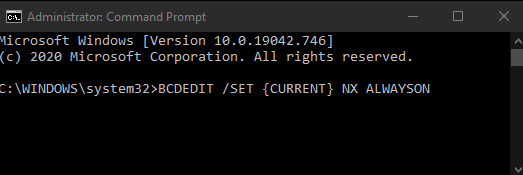
- To enable DEP again, open an elevated command prompt and enter this command: BCDEDIT /SET {CURRENT} NX ALWAYSON. Restart your PC for the changes to take effect.
Enjoy DEP Protection
While Data Execution Prevention is a valuable feature, not all software and hardware fully supports it. For this reason, your PC may experience certain issues and error messages owing to the conflicts some Windows processes face when working with DEP.
However, DEP is among the most basic Windows-based system protections. Unless there’s a valid reason to disable it, DEP should always remain active by default and be treated with caution.