
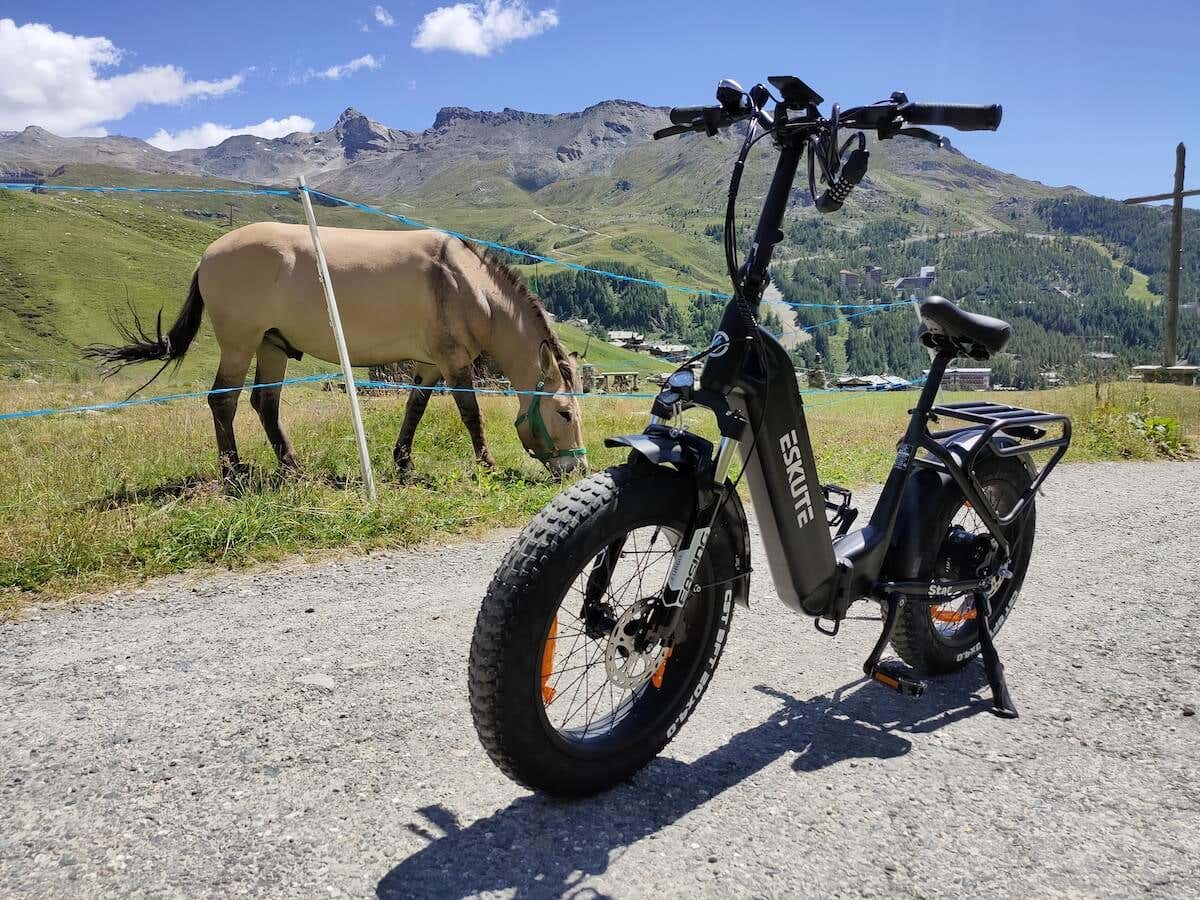
E-bikes are truly the future of urban commuting. They’re fast, easy to use, and, unlike e-scooters or EUC, they still provide you with enough exercise to stay fit. But how to choose the right e-bike for you? Well, that depends entirely on your needs and experience.
Today we’ll be looking at the Star folding fat tire e-bike by Eskute. This bike is a perfect commuter, with a whopping 74 miles max range and thanks to the 20-inch fat tires, it’s suitable for riding on almost any type of road and in any season.
If you’re looking for a city commuter that can take you anywhere, while at the same time you can take it anywhere (Star is a folding bike after all), check out our review of the Eskute Star to see if this is the right e-bike for you.
Eskute Star Folding Fat Tire E-bike: First Impressions & Specs
When you first look at the Eskute Star electric bike and its specs, it promises a superior riding adventure with a blend of power and features. Let’s have a look at the full list of specifications before we move on.
- Package dimensions: 46.8 x 17.7 x 31.1 (119 x 45 x 79 cm)
- Total length: 66.1 in (168 cm)
- Handlebar height: 48 in (122 cm)
- Weight: 74 pounds (33.5 kg)
- Frame: 6061 Aluminium
- Motor: 500W Bafang rear hub motor (US version), 250W Bafang motor 65 Nm torque (EU version)
- Top Speed: 22 mph / 40 km/h (US), 15.5 mph / 25 km/h (EU)
- Pedal assist: 5 assist levels
- Transmission: Shimano 7 speed
- Suspension: hydraulic front fork
- Brake: hydraulic disc
- Weight capacity: 300 lbs
- Tyre: CST, 20 x 4.0″
- Display: color backlit LCD display
- Recommended rider height: 5’2″-6’5″
- Battery: 960Wh removable battery (US), 36V 25Ah(900Wh) lithium-ion removable battery with Samsung/LG cells (EU)
- Range: up to 80 Miles (US), up to 100km (EU) on a single charge
- Charger: 54.6V 3A
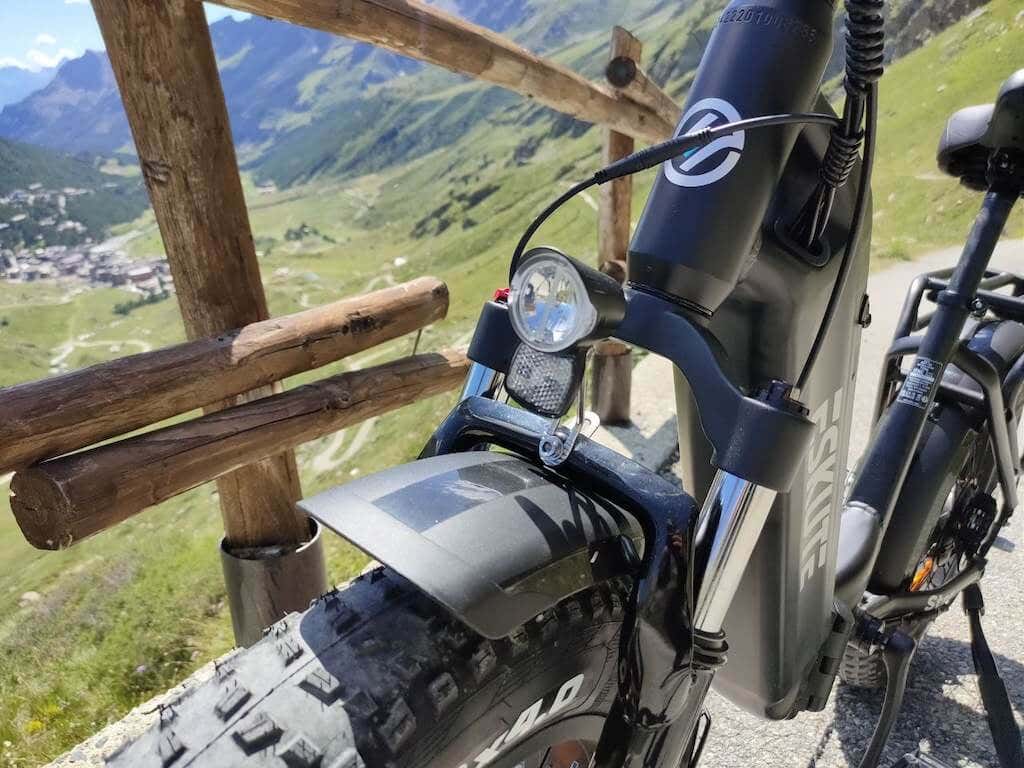
- Lights: StVZO compliant LED anti-glare headlight, integral reflectors and rear light
- Warranty: two-year warranty
- Color: black, matcha green
- Price: from $1399 on the Eskute website on sale and $1299 on Amazon (US version), €1799 on the Eskute website (EU version).
For the purpose of this review, I had the EU version of the Eskute Star bike in black color. The following review will refer to that version of the bike.
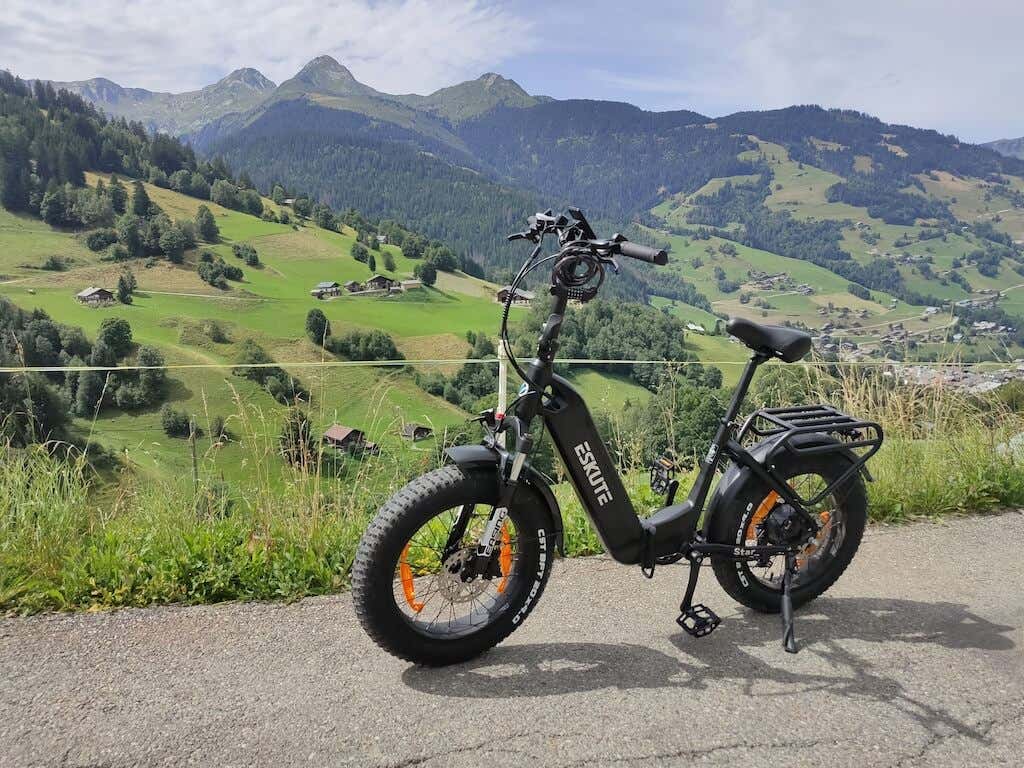
At its core is a robust 250-watt Bafang hub motor, smoothly integrated into the rear wheel for efficient propulsion. Powering this bike is a 36V 25Ah battery, boasting a substantial total capacity of 900 watt-hours (36V x 25Ah).
However, such a big battery means a substantial increase in weight. This bike weighs 74 pounds (33.5 kg) and you’ll feel it every time you need to carry this bike over an obstacle or when you need to load and unload it from your car. It’s safe to say this is not a bike you hope to carry up and down the stairs.
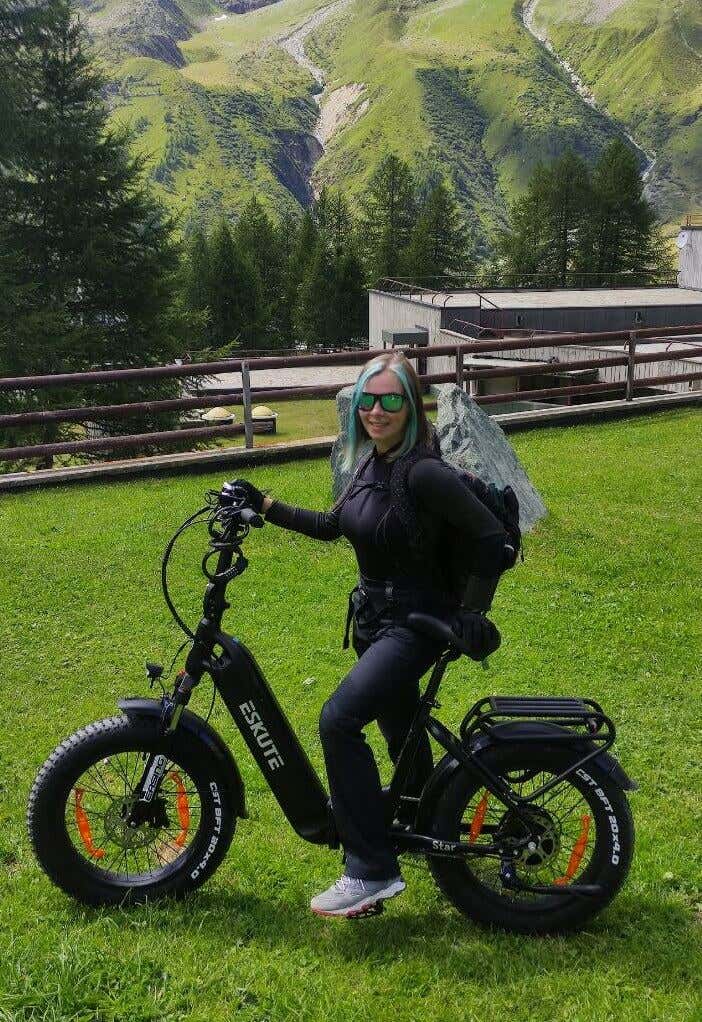
As a 5’2″ girl, I can feel the weight of the bike every time I need to start pedalling. And without the pedal assistance, there would be no way for me to use this bike to go uphill. Luckily, with Eskute Star there’s no need for that.

One of the standout features of this bike is the torque sensor pedal assist system, which responds intelligently to your pedal force with the appropriate electric motor boost. Coupled with a Shimano 7-speed gear system, gear changes are seamless and precise and you can ride the bike uphill just as easily as you would on a flat road.
It’s clear that Eskute paid a lot of attention to rider comfort and control. The Eskute Star comes with front suspension and the 20″ x 4.0″ fat tires which offer impressive traction and stability across different riding conditions. Hydraulic disc brakes ensure reliable and responsive stopping power.
Currently priced at $1,399.00, down from its regular $1,599.00, the Eskute Star seems like an attractive deal for someone looking to get an e-powered commuter.
In summary, there’s a lot to love about the Eskute Star e-bike, including the powerful motor, the battery capacity, torque sensor pedal assist, Shimano 7-speed gear system, front suspension, 20″ x 4.0″ fat tires, and hydraulic disc brakes, and of course the price. If you’re a cyclist looking for a high-performance versatile e-bike, the Star model is definitely worth considering.
That said, if you’re an MTB rider and want an electric mountain bike, Eskute Star won’t satisfy your needs, but we’ll touch on that later in this bike review.
Design and Unpacking
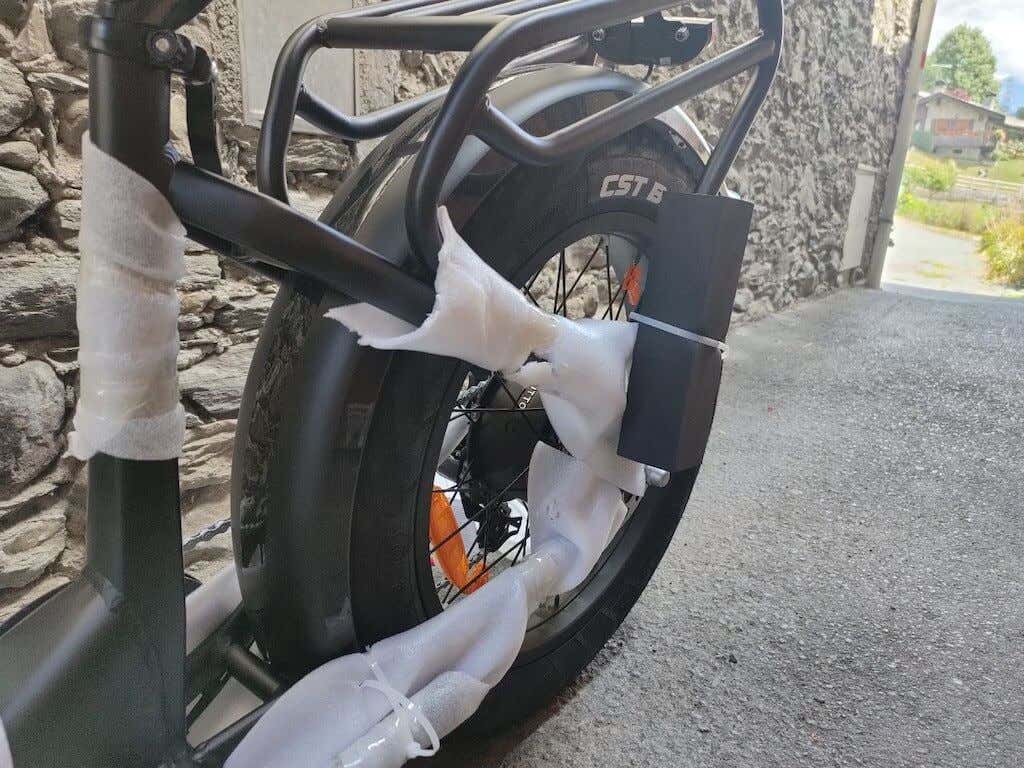
The Eskute Star electric bike merges impressive features with practical design. Straight out of the box, you’ll find your Eskute e-bike carefully packaged, with each part covered in protective foam, bubble wrap or cardboard sheets.
What’s in the Box
Here’s everything you’ll find when unpacking your Eskute Star folding e-bike:
- ESKUTE Star Electric Bike
- Battery Charger
- Tool Kit
You’ll notice there’s no user manual included in the package contents. I guess Eskute made the choice to leave it out for environmental reasons. However, I advise downloading the PDF version of the user manual from the website before you assemble your bike. Otherwise, you may run into certain difficulties when putting the bike together.
After unboxing the Star e-bike, the first thing that grabbed my attention was the foldable frame, which adds convenience and portability. Crafted from lightweight yet robust 6061 aluminum, the frame effectively balances strength and weight.
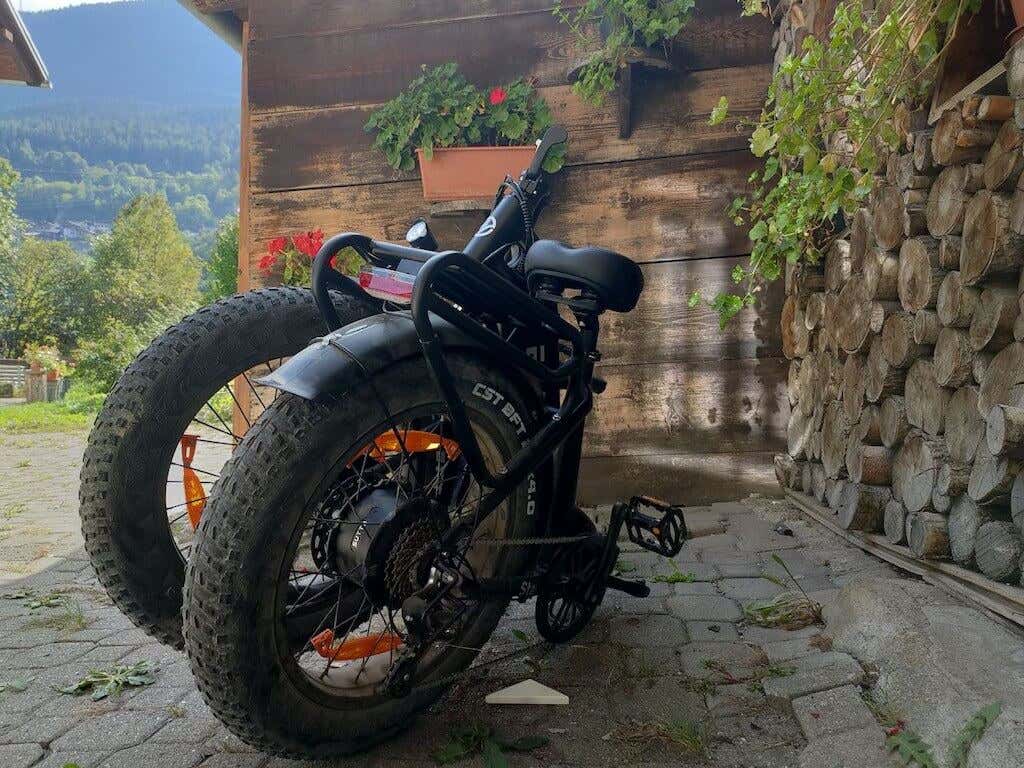
Speaking of weight, with the massive battery inside, Eskute Star isn’t a lightweight bike. At 33.5 kilograms (74 pounds), the bike may be considered relatively heavy for some, particularly in terms of carrying and manoeuvring. Because of the weight, it’s definitely not a bike you’ll want to carry up and down the stairs. However, thanks to its foldable nature, the bike is quick and easy to collapse if you need to store it or put it in the trunk of your car.
When you unfold the bike, you’ll find quite a few things sitting on your handlebar. There’s the pedal assistance control with the on and off switch, the LCD display that you can use to check your current speed, pedal assistance level, mileage, and battery level, the Shimano gear shifter, a little bell to alert other people on the road, and the brakes.
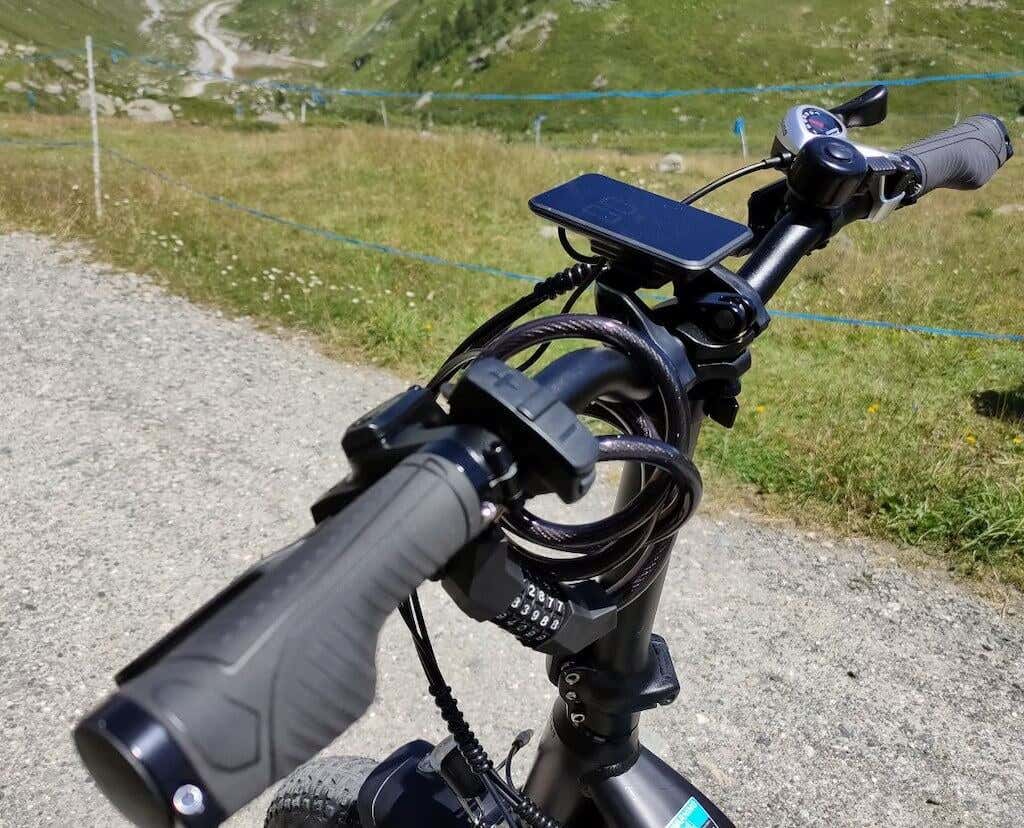
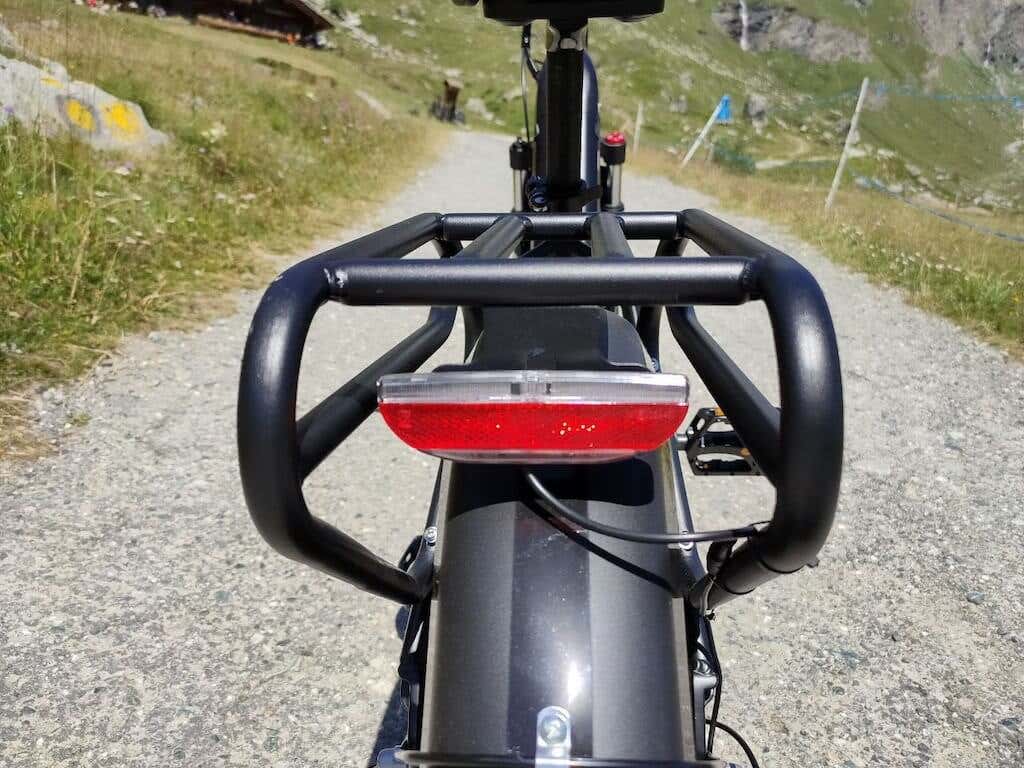
While the LCD display is very useful when you’re riding in the dark, I have to admit that in bright light you’ll wish the display was LED and of better quality, as it’s hard to see the stats sometimes. Safety during night rides is prioritized with strategically placed reflectors as well. These elements maximize visibility without causing discomfort to other road users.
One big design point of the Eskute Star is comfort. You can see that this bike was designed with the rider’s comfort in mind. The step-through frame is one of the most comfortable frames I’ve ever tried and the shock-absorbing bike seat ensures you don’t feel in pain after riding for an extended period of time. The seat is made of shape memory material, which molds to your body contours, distributing weight evenly and reducing pressure points.
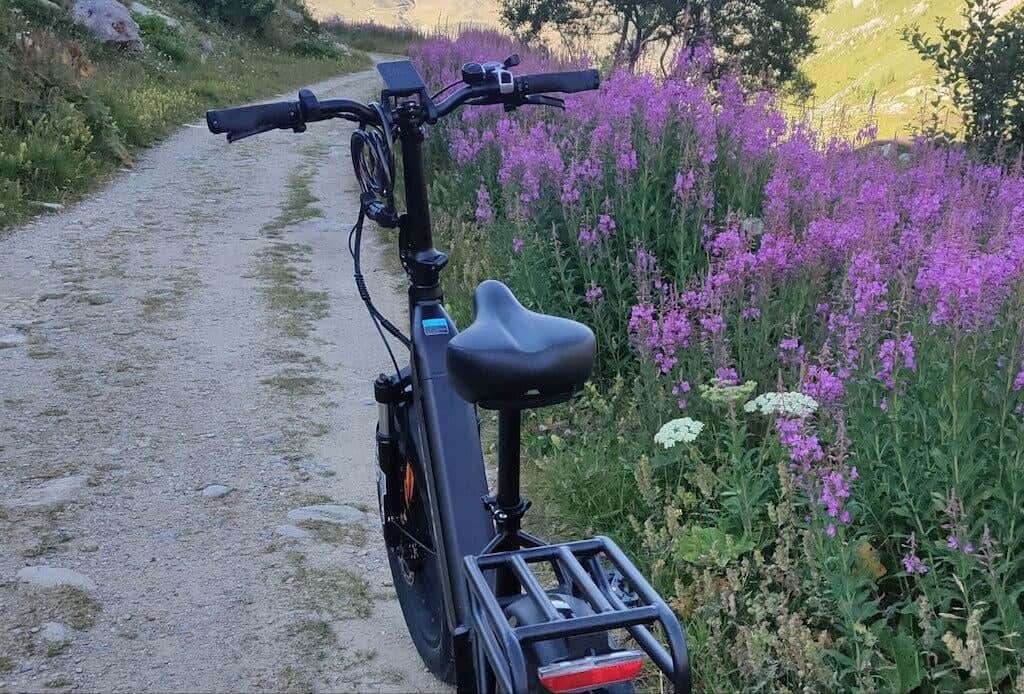
While comfort is important, personal preferences can vary, so I recommend trying out the seat for yourself before making the decision whether it’s suitable for you.
The Star model comes with hydraulic disc brakes which not only look cool but also ensure reliable and efficient stopping power, aiding both your safety and enjoyment. And of course the 20″ x 4.0″ fat tires, provided by Kenda, are the ultimate finish in the bike’s design. These tires offer exceptional grip and stability on various surfaces. Thanks to the added width, these tires provide a larger contact patch with the ground, which in turn enhances traction, grip, and results in your better control over the bike.
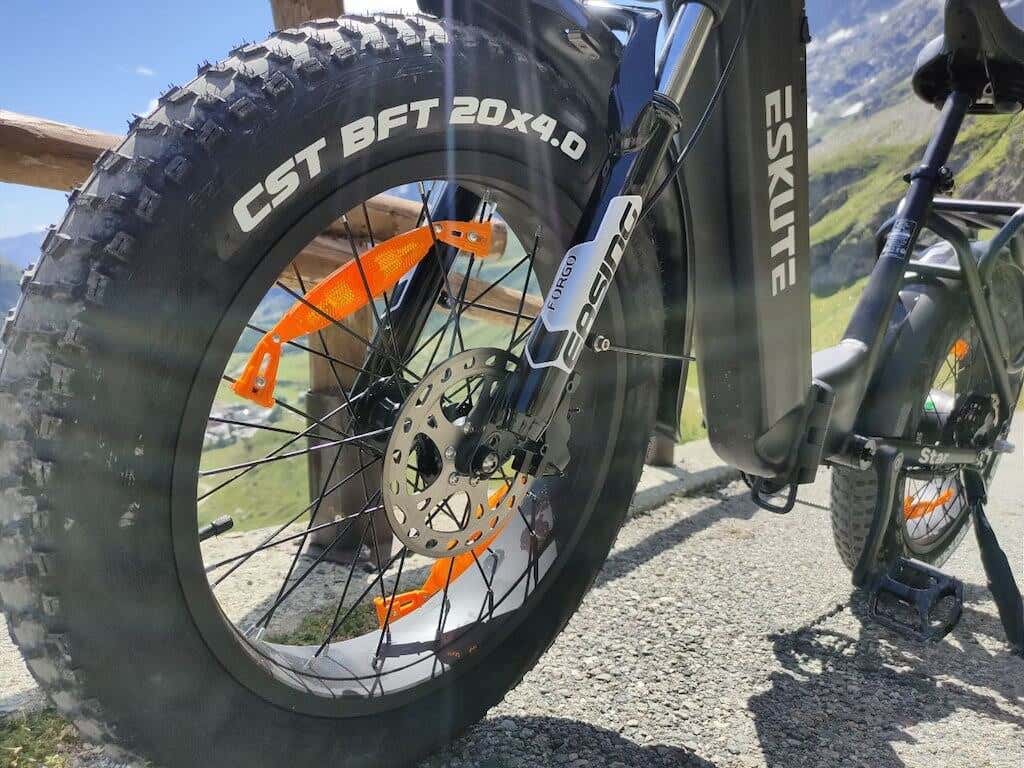
These massive tires are finished with mudguards – essential for any off-road riding – and a bike rack, suitable for carrying some extra weight. Overall, I can say that the Eskute Star e-bike brings together thoughtful design and quality components, and promises a satisfying and enjoyable riding journey. Now let’s see how this bike performs on the road.
Performance on the Road
The Eskute Star is a great commuter. This bike is built for extended journeys, and you won’t regret taking this bike on a long road trip. Thanks to the 90-degree upright riding position, you’re unlikely to feel any tension or pain when riding this bike. I felt the same level of comfort after an hour-long ride as I would after a short 10-minute trip on this bike.
Equipped with a potent 250W Bafang hub motor, the Eskute Star excels in performance, and will propel you through diverse landscapes. The top speed you can reach on this bike using pedal assistance is 15.5 mph in Europe and 22 mph in the US (in accordance with local laws and speed limits).
15.5 mph may not seem like much, but in my experience it’s the perfect speed to keep things under control and maintain your own safety as well as the safety of other people on the road.
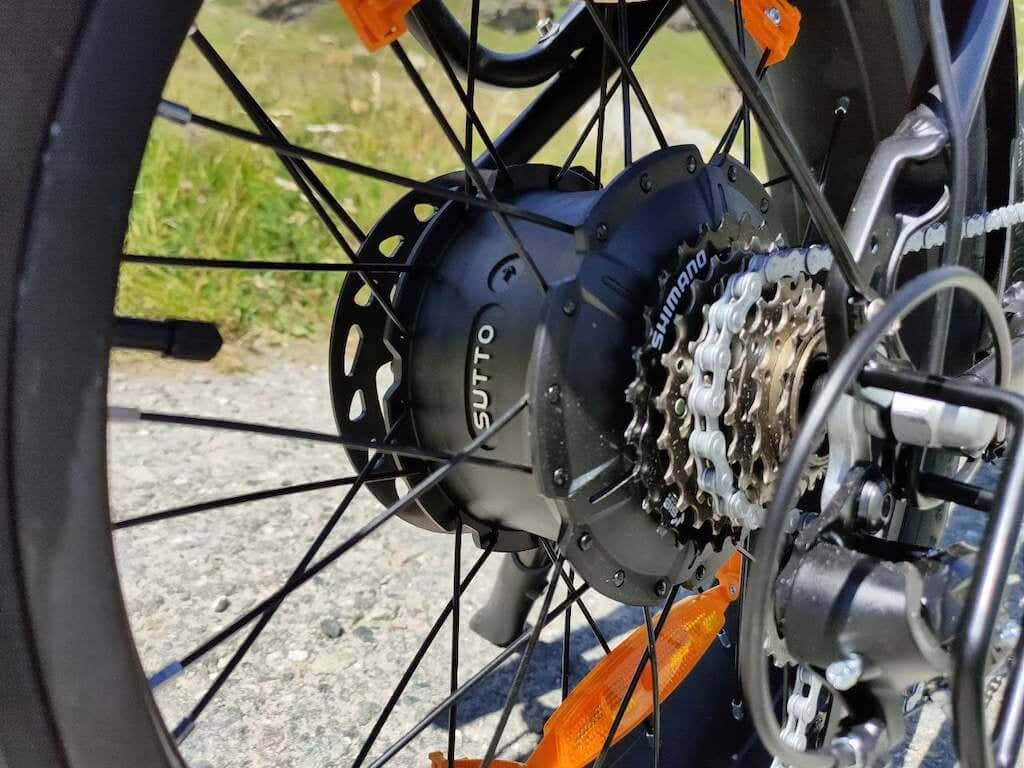
The Bafang hub motor is known for its durability. During the month I spent testing the Eskute Star, I haven’t experienced any problems with its maintenance. And I’ve already gone over the 200 km mark. This powerful motor helps the Eskute Star generate a maximum torque of 65 Nm, as well as conquer inclines and challenging terrains.
I tested the Star e-bike on flat streets, on off-road muddy tracks, and mountain roads with serpentine or reverse curves. The e-bike handled the first two conditions very well, the fat tires can effortlessly run on sand and mud, without compromising the stability of the bike and your safety.
The bike also handled most mountain roads fine. However, if you continue going uphill while also using the maximum pedal assistance level (5), the bike will start acting funny after about 500 m of elevation gain. In my experience, the pedal assist simply stopped working after a while and I had to make a stop and allow it to cool down before I could continue riding.
Outside the mountain road and steep inclines, I barely ever need to use the max 5th level of pedal assist support. On a flat road, you’ll most likely be fine with level 1. When you get tired of riding, you can select a higher level to relax your legs and preserve energy.
At the core of the pedal assist system lies the torque sensor, a pivotal component. It measures your pedal force and communicates with the motor to tailor assistance to your exertion.
This torque sensor-driven pedal assist system can significantly improve your cycling experience. The motor engages as soon as you put pressure on the pedals. As a result, the pedal assist system propels you forward and makes your ride more relaxed and enjoyable.
The speed limit of 15.5 mph works on flat terrain, but there’s no speed limit when you’re going downhill. That’s when the hydraulic disc brakes come into play. They’re very responsive and provide equal stopping power with minimal effort. When riding your Eskute Star, you can be confident knowing that you can safely brake and stop at any point of your ride, no matter how fast you’re going.
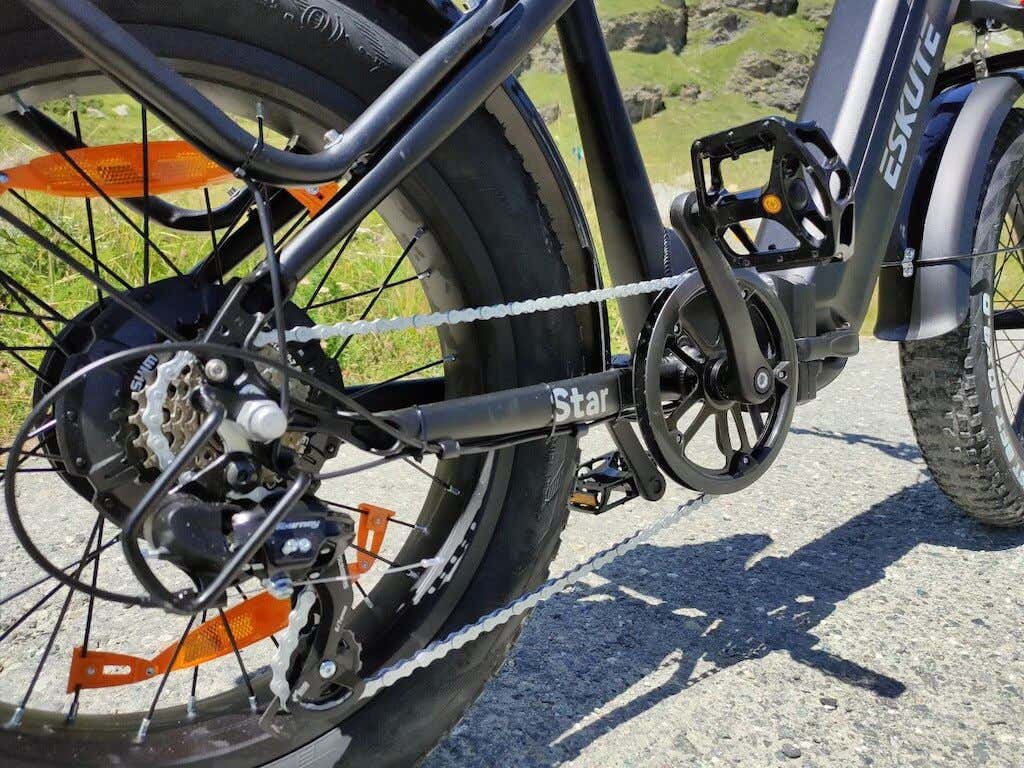
The Shimano 7-speed chainstay works seamlessly and allows for easy shifting of the gears. The precision derailleur and rust-resistant KMC chain all contribute to a great riding experience across diverse terrains.
This bike doesn’t support Bluetooth connectivity. There’s no companion app or ability to control the bike using your smartphone. However, it also means you won’t have to download yet another app on your device.
Off-road Performance
While Eskute Star can go off-road and easily tackle unpaved surfaces like sand, dirt, mud, and snow, this is definitely not a gravel or a mountain bike. Even though there’s a suspension fork with a 50mm travel, and the bike features fat tires, as soon as it hits a rocky trail or a gravel road with some loose rocks, the tires start slipping, and you’ll feel losing control over your bike.
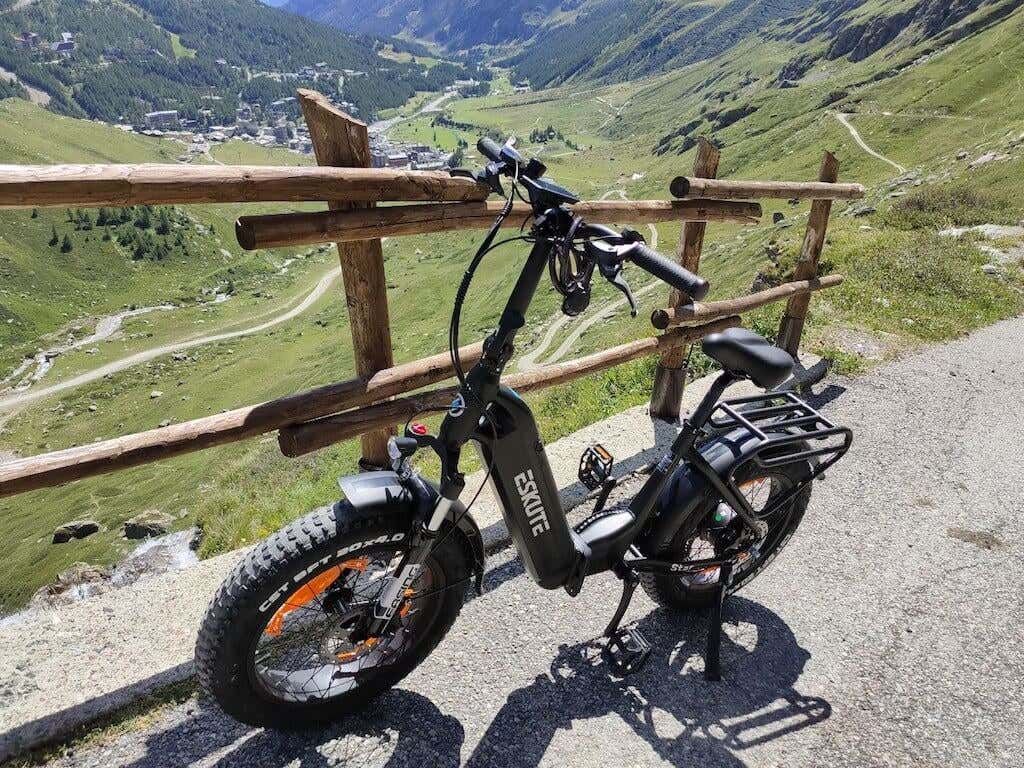
While on a flat road the Eskute Star is nothing but force and stability, on an uneven rocky trek it quickly turns into an uncontrollable bike you’ll be scared to ride. With that said, the Eskute Star was never intended as a mountain bike, and this experience doesn’t take away from how much fun this bike is as a commuter.
Battery Life
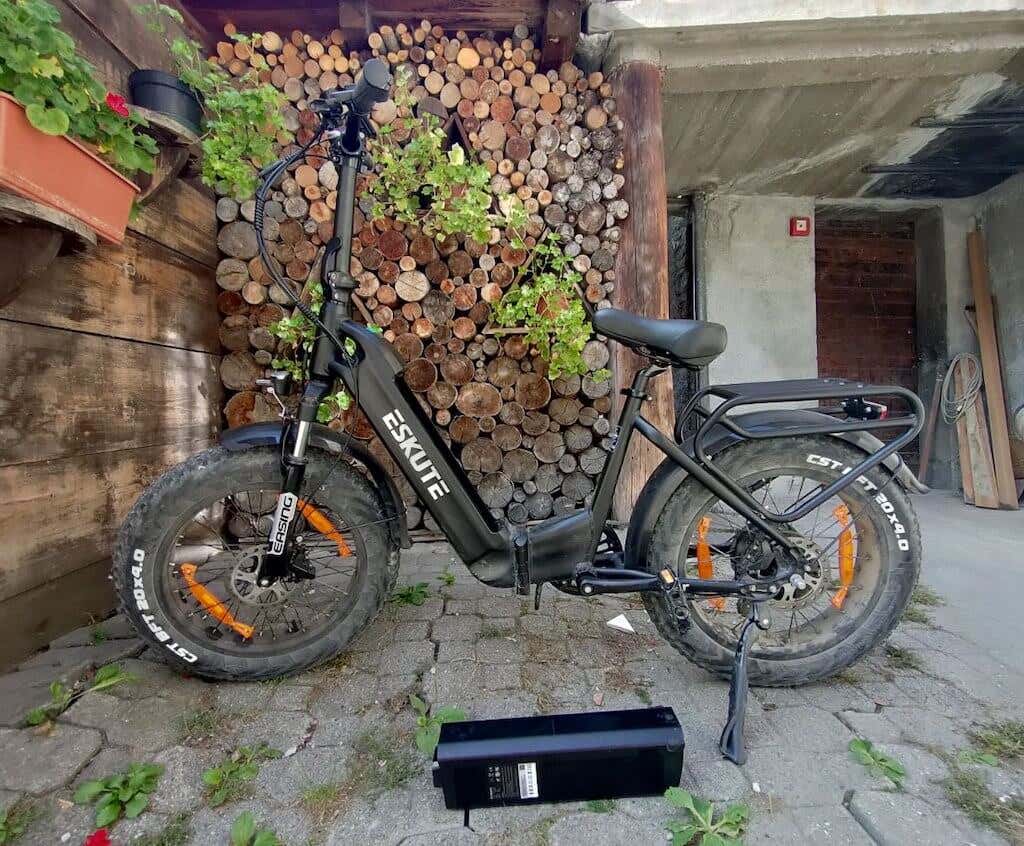
Powering the Eskute Star is a robust 36V, 25Ah 900Wh battery. This battery is cleverly placed into the bike’s central frame, which helps to maintain a sleek and efficient design. You can secure it in the frame or easily detach it for hassle-free recharging, thanks to the key-lock system.
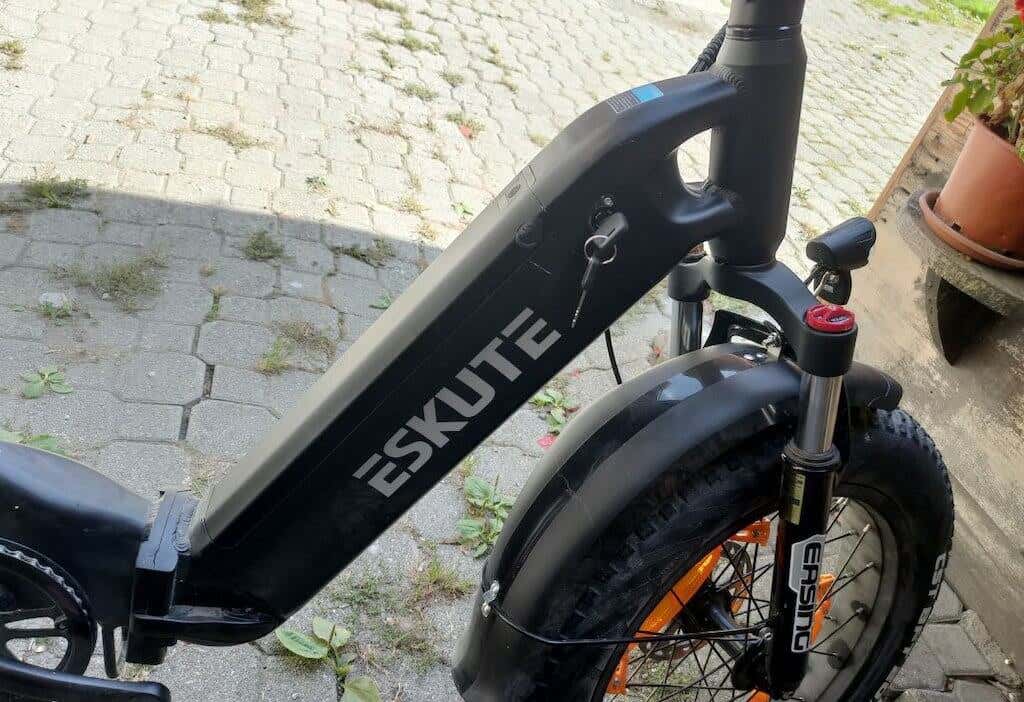
This battery’s maximum range is marked at 74 miles or 100 km on a single charge. The actual range varies based on factors like terrain, rider weight, and the level of pedal assist used.
The battery takes about 7-8 hours to recharge from zero to full. Perfect to put it on an overnight charge. When on the road, you can also charge your e-bike using a portable power station.
Should You Buy the Eskute Star Folding Fat Tire Electric Bike?
Eskute Star is a high-quality fat tire e-bike that will definitely turn heads on the road (in a good sense). The folding capabilities as well as a massive battery make it a great travel companion for when you want to put the bike into your car trunk, drive outside the city and enjoy a peaceful ride in the countryside without breaking a sweat.
It’s not a mountain bike, but it’s a perfect city commuter. The only thing to complain about in this bike is its weight. If the Star model seems too heavy for you, check out other Eskute e-bike they have available – like the Netuno or Polluno models – both weighing around 25kg (56 lbs).