

There are many options when it comes to internet browsers. Add in different platforms and different browsers, and it can get confusing. Fortunately, many software companies have made it easy to manage those moving parts.
For this tutorial, we’re going to cover the aspects you need to know for clearing the cache of various web browsers you may use on the Windows platform.
Mozilla Firefox
- After you open your Mozilla Firefox browser, move your mouse to the upper right corner, where there are three horizontal lines, and click on it to reveal the menu.
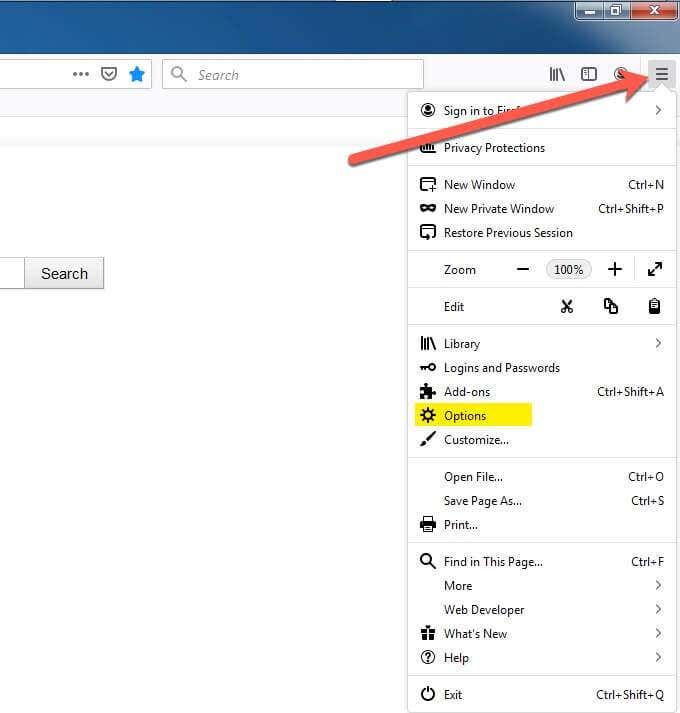
- In the menu, select Options.
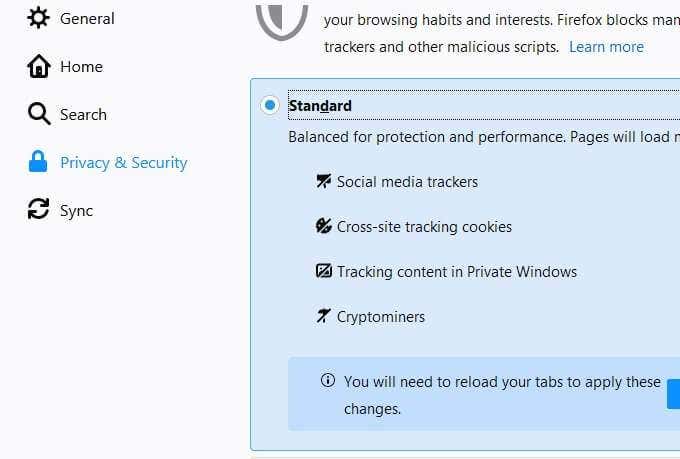
- Once you click on Options, choose Privacy & Security from the left-hand side menu listing.
- This will expose some options to your right, one of which is the Standard block of Social media trackers, Cross-site tracking cookies, Tracking content in Private Windows, and Cryptominers. The Standard option is likely a great place to start as it was created for just such a purpose as this, a starting point.
- If you scroll down further, there are radio buttons to choose (instead of Standard) a Strict option or a Custom option.
- Scrolling further down the page will reveal other options such as Cookies and Site Data.
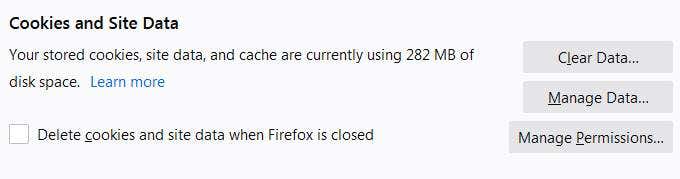
- If you click on the Clear Data button under the Cookies and Site Data section you’ll be presented with a couple of options covering cookies and cache.
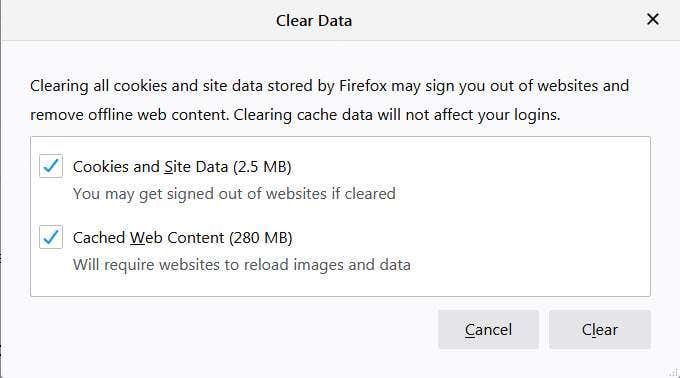
By selecting Cookies and Site Data, you’re removing that code that the sites have stored on your computer (usually after asking permission and you clicked the OK button to the question about cookies).
Keep in mind, this may remove code that you didn’t realize was something you depended on, so only choose this option if you do want to delete those cookies (this goes for all browsers and not just Firefox).
The Cached Web Content, also known simply as cache, or temporary internet files (as we mentioned above) are those files that help pages load faster, and you can check that box to remove those items in Firefox, from this dialogue box.
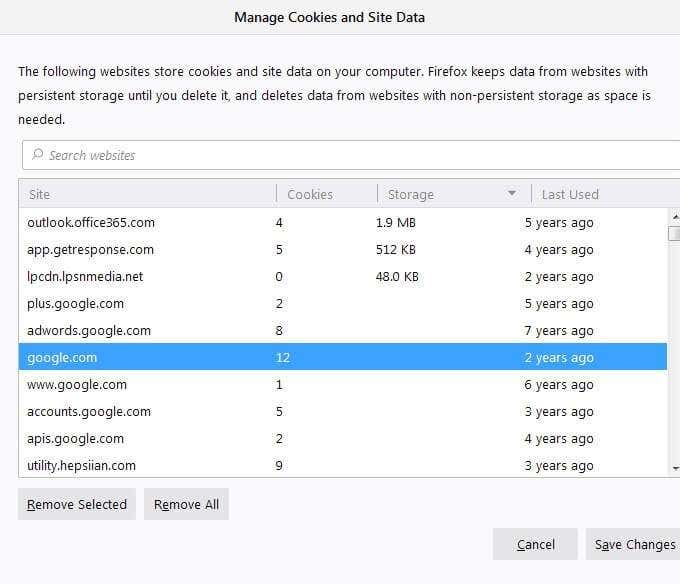
- If you want to select the items to delete manually, you can do so by choosing Manage Data from the Manage Cookies and Site Data dialog. By doing so, you can select the cookie/cache and choose Remove Selected to accurately remove the selected item(s).

- When it comes to history, like local history and search history, you can choose how you want to handle it from the History dialog box.

- If you want to manage the history automatically, you can opt for something like Never remember history or Use custom settings for history from the pull-down menu.
- You can also opt to Remember history and, at will, revisit this setting and choose the Clear History to remove the history all at once. Or maybe you want to do something that combines both approaches.
Google Chrome
- With Google Chrome, you can start to access the history section by clicking on the three vertical dots in the upper right-hand corner of the browser.
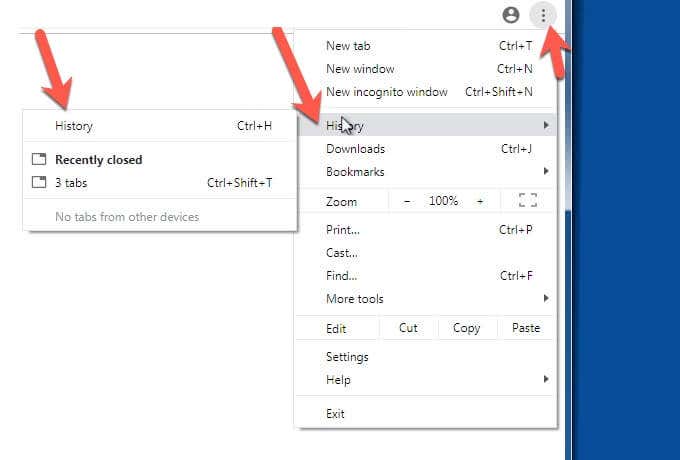
- When you click on the dots, a menu will expand below. Choose History. This will cause another menu to pop out to either side, depending on your Chrome position on the screen. You’ll see History in that menu, too. Select that option.
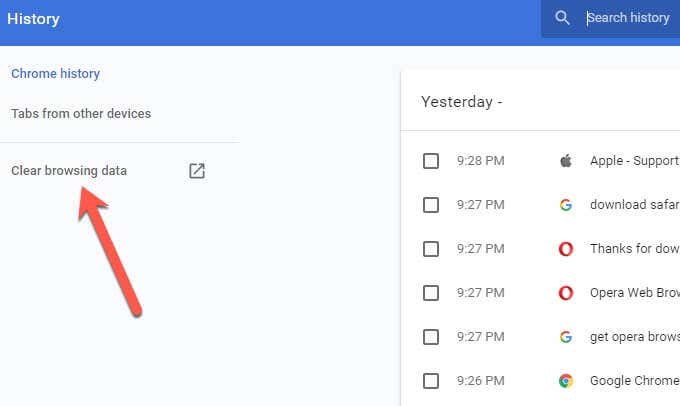
- Within the History window you can click on Clear browsing data to remove the Chrome history. It’s on the left.
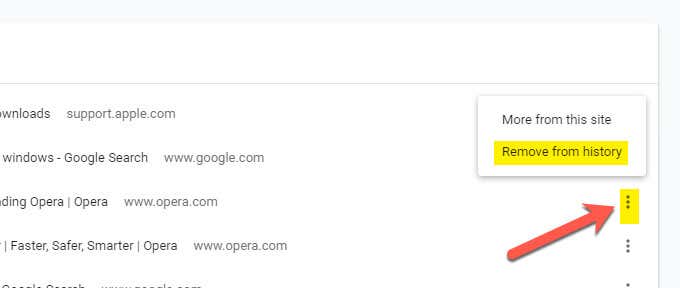
- If you prefer to select one item at a time, you can do so by reviewing the list of pages visited and searches. Click on the three vertical dots to the right of the item you want to remove and click Remove from history in the pop-out menu. You can also use the checkboxes in the list.

- Similar to other browsers, if you’re logged into Google in other places, like on your mobile phone, you can also remove history from those devices, computers, etc, through the convenience of being logged in and the syncing process between devices. For example, with Chrome, you can select Tabs from other devices to manage that history.
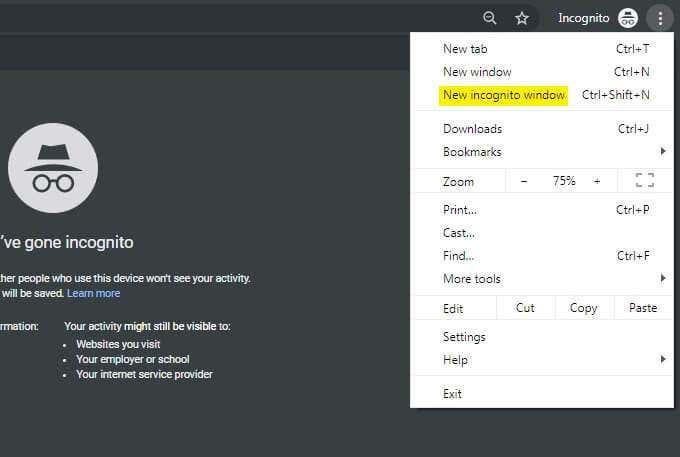
- If you don’t want to have to mess with managing history, etc, many browsers (including Chrome) offer you the option to have incognito web browsing (surfing) whereby the history won’t be recorded. In the case of Chrome, you’ll find the Incognito option in the subsequent menu that appears after clicking the vertical three dots in the upper right-hand corner.
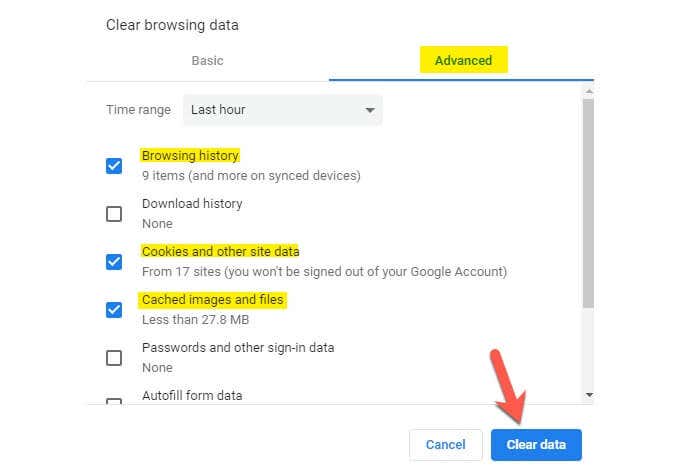
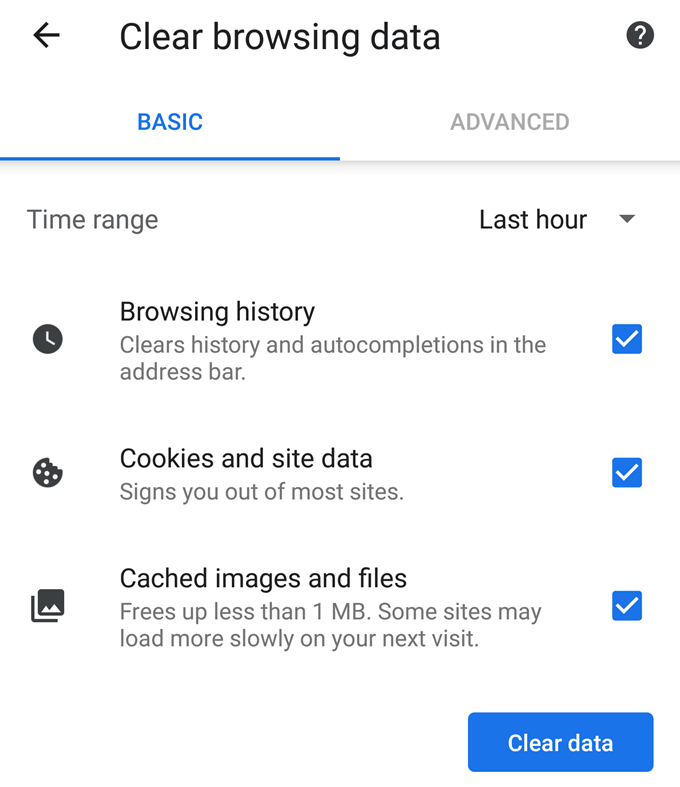
- You will notice an option in the screenshot above to Clear browsing data (cache). If you click on that, you have the opportunity to choose Basic (which may be the easiest) or Advanced (which gives you more options). In that dialogue box, you can choose browsing history, cookies, and more.
The listing is pretty self-explanatory, including defining if it includes synced devices (other places where you may be logged into Google). You can also choose what sort of time range you would prefer, from the pull-down menu at the top of the dialogue box.
- When you’ve selected your options, click Clear data.
Microsoft Internet Explorer
Internet Explorer has been around a while, and many people are familiar with it. At the same time, it has some interesting verbiage that may confuse some people.
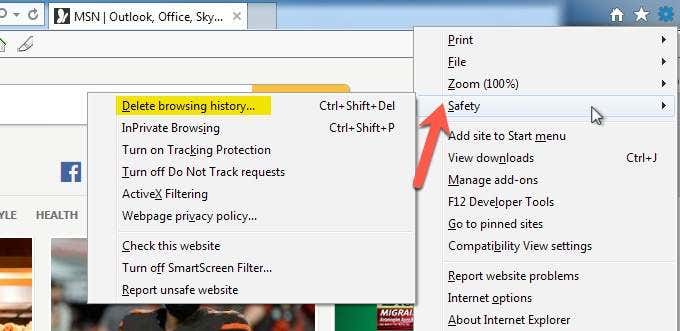
- Similar to other browsers, again you want to look in the upper right corner of the browser. You are looking for a gear icon. Go ahead and click on it.
- A pop-out menu will reveal a list of options that includes Safety. Click on that one. Doing so will produce the option (at the top) to Delete browsing history.
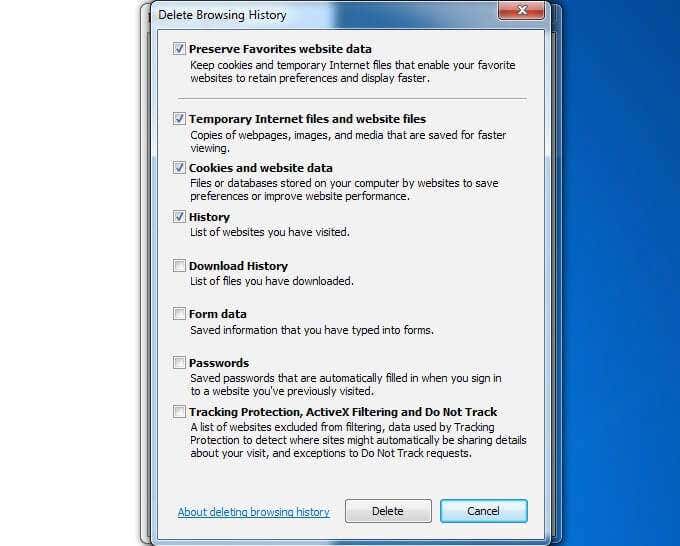
- When you click on Delete browsing history you’ll have several self-explanatory options in the responding dialog box. You can remove the Temporary Internet files and website files (cache), as well as the Cookies and website data, and much more.
One interesting option is the option to Preserve Favorites website data at the top of the dialogue box. This one is handy if you want to do a relatively clean sweep of your browser files, etc., but you don’t want to lose the data that’s most precious to you, the Favorites.
Another one you may not want to delete, initially, are the Passwords. If you opt to check that box, you may want to make sure that you have all of your passwords recorded elsewhere (unless you’re able to remember them).
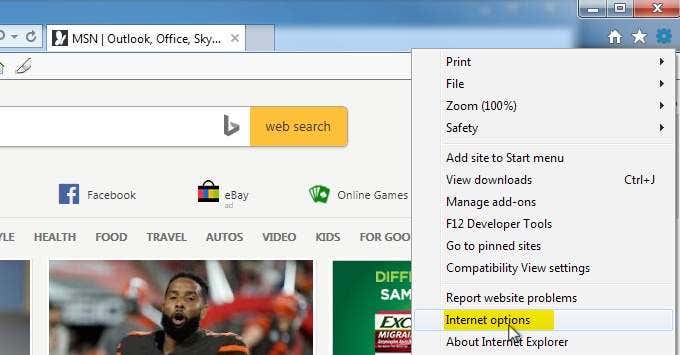
- In order to customize how Internet Explorer handles the internet files, etc, go back to where we started, click on the gear icon in the upper right of the browser, and this time choose Internet Options from the pop-out menu.
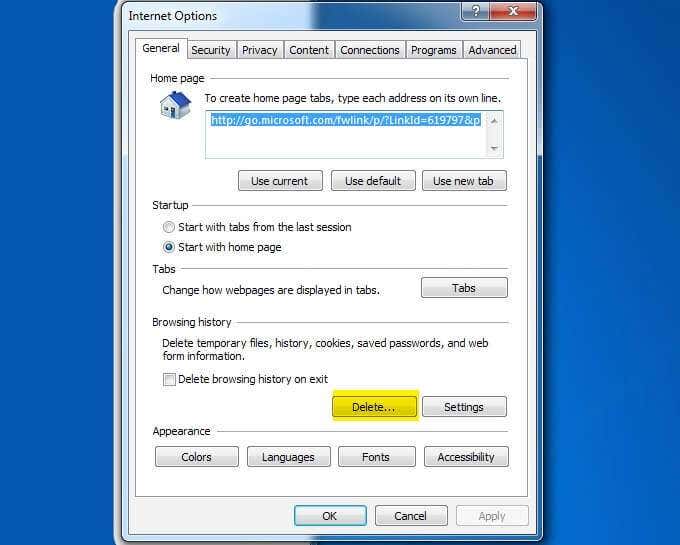
- Within this dialogue, you have the option to click on Delete under Browsing History. You also have Settings and the option to Delete browsing history on exit.
All of this is shown automatically because it’s under the first tab, General.
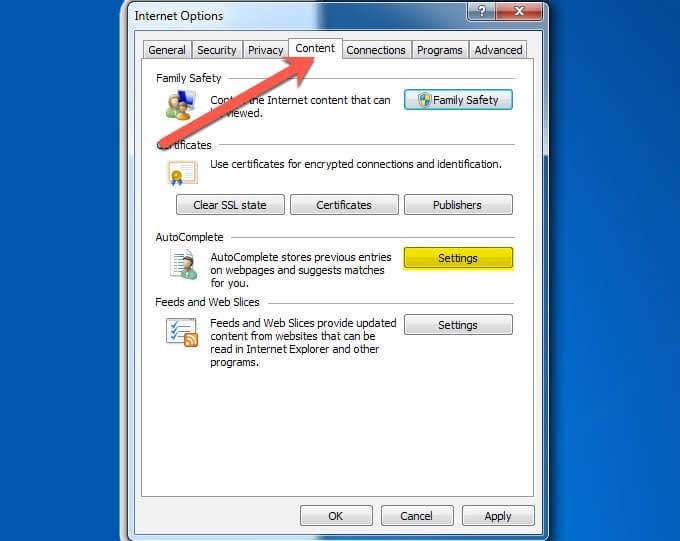
- In the same window, you can select Content, the fourth tab over from the left. On that tab, you have an option to adjust the Settings for AutoComplete.
Similar to cookies from websites, the AutoComplete data helps you when you’re surfing by finishing the web addresses you’re typing, and more. Here, you have the option to remove that information from your Internet Explorer data.
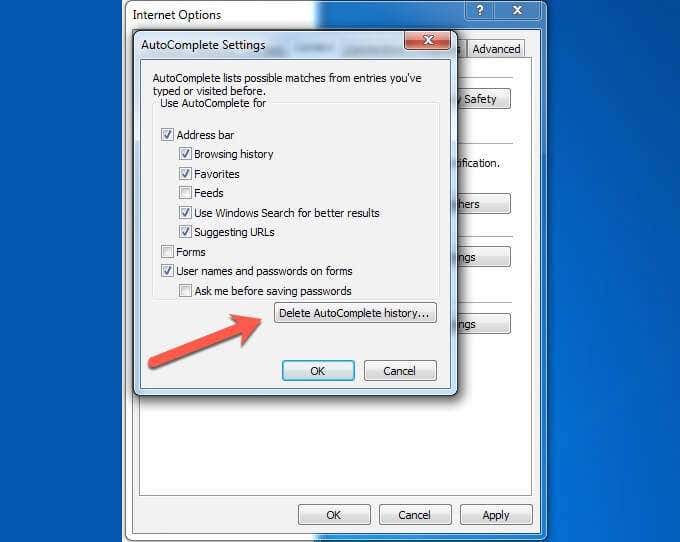
- If you’d like to remove the AutoComplete data, choose the specific data that you’d like removed by clicking on the checkbox and then clicking OK.
Before doing so, you also have the option to Delete AutoComplete history, taking care of it in one click.
Microsoft Edge
The Microsoft Edge browser was first released for Windows 10 in 2015. It remains the default browser in the latest versions of Windows and, along with Internet Explorer, keeps Microsoft as the third most popular browser provider.
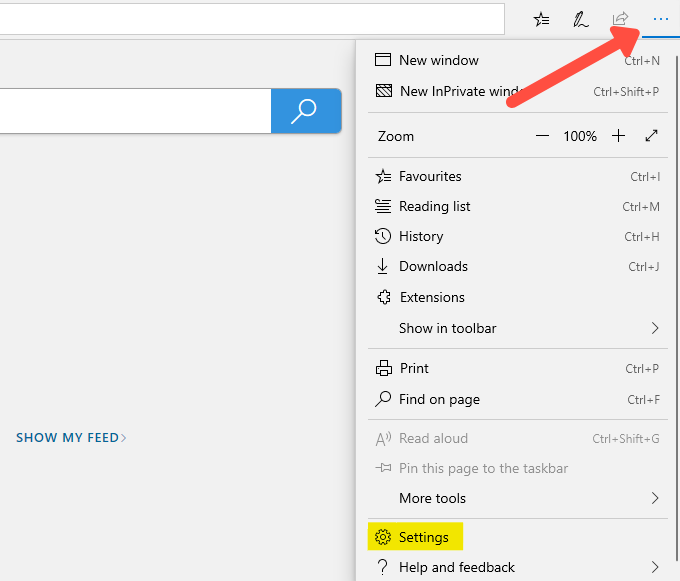
- In Edge, click the three horizontal dots in the upper right of the browser.
- From the pop-out menu, click on Settings.
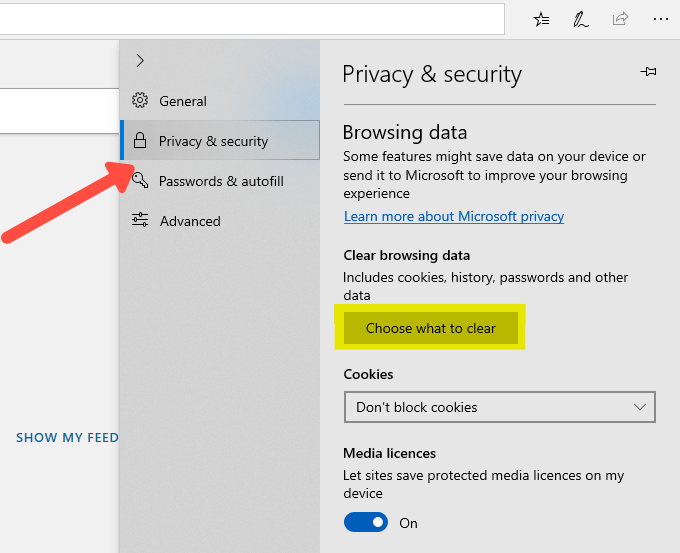
- From the Settings menu you’ll want to click on Privacy & security in the left panel of the pop-out, and then click on the Choose what to clear button.
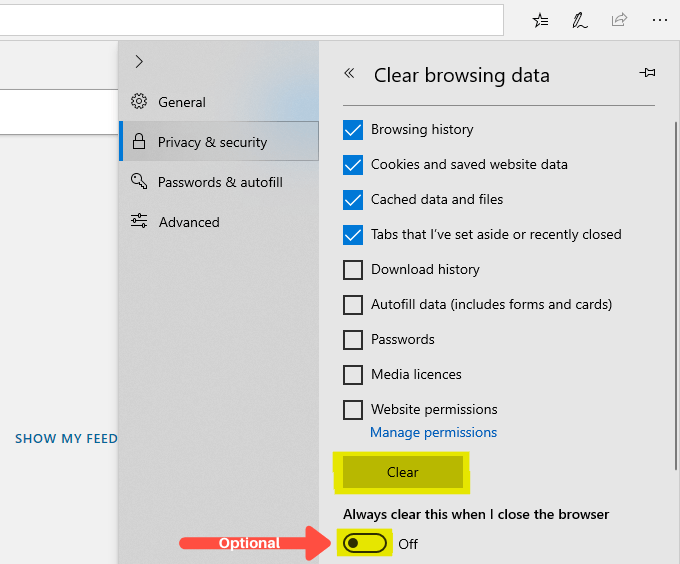
- From the Clear browsing data list you’ll be presented with a list of available options that can be cleared. Four of these options will be selected for you by default: Browsing history, Cookies and saved website data, Cached data and files, and Tabs that I’ve set aside or recently closed.
- You can go ahead and select any or all of the other five options, or you can leave them unticked. By default they are unticked.
- Additionally, you can choose to have this data cleared automatically every time you close Microsoft Edge. If this is something that you’d like to do, click on the Always clear this when I close the browser slider option.
- Having selected what you want to clear, click the Clear button. Once everything has been cleared you’ll see a small All clear! Message
Opera
The Opera browser was developed 24 years ago. It’s popular among those who want to hide their browsing and it has survived to this day as a competitor in the world of browsers.
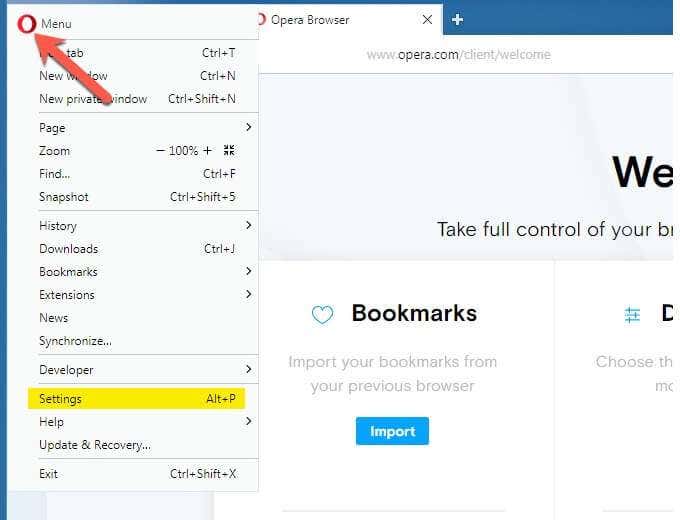
- In this case, you’ll click toward the upper left corner of the browser directly on the O icon, representing Opera. Once that’s done, a pop-out menu will display some options and you’ll want to click on Settings.
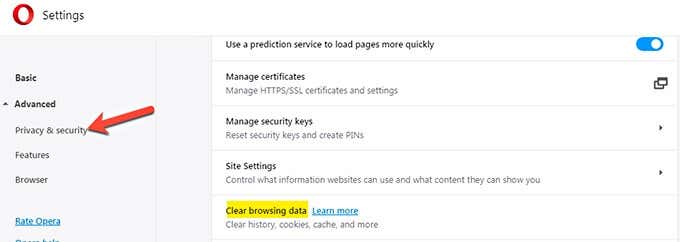
- When you click on Settings, you’ll have an option to expand Advanced (left-hand side) and from there, select Privacy & security. Under that menu, more options will appear to your right. You’ll want to click on Clear browsing data.
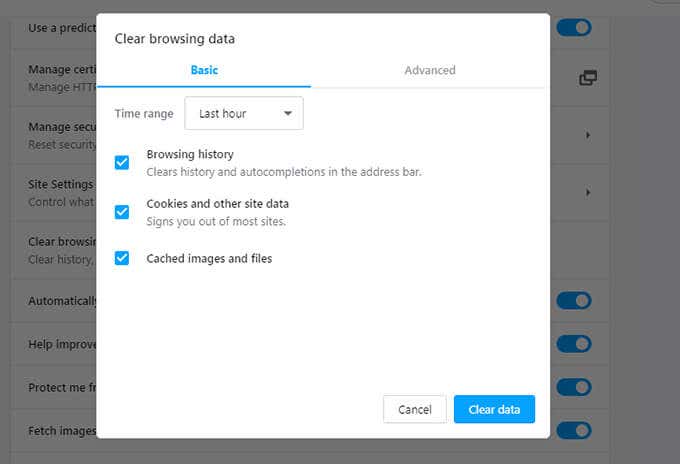
- Similar to the other browsers, you’ll have the option of selecting Basic to the left, which is probably the easiest option. Even within the selection of Basic, you can choose whether you want to delete Browsing History, Cookies and other site data, and Cached images and files.
Apple Safari
Apple Safari is almost taken for granted as the expected browser for Mac users, coming pre-installed. However, with the availability of other browsers, and especially in cases where Mac users find themselves also using Windows (ie. in work environments), more and more Mac users are using other browsers, as well.
So, it’s not a surprise that Windows users may find themselves using Apple Safari on their Windows platform. Apple has not updated the Safari version for Windows past the version of 2012.
The following instructions cover that version, which is still available, at least for now, and are designed to keep your Safari browser running smoothly.
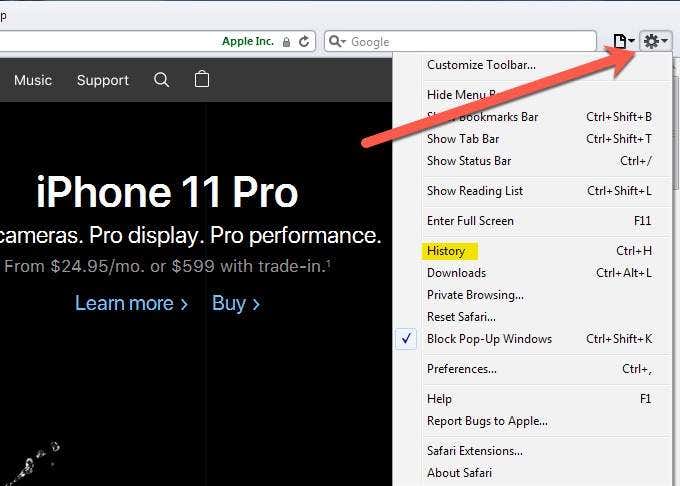
- Clicking on the gear icon in the upper right of the browser will expand a menu where you can select History from the options presented.
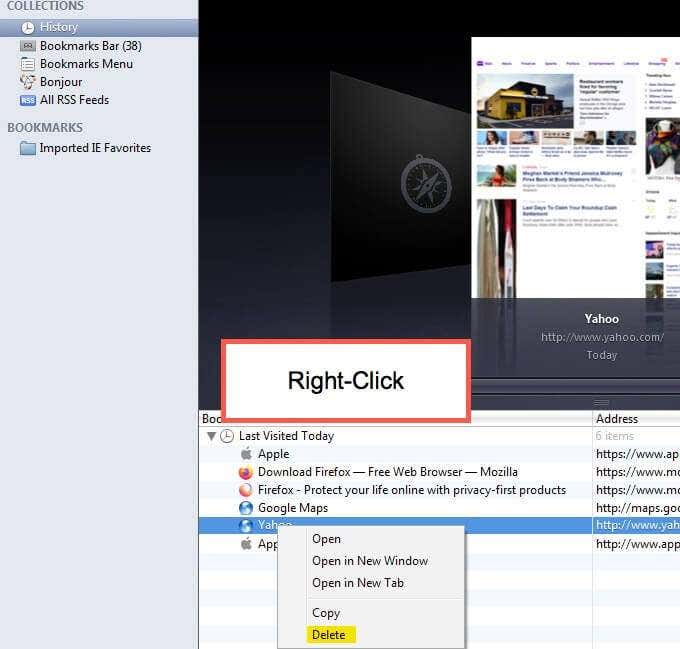
- Under History you’ll see another option to click another History and that will present a list, on the right-hand side, of the sites visited and searches performed. By right-clicking on any singular reference (link) you can select Delete to delete that item from the log of sites visited (history).
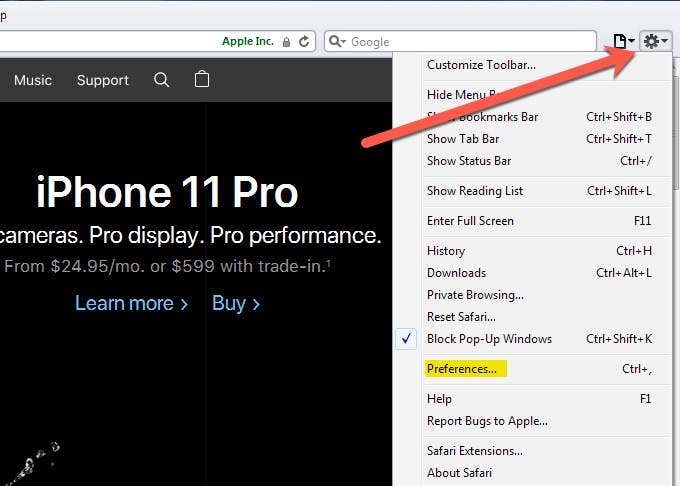
- If you want to manage how your browser behaves with these items, select Preferences instead of History when given the option in the pop-out menu (accessed via the gear icon).
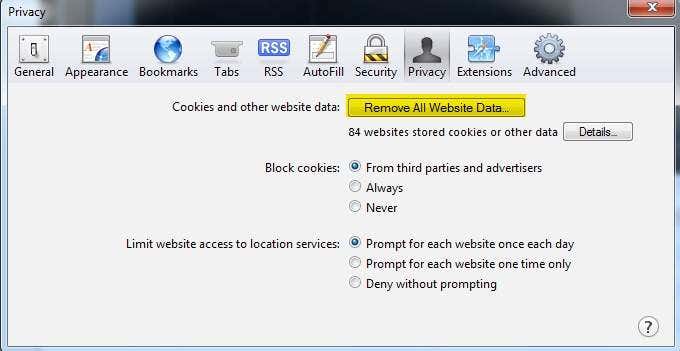
- Under Preferences, you can select Privacy which has the Mystery Man icon and is found on the tab third from the right.
- At that point, you will have access to click the Remove All Website Data button, making it easy to clean up the Safari browser code and temporary internet files (cache), etc. If you would like to have more control over which files are deleted, you can choose the Details button.
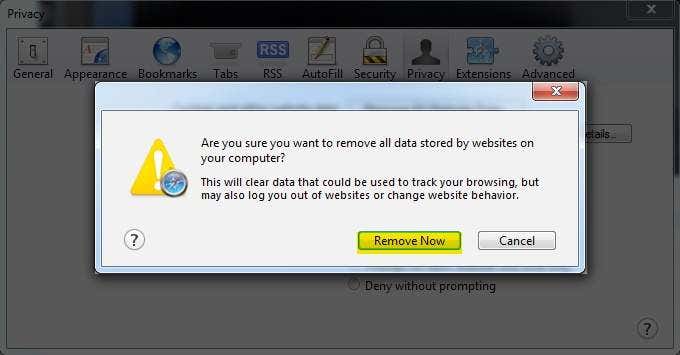
- When you select Remove All Website Data you’ll be presented with a sort of last chance to bail option where you can click on Remove Now if you truly want to remove the data. Otherwise, click Cancel if you’ve decided not to delete this data.
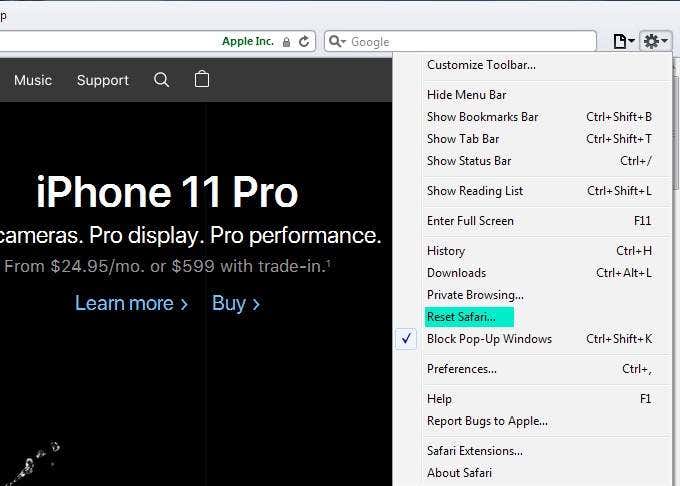
- Are you in a hurry and just want to get this done? Another option, from the gear menu, is to select Reset Safari and allow the browser to delete files and reset itself to practically factory settings, where you can start all over again.
Mobile Browsing
Clearing the browser cache in mobile devices is very similar to what we journeyed through above, and especially amongst the same developer. Some necessary steps are listed below to help you get started.
Android
- When using an Android device, visit the browser and select Menu, then More, and you will see an option for Settings or Menu.
- After selecting that, you want Settings and Privacy & Security. If you are using a Chrome browser, It is a little more streamlined with the Menu option and then Settings and Privacy. Both methods are similar on Android, once you get the hang of it.
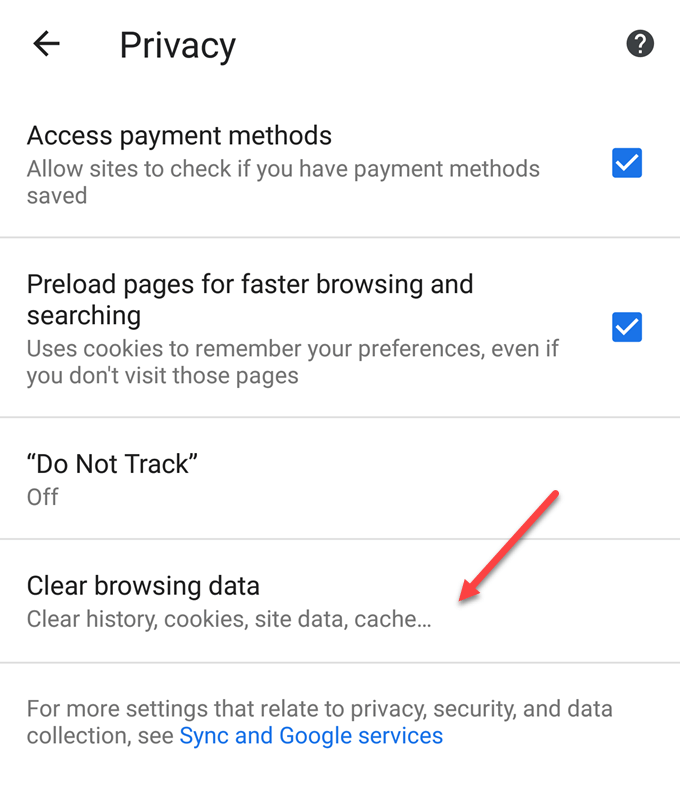
Removing the data (including temporary smartphone files) is a little different between the Android browser and the Chrome browser. The Chrome browser thinks for you, and all you need to do is click on Clear to have the browser do it for you (utilizing the default settings).
The Android browser provides options to tap Clear cache or Clear history, or Clear all cookie data, or whatever combination you desire.
Apple iOS
We covered Windows Safari in the computer-based browser. In Apple devices like iPhones, iPads, etc., the process is very similar. Instead of going straight to the browser, Apple has it set up so you can access what you need via Settings represented by the Gear icon, likely on your main screen (to start).
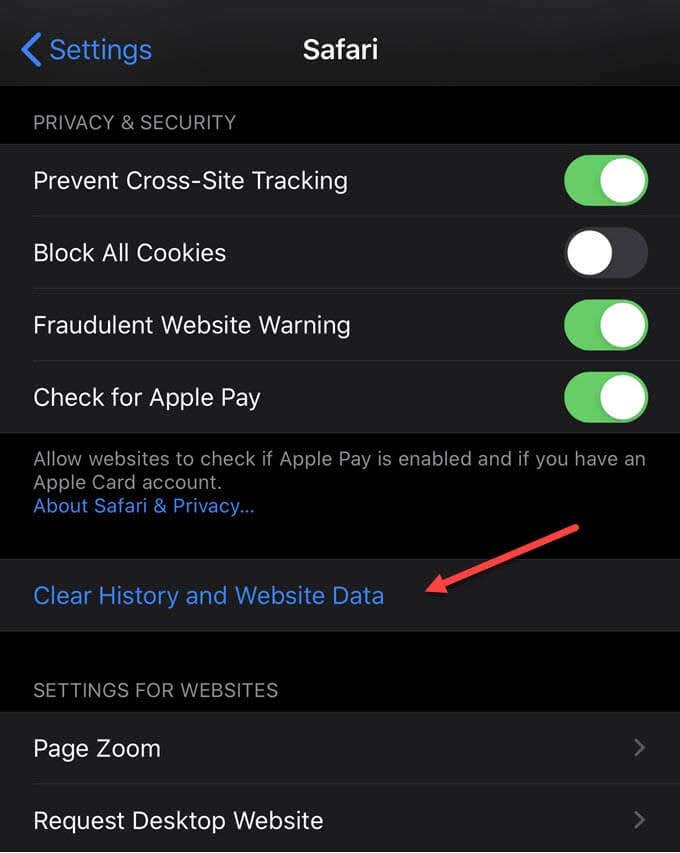
- In the listing of settings, choose Safari.
- Scrolling down in the Safari settings, you can opt for Clear History and Website Data. Your iOS device will request a confirmation of that selection with something like Clear History and Data for you to verify your selection/choice.
Kindle Fire
If you’re into the Kindle scene, you can also clear the browser cache and history (and cookies).
- Select the browser and look for the menu, then Settings and then Privacy.
- The selection to Clear browsing data should then appear for you to select/tap.
- Select the self-explanatory options that you want to clear and click Clear.
Note: this process may not work for all Kindles (i.e. first generation) but should give you an idea of how to work through this on your device.