
Microsoft Edge is currently considered the fastest web browser available. Users benefit by being able to open web pages quickly, but ads slow down the process and interfere with the user experience. While browsing the web, users are bombarded with pop-up and embedded ads.
In addition to being annoying and slowing down page loading speeds, ads and pop-ups:
- Can threaten users privacy.
- May carry malware.
- Clutter your screen.
- Distract users.
- Protect impulse buyers from making purchases.
- Take up bandwidth.
- Drain battery power.
As a response to this intrusion, developers have created browser extensions to block ads in Edge. Below are six free extensions for Microsoft Edge that you can use to block ads:
- Ghostery
- Adguard AdBlocker
- Adblock Plus
- uBlock Origin
- Adblocker Ultimate
- AdBlock
Ghostery
Ghostery advertises itself as a privacy ad blocker. It works to block ads, speed up websites, and stop trackers.
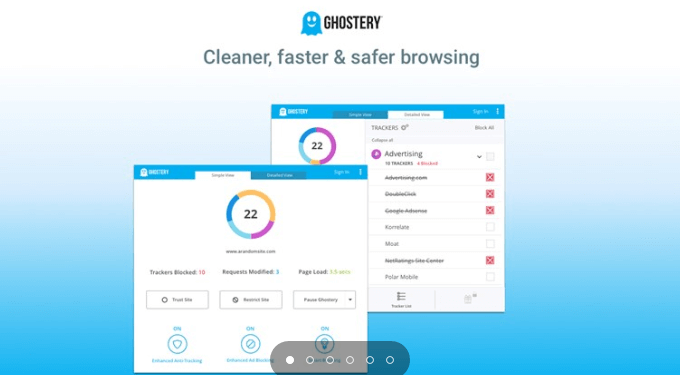
Some of the other features of Ghostery include:
- Protecting your privacy
- Increasing browsing speed
- Blocking scripts that slow down page performance
- Eliminating clutter by removing ads from a webpage
Choose from the multiple display options and insights dashboard to customize your view. This way you will only see the information that is relevant to you.
Adguard AdBlocker
Adguard blocks all types of ads including those from social media platforms such as Facebook and YouTube. It is like other ad blockers but has the added benefit of keeping your browsing away from social media.
Social media platforms such as Facebook and YouTube will be blocked from showing users suggested social media pages.
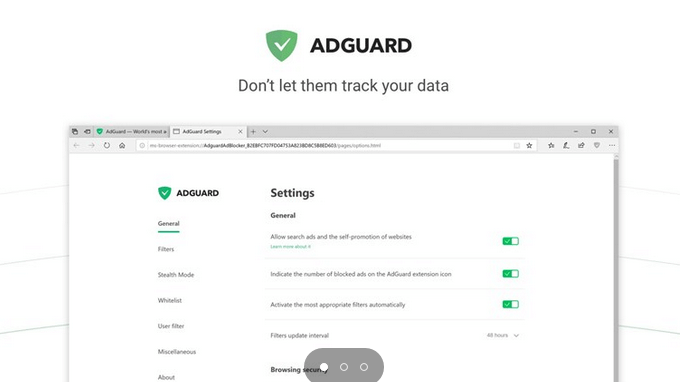
Adguard blocks all types of ads, including:
- Banner and text (Facebook AdBlock)
- Rich media advertising
- Video (YouTube Adblock)
- Unwanted pop-ups (pop-up blocker)
Adguard AdBlocker also effectively:
- Speeds up web page loading time
- Protects privacy by blocking third-party tracking systems, adware, phishing, malware, and spyware
- Blocks many dialer installers
Protect your privacy, remove social media widgets, and protect yourself from online threats with AdGuard AdBlocker.
Adblock Plus
Adblock Plus is an extension for all browsers. It supports websites by not automatically permitting some types of ads from appearing.
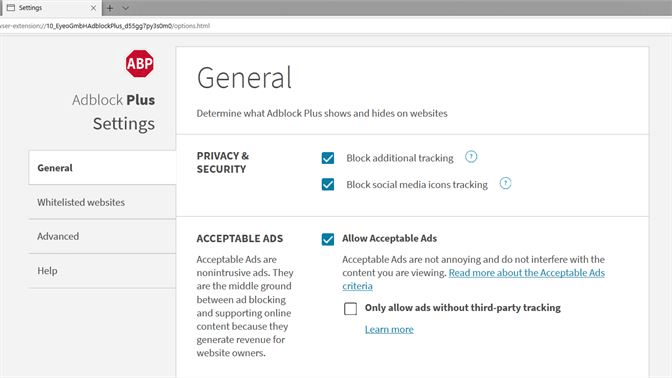
It also whitelists unobtrusive ads by default.
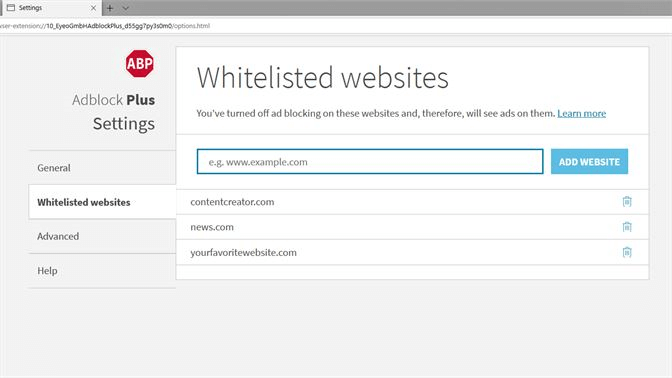
Some of the additional benefits of Adblock Plus enable users to:
- Add domains to a non-block whitelist
- Subscribe to third-party filter lists
- Control the appearance of the extension in your toolbar
- Create your own filter
- Disable malware domains, ad tracking, and popular social network share buttons
- Use on Android and iOS mobile devices
Adblock Plus is currently in beta early development stages for Microsoft Edge. This means there are some limitations and issues, but it is still a popular ad blocker.
uBlock Origin
Block ads and protect your system from malicious sites with uBlock Origin, a lightweight extension to block ads in Microsoft Edge.
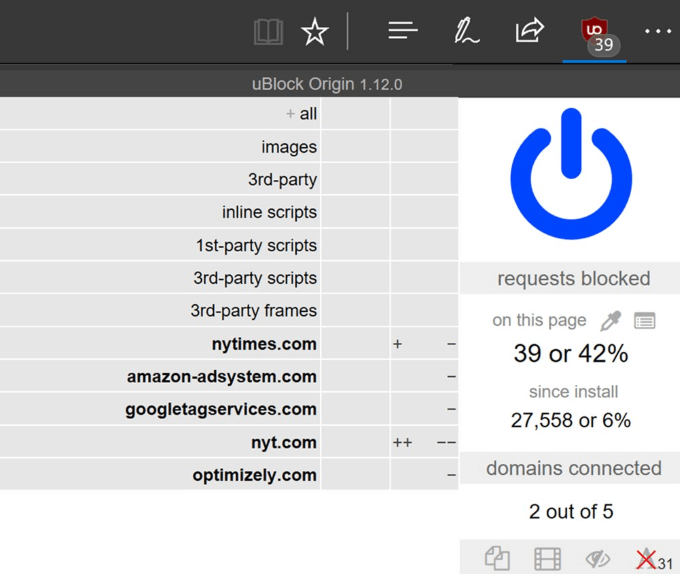
uBlock Origin gets rid of data or browsing history to prevent it from being sold to other websites by using an improved anti-tracker method. It is also:
- Easy on CPU memory
- Flexible and enables users to create and read filters from host files
- Customizable with many menu configuration settings
- Easy to turn ad-block on or off for any website
Create block filters or choose from block lists included in the extension.
Usage note: the power button will only enable or disable ads from the site you are currently on; it is not a global button.
Adblocker Ultimate
Designed with a single purpose in mind, Adblocker Ultimate is an extension that removes ads, blocks malware, improves browser performance, and disables tracking.
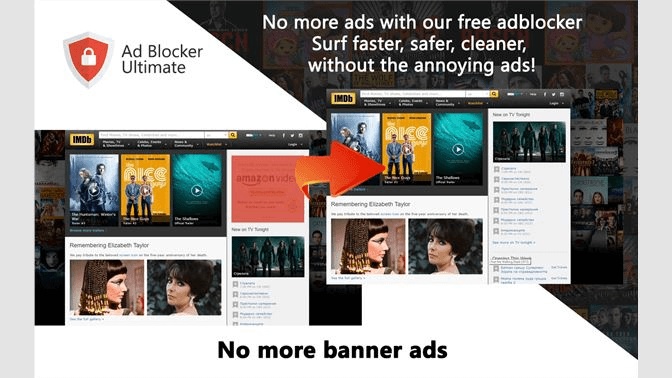
The types of ads AdBlocker Ultimate blocks are:
- Webmail
- Pop-up
- Text
- Interstitial
- Video
- Banner
- Overlay
- Pop-under
With Adblocker Ultimate, you can switch ads back on for websites that you know do not have any misleading or intrusive ads.
AdBlock
AdBlock is the original ad blocker and considered by many to be the best. Since its launch in 2009, it has been downloaded over 200 million times.
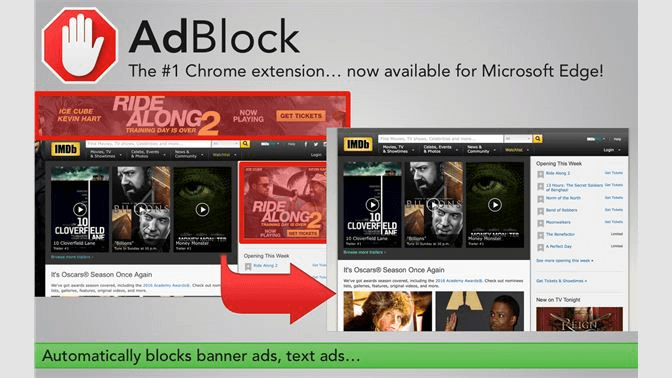
Users can:
- Whitelist specific YouTube channels
- Subscribe to filter lists
- Show ads on selected URLs and domains
- Allow some forms of advertising by adjusting the settings
- Create custom filters
- Block ads by site URL
AdBlock supports websites by not blocking unobtrusive ads. You will see an automatically generated notice that you have access to your website data and browsing history.
This is because AdBlock runs on every tab. Rest assured that it is not monitoring you and you will never need to give up any personal information. Using ad blockers serves many purposes besides not allowing ads to waste your time or annoy you.
Ads can slow down your browser, spread malware, track your browsing history, and gather data about your location and interests.
Be sure to choose an ad blocker that is easy to turn on and off because some sites will refuse to display their content until you disable your ad blocker.
Select one of the extensions above to block ads in Edge and enjoy better computer privacy, a better browsing experience, longer battery life, and faster loading times.