
Snapchat has become one of the most popular social media apps worldwide. The idea is that Snapchat users send “Snaps” to their friends for a certain amount of time. Then, if the receiver screenshots the snap, the sender is told. But how can you take a screenshot on Snapchat without the sender knowing?
This tutorial will outline a few workarounds you can use to screenshot a Snapchat without notifying your friends.
4 Ways to Take Screenshots on Snapchat Without Anyone Knowing on Android
Here are four methods to take a Snapchat screenshot without notifying the sender on Android.
1. Use the Built-in Screen Recorder
The easiest way to covertly screenshot a Snapchat for Android users is to use the built-in screen recorder available on Android devices.
- Unlock your Android phone and swipe down on the screen to access the Notification Panel. Swipe down again to access Quick Settings.
- Swipe right and tap the Screen Record icon to begin recording your phone screen.
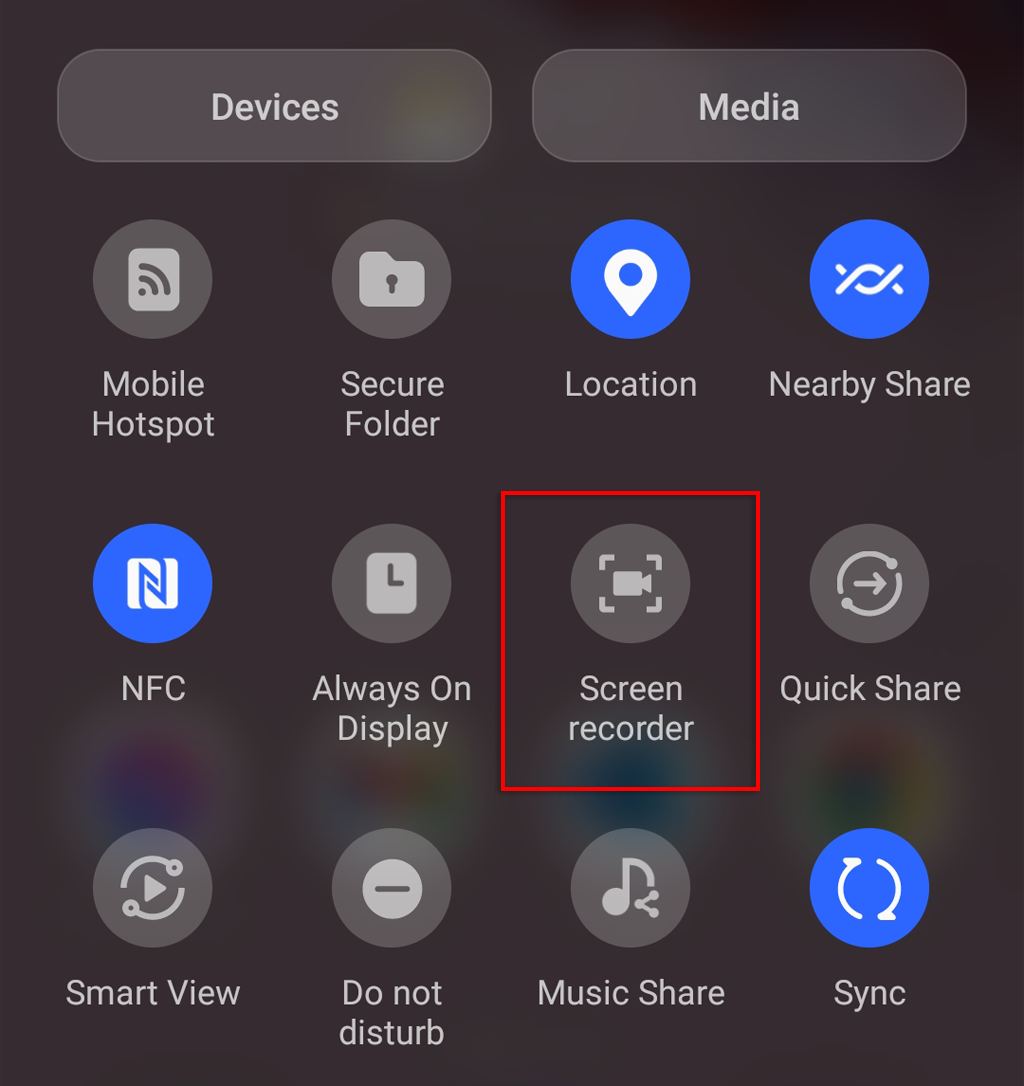
- Open the Snapchat or the Snapchat story you want to save, and press the Screen Record icon once you’re finished.
- You can now screenshot Snapchat from the video recording in your gallery.
2. Use Airplane Mode
This is another simple method to take secret Snapchat screenshots — but make sure to do everything in order otherwise it won’t work.
Note: Some Android users have found that this method no longer works, but it worked on two separate devices when we tested it. We recommend testing this method beforehand to avoid embarrassment.
- Open Snapchat and make sure the Snap you want to screenshot is loaded — but don’t open it yet.
- Swipe down on the screen twice to open Quick Settings.
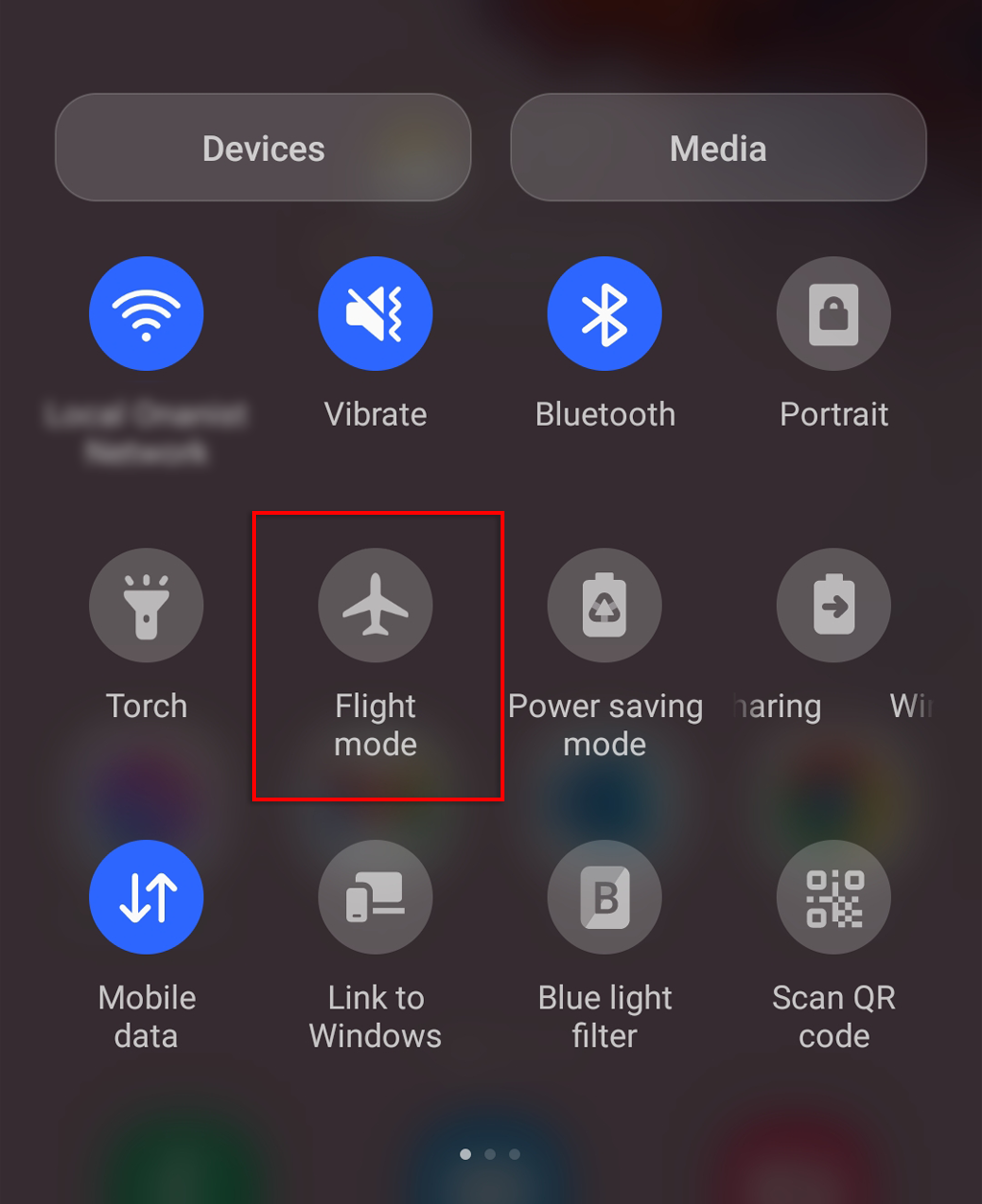
- Turn on Flight mode — this should disable Wi-fi, mobile data, and Bluetooth.
- Now that your phone doesn’t have internet connectivity, open Snapchat.
- Open the Snap or Snapchat Story and take a screenshot.
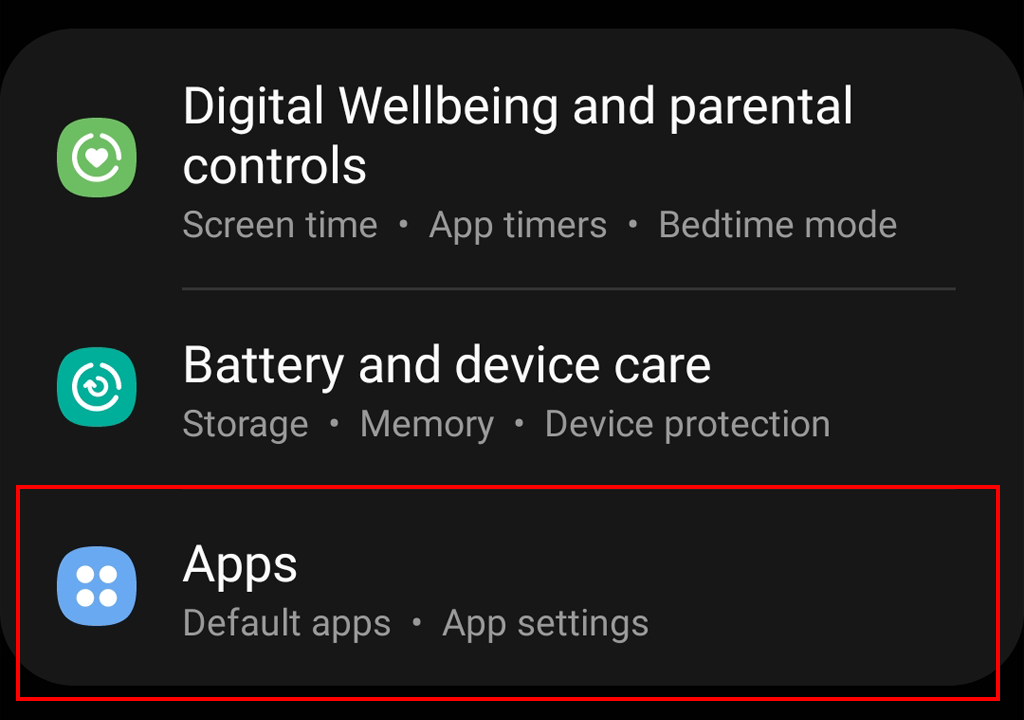
- Go to Settings > Apps.
- Find and tap Snapchat.
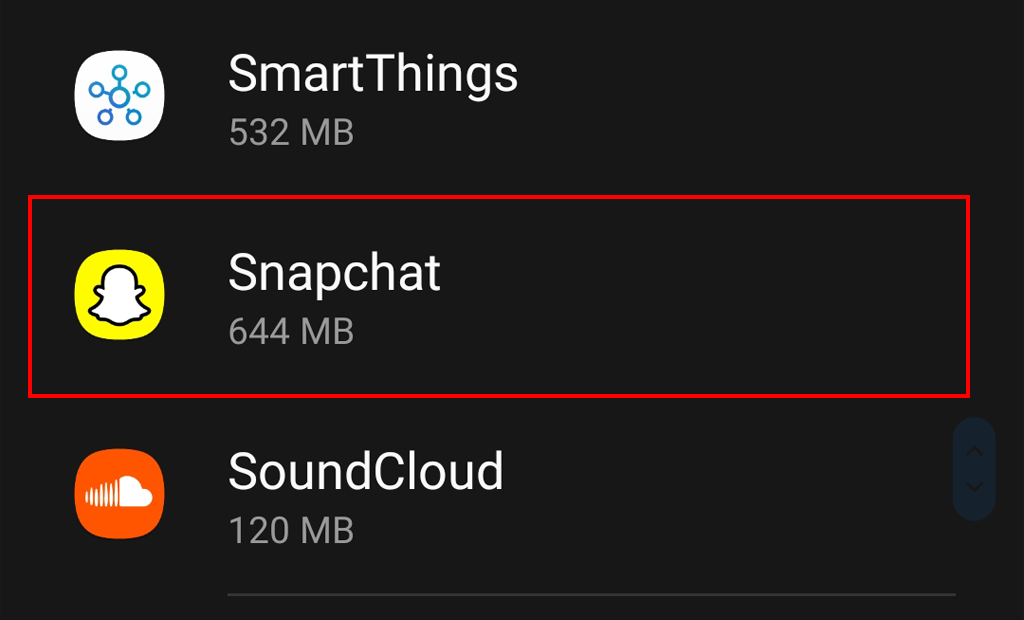
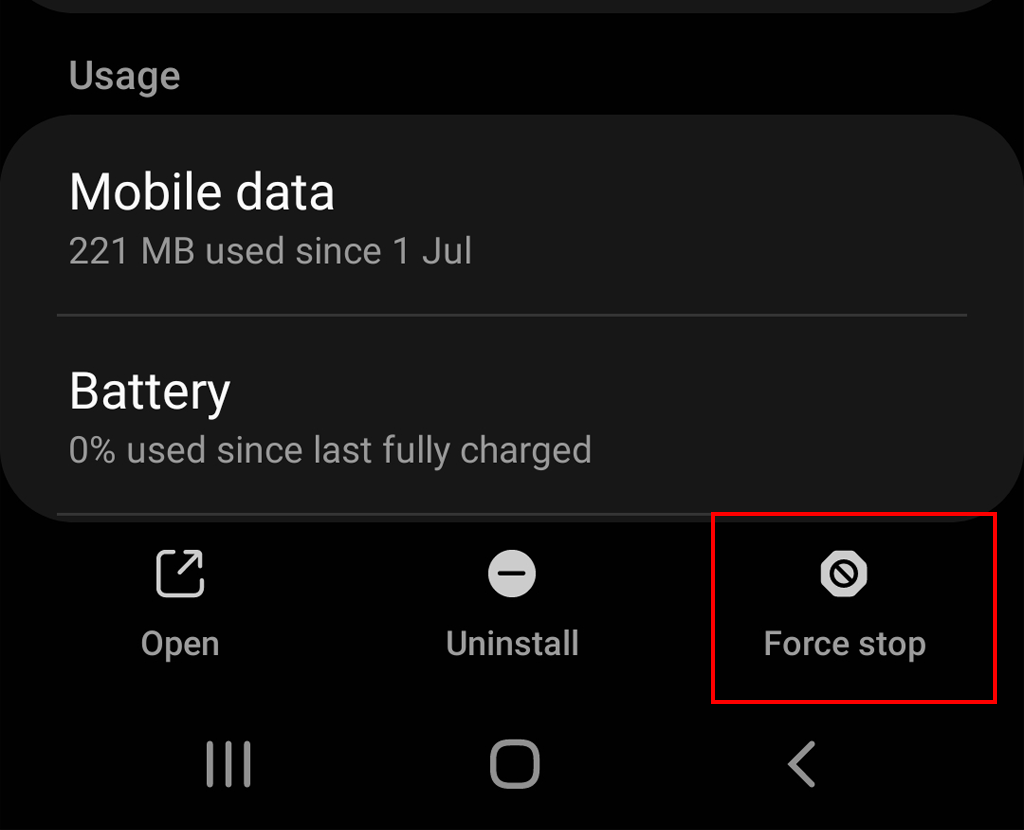
- Select Force stop.
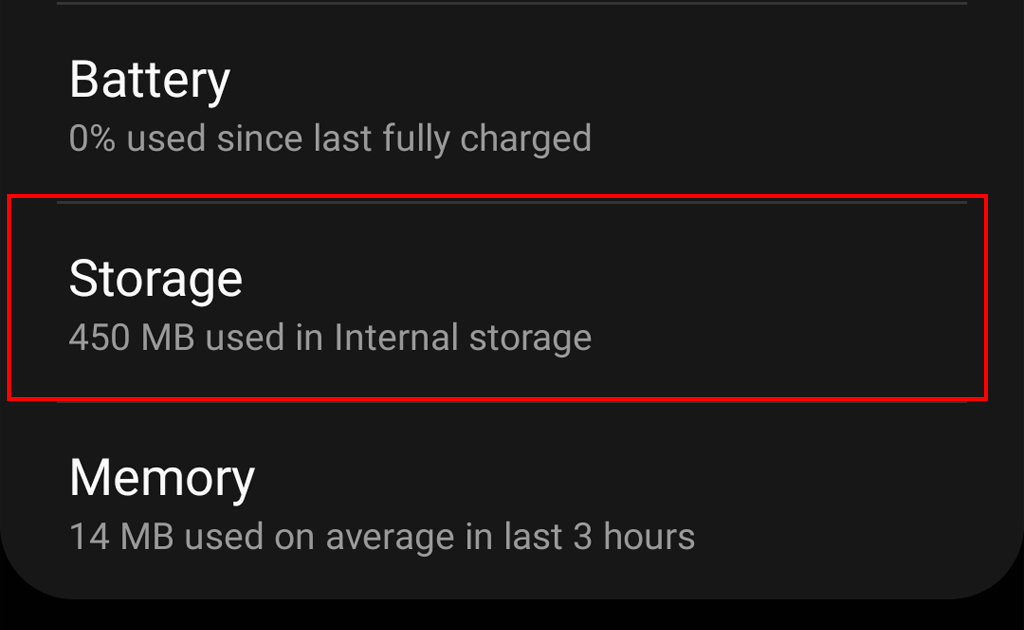
- Scroll down and press Storage.
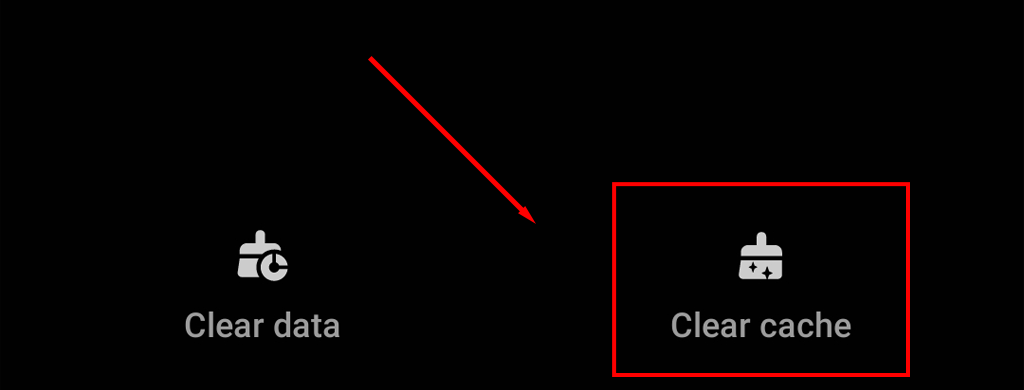
- Press Clear cache. This is the most important step. If you skip this, Snapchat will notify the sender that you saved their Snap.
- Finally, turn Airplane Mode off.
3. Use a Screen Recorder App
Several third-party apps are available for download on the Google Play store that you can use to screenshot Snapchat without the sender knowing. Download the screen recording app of your choice (for example, XRecorder or AZ Screen Recorder) and use it to record your screen while in the Snapchat app. You can then screenshot your recording to screenshot Snapchat.
4. Use Google Assistant
You can also use Google Assistant to take sneaky screenshots.
- Open Snapchat and load the Snap you wish to screenshot.
- Say “OK Google” or hold the home button to summon Google Assistant.
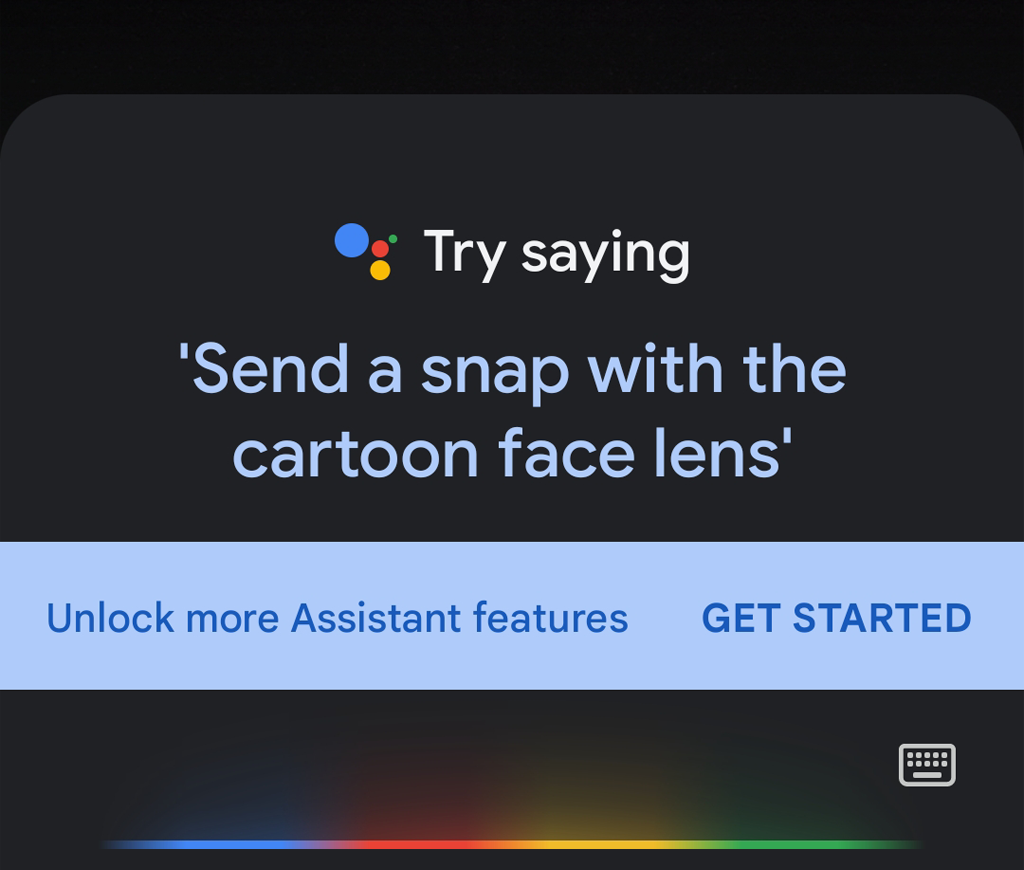
- Ask Google Assistant to take a screenshot, either verbally or by typing.
- Send your screenshot to the platform of your choosing. You can now save it from there.
4 Ways To Take Screenshots On Snapchat Without Them Knowing on Apple iOS
Here are three methods for saving screenshots from Snapchat on iPhone.
1. Use the Screen Recording Feature
iOS users can easily screenshot Snapchat without sending a screenshot notification with the built-in screen recorder on their iPhone or iPad.
- Drag down from the top of the screen to access the Control Center.
- Tap the Screen Recording icon. There will be a 3-second countdown before the recording starts.
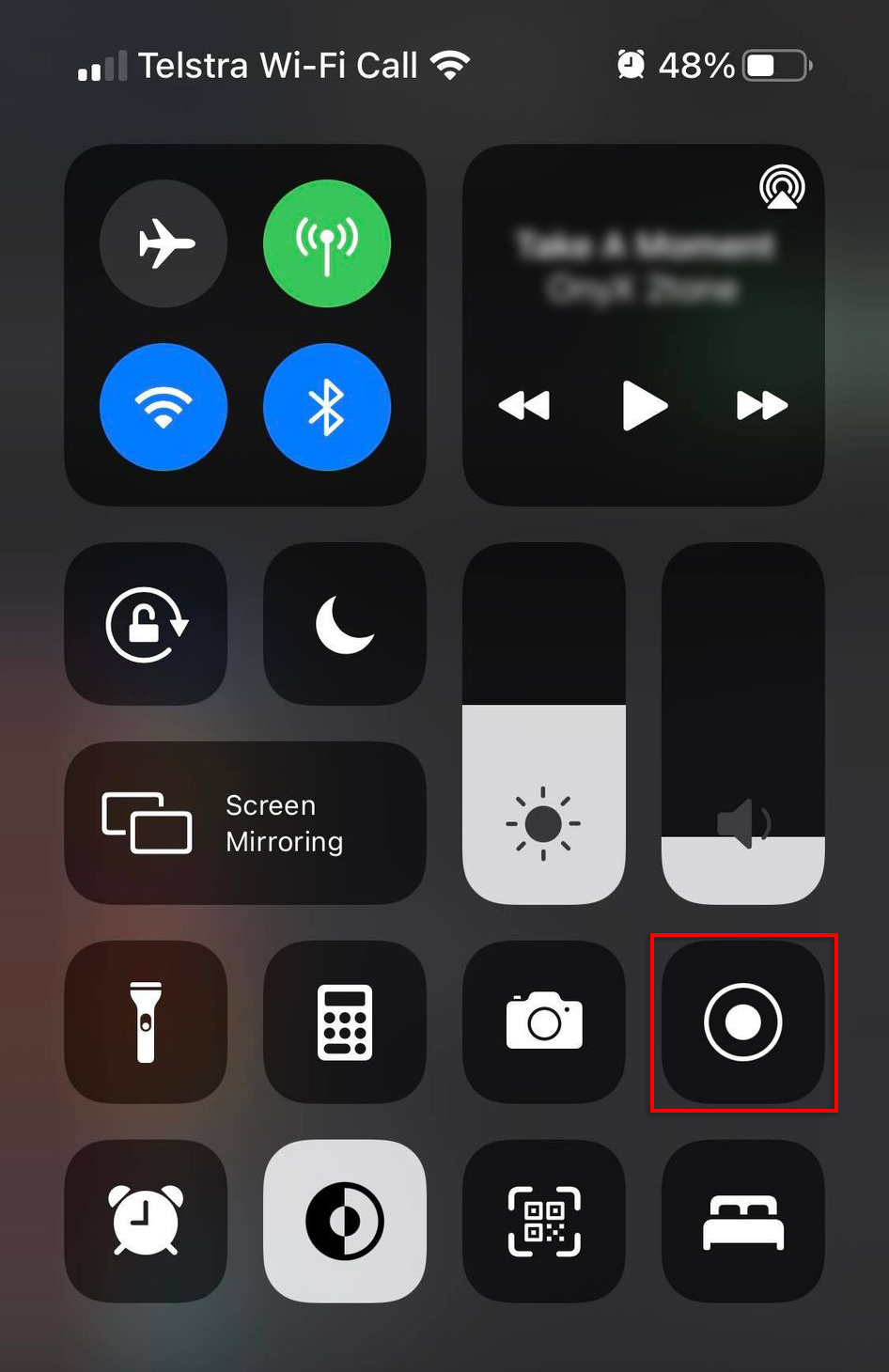
- Launch Snapchat and open the Snap you want to screenshot.
- Reopen the Control Center and tap the red record button to stop recording.
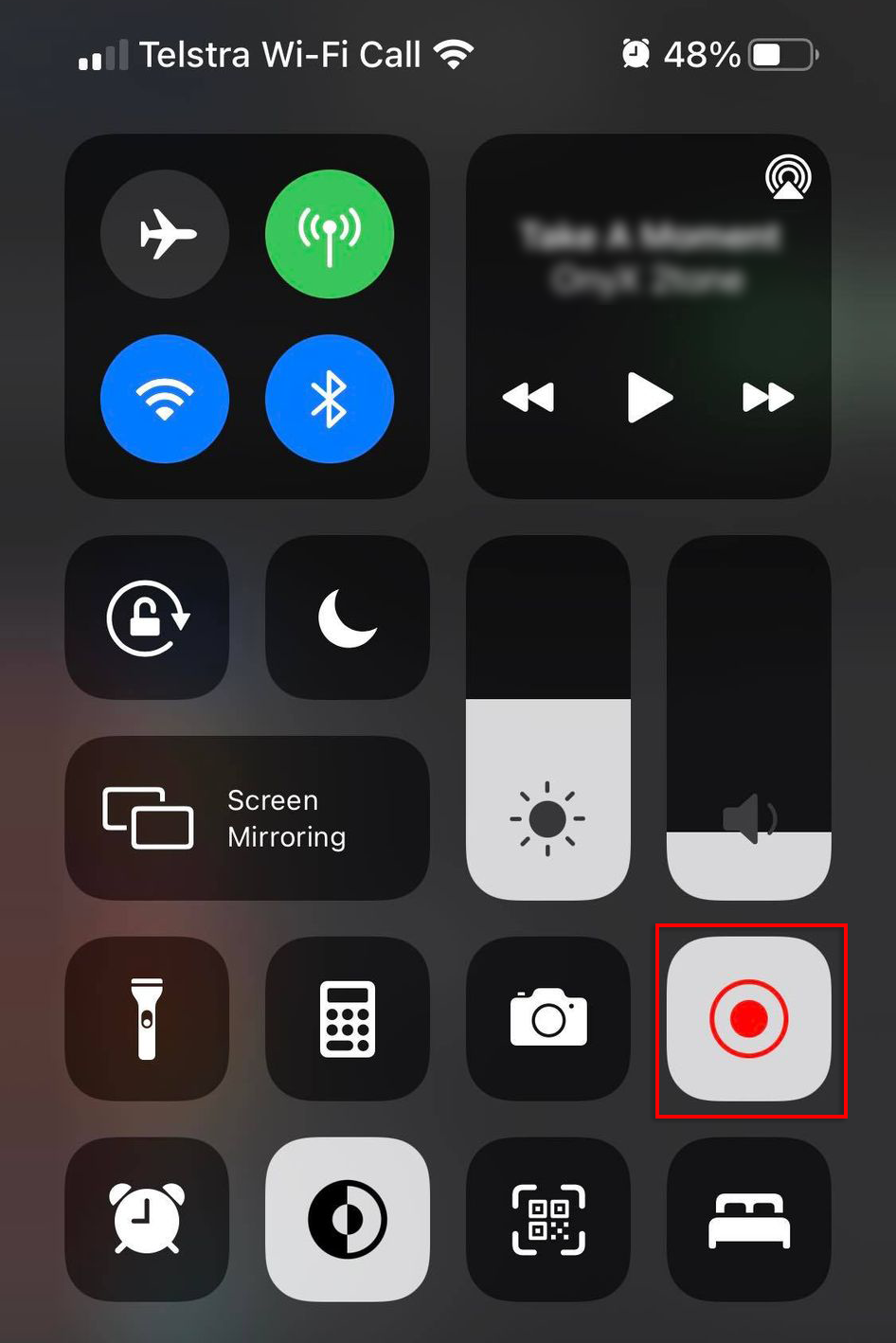
- You can now screenshot the saved video without sending a screenshot notification.
Note: This can also be used to record Snapchat videos.
2. Use Airplane Mode
Like Android users, Apple users can use Airplane Mode to screenshot Snapchat without them knowing.
Note: Also like Android, Snapchat has supposedly patched this method rendering it unuseful. However, some iPhone users still find that it works – this may have something to do with the model or software version. We recommended testing this method beforehand to avoid embarrassment.
- Open Snapchat and make sure the Snap you want to screenshot is loaded — but don’t open it.
- Swipe down from the top-right corner of your screen to access the Control Center.
- Turn on Airplane Mode.
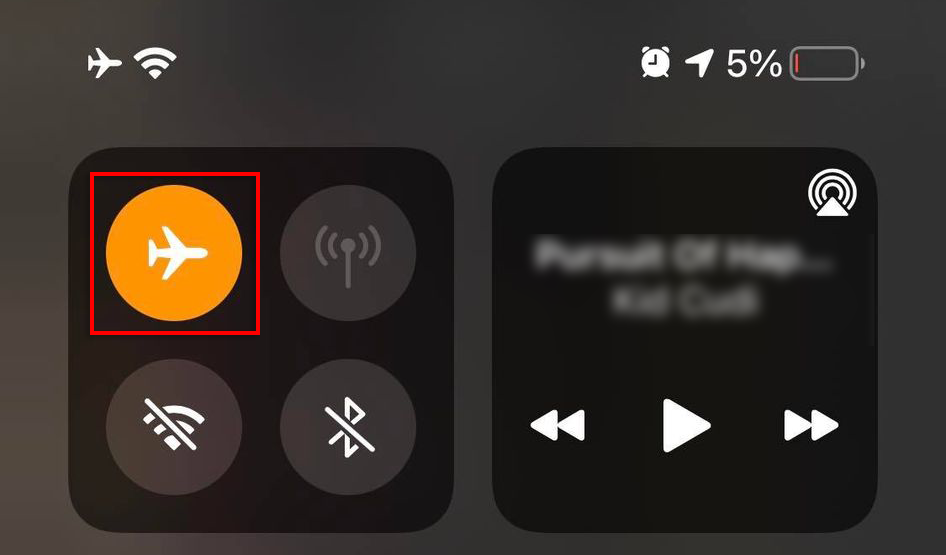
- Open Snapchat, then open the Snap or Snapchat Story and take a screenshot.
- Swipe up on the phone screen and then up again on Snapchat to force stop it.
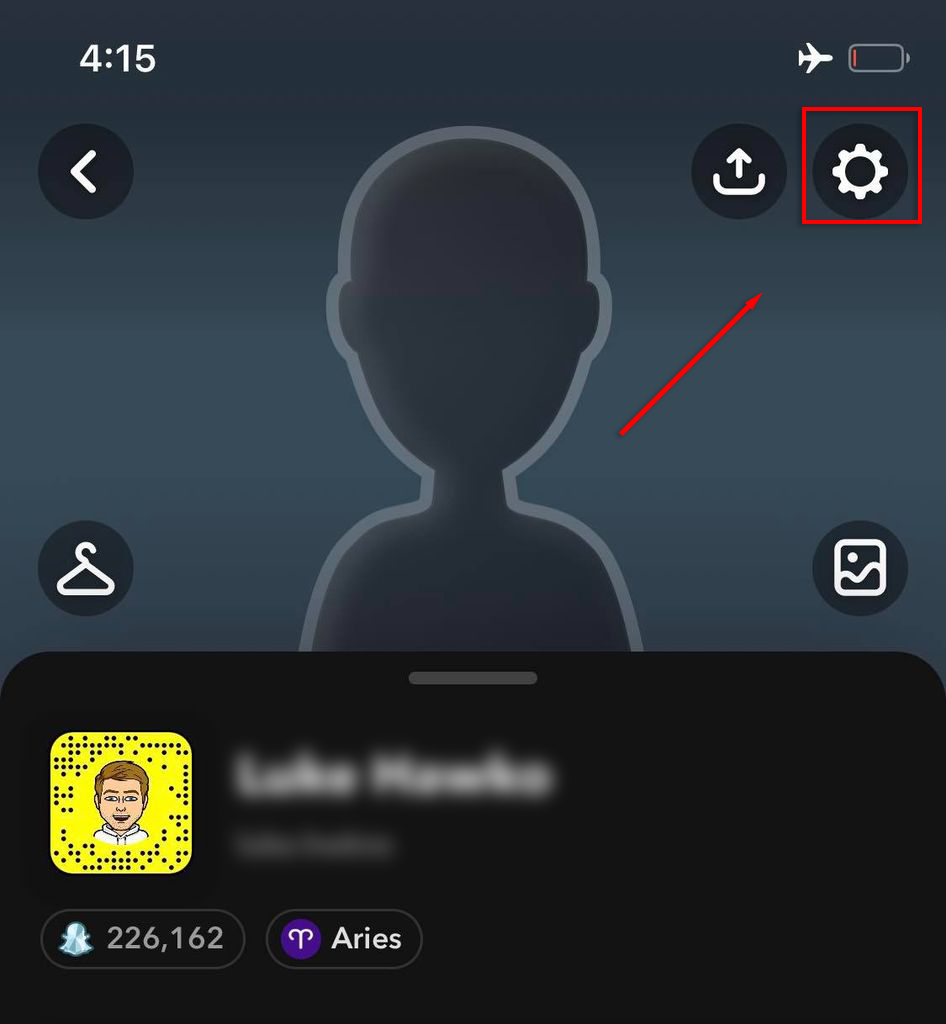
- In Snapchat, click the Gear icon at the top-right of the screen to open Settings.
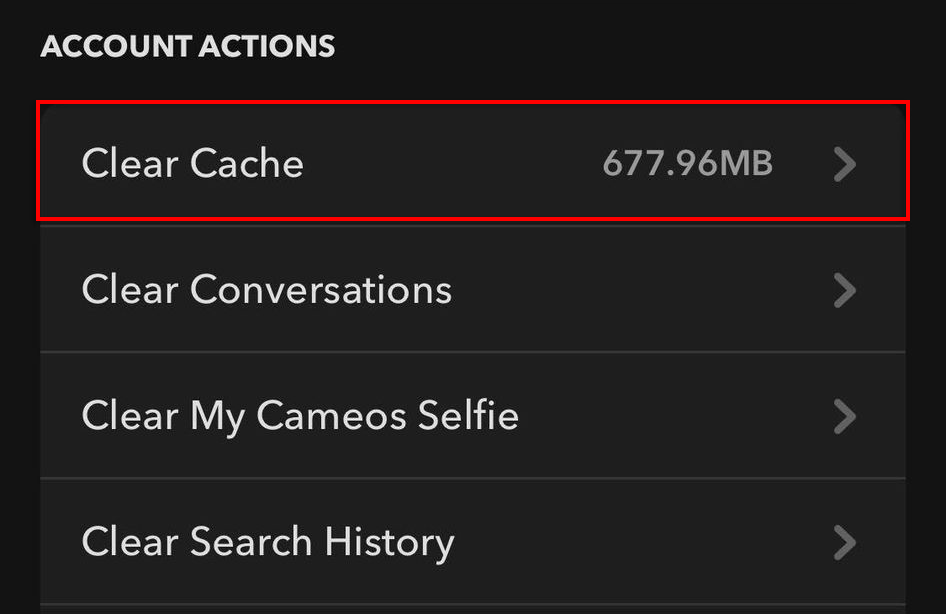
- Select Clear Cache.
- Turn Airplane Mode off.
3. Use Third-Party Apps
Several screen recording apps are available for iPhones. Sneakaboo is one such app that allows users to easily save Snapchat Stories and Snaps without sending notifications. Simply install the app, log in using your Snapchat account, and then select whichever Snapchat Story you want to save.
4. Use an Apple Mac
You can screenshot a Snapchat if you can access a Mac and an iPhone.
- Connect your iPhone to your Macbook and open the QuickTime Player app.
- Click File > New Movie Recording, then select whatever recording option you like.
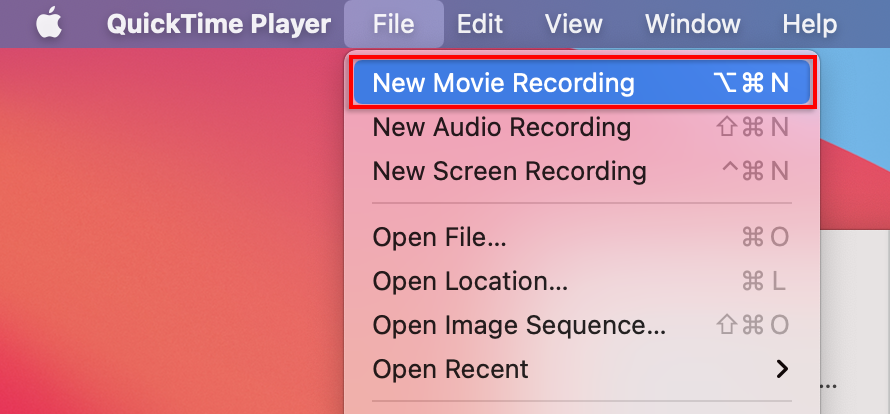
- For movie recording output, select Your iPhone. Your Mac should now be screen mirroring your iPhone.
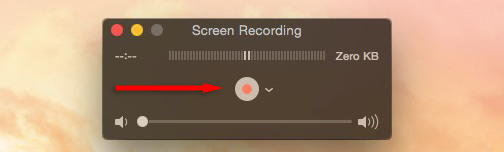
- Click the Record button.
- In your iPhone, open Snapchat and the Snap you want to save.
- On your keyboard, press Command + Shift + 4 to take a screenshot.
Snapchat Screenshotting is Morally Dubious
Snapchat includes screenshot notifications for a reason. While it may seem like a good idea at the time, remember that taking a screenshot without letting the person know is a breach of their privacy. But if your reasons are innocent, we hope this tutorial helped.