You should do this is you have more than one drive

By default, the My Documents folder is located in Windows XP and Windows Vista is located on the same drive or partition as the operating system. This is fine for anyone who has only a single drive or a single partition on their computers, such as the C drive, but if you have more than one physical or logical drive on your computer, it’s best to move your My Documents folder off the system drive.
In Windows 7 and Windows 8.1, the situation is a bit different. In Windows 7, you have libraries, which are kind of virtual folders that basically link to other folders that can be located anywhere. Also, starting in Windows 7, in addition to the My Documents folder, you also have the My Pictures, My Music, My Videos and Downloads folders. In Windows 8, the names got changed to simply Documents, Pictures, Music, Videos and Downloads.
Table of Contents
That means in Windows 7/8.1, you have to manually change the location for each of these system folders if you want to move them. In Windows XP, all the other folders were inside the My Documents folder. I prefer the setup in Windows 7/8.1 because I normally don’t need to move all of the system folders, just one or two.
So you might be asking why I would be recommending this? Here are the main two reasons I’ve moved the My Documents folder:
1. Free up precious hard drive space on the system partition – With all of the monthly updates for Office and Windows, my C drive was getting close to becoming full! Also, other system files like the paging file, system restore files, and hibernation files are all stored on the system partition. Once I moved the data off, I gave space-hogging Windows more space to live and breathe.
2. Easy backup and recovery of data in case of Windows crash – The best reason to move the My Documents folder is to better help protect your data. For example, if Windows crashes on you one day and you have to perform a reinstall, then all of your data will be lost if you didn’t have a backup. However, if your data is on the D drive, let’s say, and your Windows partition craps out, you can reinstall a fresh copy of Windows on the C drive and the rest of your data remains intact!
Of course, this will not save your data if the entire hard drive fails physically and your My Documents folder is on the same drive, just in a different partition, but there have been many occasions in my time when Windows has become unusable due to a virus, spyware or other calamity of sorts.
Using Libraries in Windows 7/8.1
Before we get into the actual steps for moving the different system folders in Windows, let’s talk about libraries as they are a pretty good solution for most people. Instead of physically moving the system folders to another location, you can simply move your data to wherever you like and then add that folder to one of the special libraries: Documents, Music, Pictures, Video.
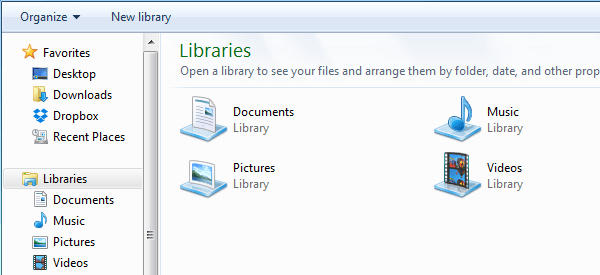
To add a folder to a library, just go to the folder you want to add, right-click on it, choose Include in library and then pick the library you want to add the folder to.
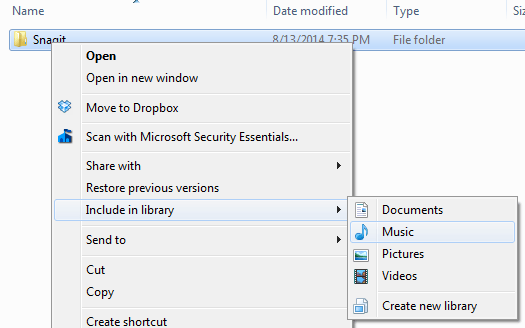
This does not copy or move the contents of that folder to the library, it simply creates a shortcut to the folder, but it won’t look like a shortcut. It’ll seem as if the folder is actually located in that folder, where in reality it could be on a totally different disk.
You can even include folders in network locations in a library, but you first have to make it available offline. To do that, just right-click on the folder and choose Always available offline. Once it has synced the folder to your local computer, you can right-click again and you will see the Include in library option.
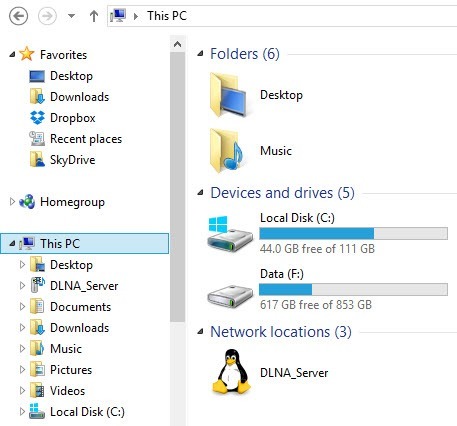
In Windows 8.1, Microsoft suddenly hid the libraries feature for no apparent reason, even though it still exists. So instead of seeing Libraries in the left-hand menu in Explorer, you’ll see This PC with links to the system folders (Documents, Pictures, etc).
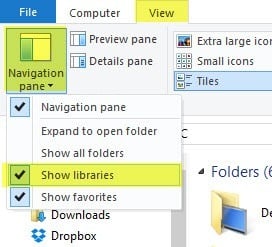
To get libraries back in Windows 8.1, click on the View tab and then click Navigation Pane. Then click the checkbox next to Show Libraries.
As I mentioned earlier, using libraries is a good alternative in case you don’t want to move a lot of data around from their current locations.
Move My Documents in Windows 7/8.1
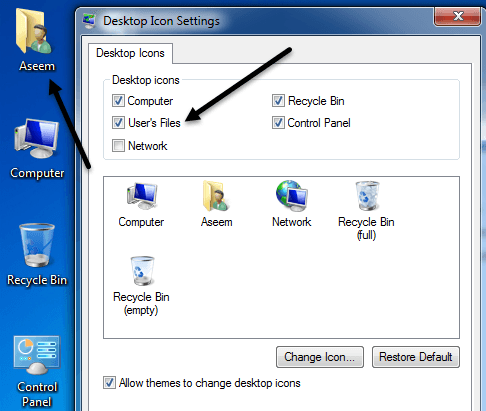
The process for moving the system folders in Windows 7/8.1 is the same for both operating systems. In Windows 7, you have to click on your user folder on the desktop or navigate to C:\Users\UserName to see the system folders. If you don’t see the user folder on your desktop, right-click on the desktop, choose Personalize and then click on Change Desktop Icons. There you can check the User’s Files box.
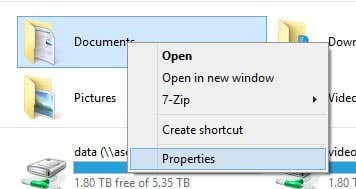
As mentioned above, in Windows 8.1, just click on This PC on the left-hand menu and you’ll see the system folders. Then right-click on the folder you want to move and choose Properties.
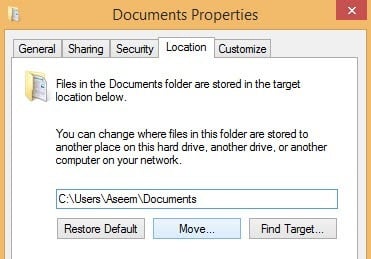
Click on the Location tab and then click on the Move button. Choose a destination for the folder and Windows will begin to move everything over to the new location.
Move My Documents Folder in Windows XP
In Windows XP, the process is very similar as above, but you only have to do it for one folder instead of several folders. Right-click on the My Documents folder on your desktop and choose Properties.

2. Click Move and choose the desired location for your My Documents folder. Remember, it would be best to move it to a different PHYSICAL drive if possible. If not, move it to a different partition at least.
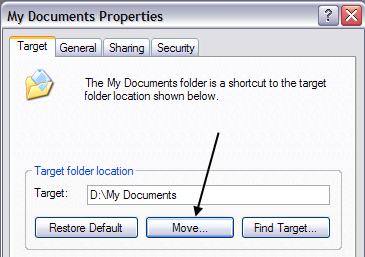
3. Click Ok and then click Apply. You’ll be asked whether you want to move all of the current documents to the new location or not. Choose Yes.
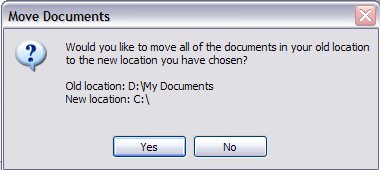
And that’s it! Your documents will be moved to the new location and when you click the My Documents icon on your desktop, it’ll open just as before. If you have any questions, post a comment. Enjoy!