The only way to access encrypted data

Are you trying to open some files on your computer that are encrypted? Windows will usually designate encrypted file or folder names with the color green instead of the normal black text.
Note: If you are reading this post looking for information on decrypting files that were encrypted by CryptoLocker, this won’t help. You pretty much have to pay the ransom and hope they actually send you the encryption keys.
Table of Contents
When encrypting files and folders, Windows will use a self-generated certificate that contains keys used to encrypt and decrypt the data. When opening encrypted data when logged into the user account that generated the certificate, the decryption process is transparent and the files are opened normally.
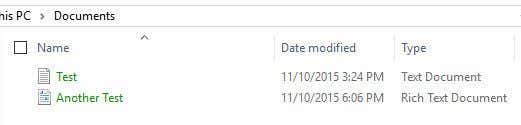
However, if another user or system tries to access those same data files or if the files are moved to another location, then they cannot be opened unless the original certificate is installed.

In either case, one thing you have to remember about encrypting and decrypting files in Windows is that you always need the encryption certificates/keys. When you encrypt a file or folder in Windows, encryption keys are automatically created and associated with your user account.
In Windows 7 and higher, you’ll actually get a prompt asking you to backup your encryption key (EFS certificate).

You should definitely do this immediately. If you do not have these encryption keys, you will not be able to decrypt the data. Unfortunately, there is no way around this since the encryption is very strong and cannot be broken easily.
If you can still access the computer where the data was originally encrypted, you can try exporting the certificate and then importing it on a different machine.
Backing Up EFS Certificates
There are a couple of ways to backup file encryption certificates and I’ll mention them below. The first way is to click on Start and type in certificate.
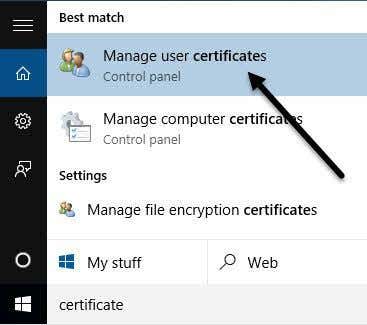
Click on Manage user certificates and this will open up the certificates for the current user. In Windows 7, you can also type in certmgr.msc and press Enter to open the certificate manger.
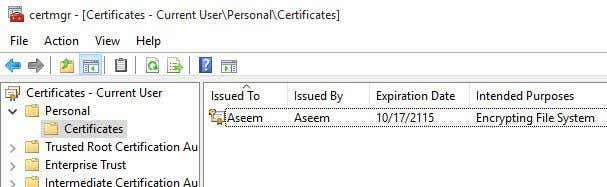
Now expand Personal and then click on Certificates. You should see all the certificates listed in the right pane. There might only be one, but if not, the only certificates you are interested in are the ones that have Encrypting File System listed under Intended Purposes.
Right-click on the certificate, choose All Tasks and then click on Export.
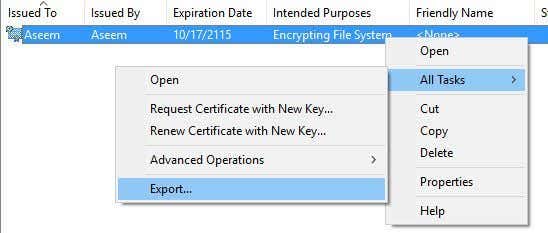
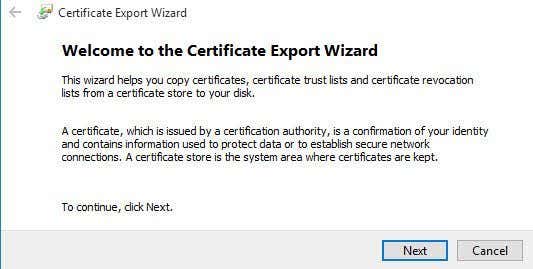
This will open the Certificate Export Wizard, which is the same place you will reach if you click on Back up now (recommended) when prompted by Windows.
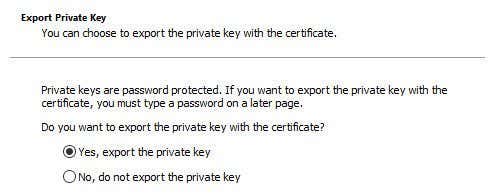
On the next screen, you will want to select Yes, export the private key along with the certificate. If you don’t have the private key, you won’t be able to decrypt any of the encrypted files.
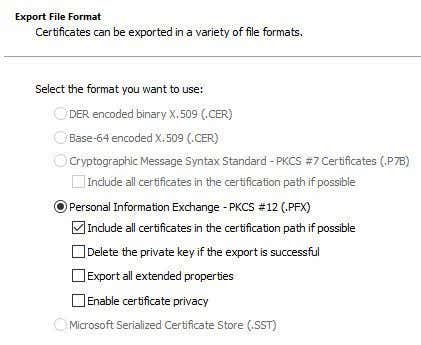
On the next screen, you have to choose the format you want to use to export the certificate. Personal Information Exchange should already be selected and you can leave it with just the first box checked.
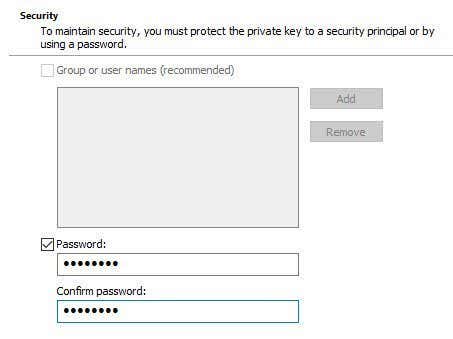
Since this certificate contains a private key, you are required to protect it using a password. Check the Password box and type in a strong password.
Finally, click Browse and choose a location where you want to save the file. It is highly recommended you do not save the file onto the computer itself. If something happens to the PC, then you lose the key along with it.
Also, give your file a name that is helpful for you, but not super obvious to others what it is. For example, don’t name it EFS key like I did below!
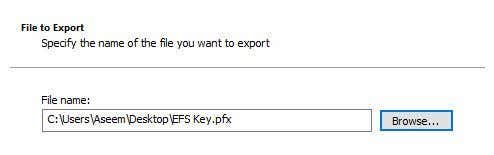
Click next and then click Finish. Your private encryption key is now saved as a file. You can now take this file and import it on any other Windows machine. Importing is really easy. All you have to do is double-click on the file and it will open up the Certificate Import Wizard.
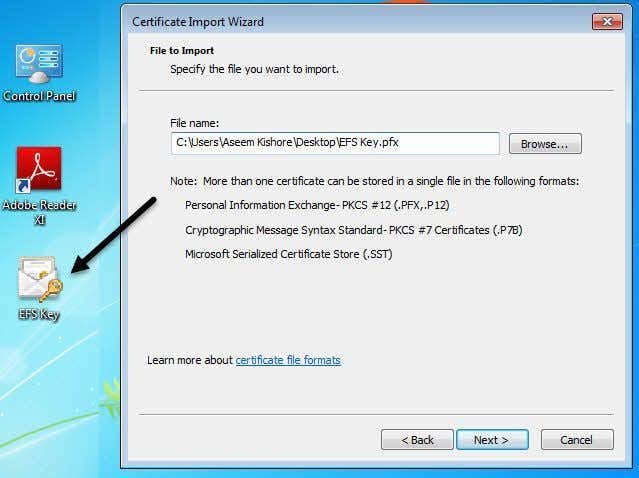
Once you import the certificate, you will be able to decrypt any files that were encrypted with that certificate. As previously mentioned, if you are trying to open encrypted files and you don’t have or can’t find the certificate anymore, then those files are basically gone.
Some programs state they can decrypt your files for a hefty price, but they have never worked for me and that’s why I haven’t listed any of them here. If you have any questions, feel free to post a comment. Enjoy!