They are all there, minus the big Start button

If you’ve recently converted over to a Mac or are being forced to use one against your will, you probably are used to the user-friendly environment of Windows and want to know the Mac equivalent of your favorite Windows program or feature, right?
Well, luckily, recent Macs running the latest versions of OS X are not wildly different than the current versions of Windows. The biggest difference in my opinion is the lack of any kind of Start button on OS X. That’s pretty much what Microsoft did with Windows 8 and probably why everybody hated it.
Table of Contents
There simply is no Mac equivalent of the Windows Start button or Start Menu in OS X. The only thing you can do is get a list of all your applications in the OS X Dock, which is like the Windows taskbar. In this article, I’ll go through all the Mac equivalents of Windows programs and hopefully you’ll find using a Mac just as easy as a Windows machine.
Windows Taskbar – OS X Dock
Even though you’ll miss the Start button, OS X at least has the equivalent of the taskbar called the Dock. It shows you currently open programs and you can add or remove icons for any other applications installed on your Mac.
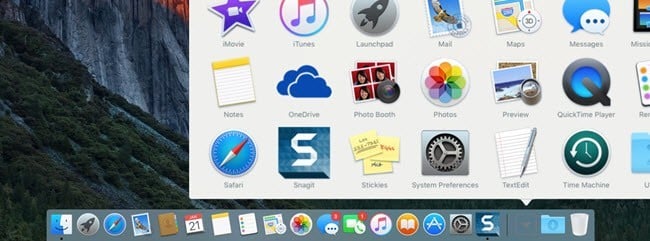
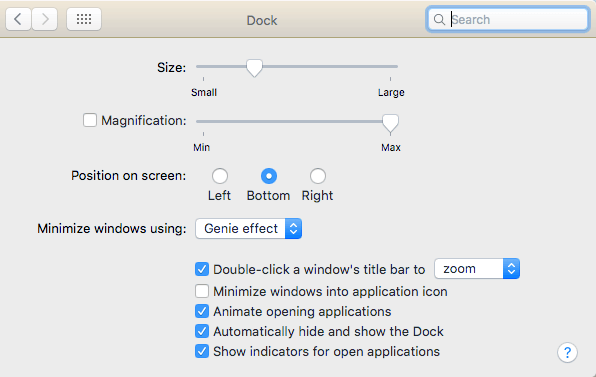
The recycle bin is also located on the Dock and in order to eject any device connected to your Mac, you drag and drop it into the trash. You can also go to System Preferences and adjust the settings for the Dock: allow it to remain visible at all times, increase the size, change the position on the screen, etc.
To get all the applications as an icon on your Dock, open Finder and drag Applications from the sidebar and drop it onto the Dock.
Windows Explorer – Mac Finder
Next up is Windows Explorer. The Mac equivalent is the Finder. Windows Explorer is pretty good, but I actually like the Mac Finder more. For one thing, it allows you to have multiple tabs open in the same Finder window, making it easy to drag and drop files to a different location without having to open multiple Finder windows.
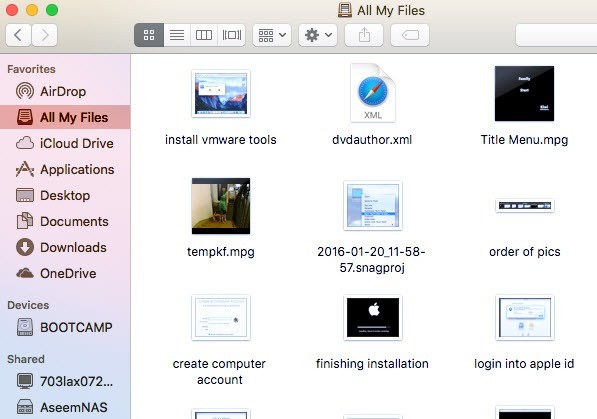
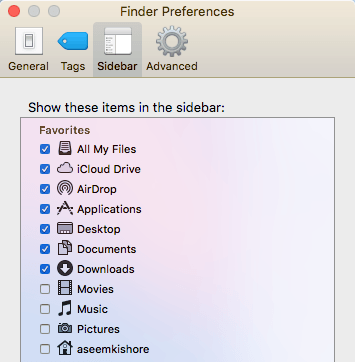
Secondly, it shows you more useful stuff in the sidebar than Windows like shared servers, other computers, connected devices, etc. You can also click on Finder and then Preferences and configure what items show on the sidebar, which you can’t do in Windows either.
Windows Control Panel – Mac System Preferences
The Control Panel is the place to go in Windows to control how Windows operates. You can manage pretty much everything from here including backups, encryption, default programs, audio, fonts, Java, Flash, languages, mouse and keyboard settings, user accounts, firewall settings, and lots more.
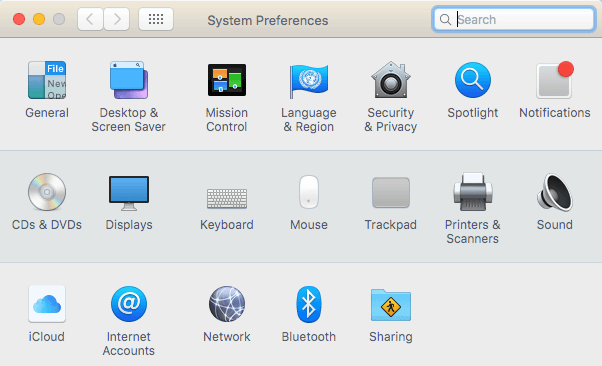
Though not exactly the same, you can manage all the settings for your Mac from System Preferences.
Windows Notepad – OS X Text Edit
If you use Notepad in Windows, then you’ll be happy to know there is an equivalent in Mac known as TextEdit. It ships with all Macs and it’s a basic text editor that lets you work with plain text too. That’s really the only reason I use Notepad and it’ll probably be the only reason you use TextEdit on your Mac.
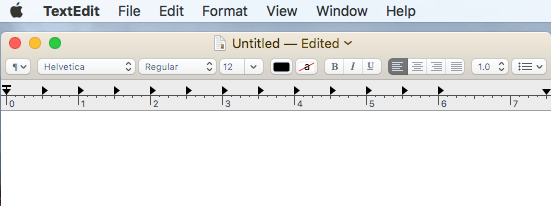
The only thing you have to do in TextEdit is click on Format and then click on Make Plain Text. It is basically WordPad and Notepad combined into one, which is nice.
Windows Task Manager – Mac Activity Monitor
The Task Manager in Windows is one of my favorite features and I use it all the time to check which process is eating up memory or the CPU. You can also get a lot of extra information about your system from the Task Manager.
Like the Task Manager, the Activity Monitor (open Spotlight and search for activity monitor) is broken into several tabs: CPU, Memory, Energy, Disk and Network.
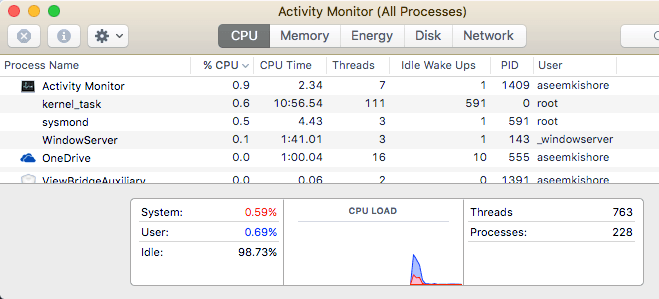
The Energy tab is unique to Macs and is useful for laptops so that you can see which processes consume the most power. Otherwise, you can use Activity Monitor to end a process or to run system diagnostics.
Windows Command Prompt – OS X Terminal
The Command Prompt in Windows is the tool you have to use when you have to do something technical to fix your computer or change an obscure setting that you can’t get to any other way. The same applies to the Mac equivalent, which is called Terminal.
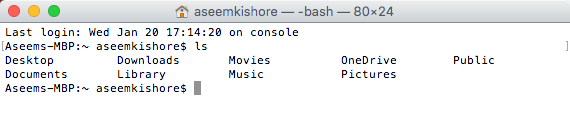
The Terminal is a very powerful tool that allows you to control the underlying UNIX system that OS X runs on top of. So if you are familiar with Linux commands, Terminal is a piece of cake. One task I have to use the Terminal occasionally for is showing hidden files. You open Terminal and paste in the following command:
defaults write com.apple.finder AppleShowAllFiles YES
Now you can see hidden files in Finder. Again, you’ll probably only use Terminal in these rare instances where you simply have to copy and paste the command.
Windows Paint – OS X Preview
If you use Paint in Windows, the closest tool in OS X is Preview. It can’t match everything that Paint can do, but it allows for basic drawing.
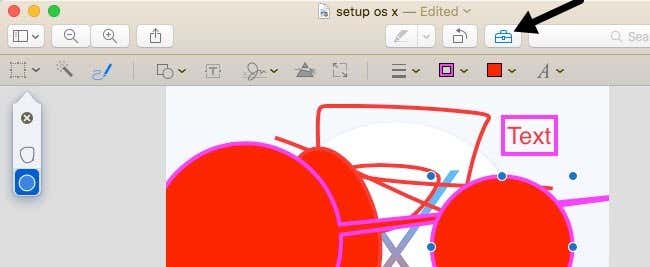
You can also use it to make basic edits to images like cropping, removing backgrounds, adding outlines, adding text, adjusting colors, etc. You can also use it to add signatures to your PDF files and fill in forms.
Windows Disk Management – OS X Disk Utility
The Disk Management tool allows you to format and partition hard drives in Windows easily. You can do other stuff, but those are the main functions. The Disk Utility tool on Macs allows you to do pretty much the same thing.
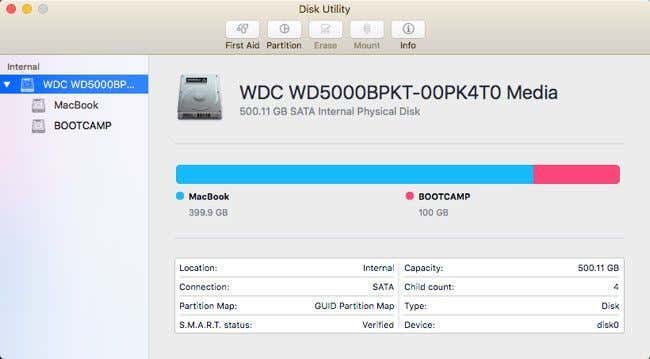
You can use Disk Utility to repair a hard drive if OS X is not booting properly, partition a hard drive, erase a drive and see what kind of data is taking up space on the hard drive.
Windows Netstat, Ping, Tracert – OS X Network Utility
The Network Utility in OS X is one place where Apple does a much better job than Windows. The Network Utility lets you quickly get information about your network connection and lets you easily run tests like netstat, ping, traceroute, Whois, Finger, and port scans.
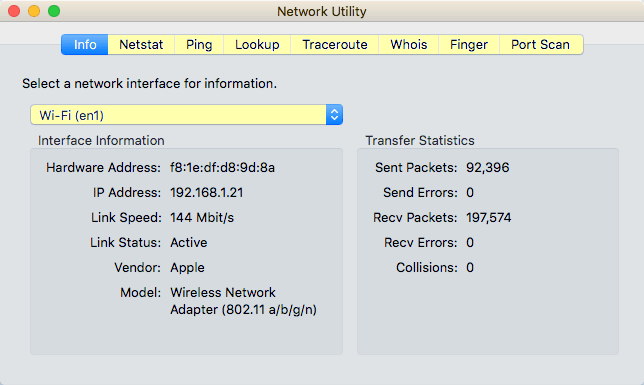
You can use the Netstat tab to quickly see all the connections your computer has made. To do any of this in Windows, you have to open a command prompt and type in commands! It’s way more technical and not nearly as nicely implemented as it is in OS X.
Windows Event Viewer – Mac Console
Lastly, the Event Viewer program in Windows allows you to see a log of everything that is happening on your computer. It’s really useful for debugging hard to fix problems.
The Console is pretty much exactly the same as Event Viewer and allows you to see pretty much everything that happens in the background of your computer.
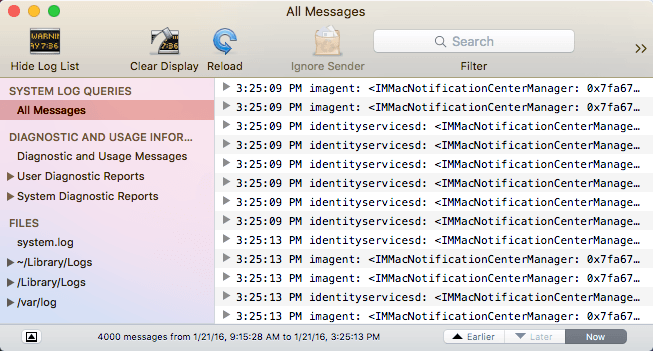
You really only look at the log files when you are looking for something specific, otherwise, there are just way too many messages generated by the operating system.
There are other equivalents that I could mention here, but I think these are the basics and enough for most people who are just starting to use a Mac after being on Windows for a long time. If you have any questions, feel free to comment. Enjoy!