Avoid malware or viruses by running Windows within Windows

A great way to save yourself from viruses, malware and spyware is to use a virtual machine to browse the Internet instead of your regular Windows PC. So what is a virtual machine? It’s basically a full copy of Windows that runs inside another copy of Windows called the host.
The virtual version of Windows is just a large file and special software running on your Windows computer (virtualization software) acts as a fake computer so that Windows can run. Anything you do in the virtual machine will not affect your host operating system. So you could download 10 viruses onto the virtual machine and your main operating system would be safe.
Table of Contents
What’s nice about virtual machines is that you can reset them. So if you get a virus while browsing in the virtual machine, you can simply reset the virtual machine to the default state when you first installed it and start over. It’s also a great way to increase your privacy because you can simply erase anything you’ve done in a virtual machine.
Before we get started, let’s talk about the requirements. There are many software virtualization tools out there like VMWare, Parallels, VirtualBox, etc., but I’m going to stick with only Microsoft software. In order for this to work, you need two things:
- Disk2VHD – A free tool from Microsoft that will be used to convert any Windows operating system from Windows XP onwards into a virtual machine file.
- Windows 8.1 Pro or Windows 10 Pro – You’ll need the Pro versions of either Windows 8.1 or Windows 10 in order to complete this process. Both operating systems have a tool called Hyper-V that can be used to access the virtual file created by Disk2VHD.
It’s also worth noting that even though you can use Windows XP, Vista and 7 as the virtual machine, it’s best if you can convert a Windows 8.1 or Windows 10 machine because the highest resolution that Hyper-V supports for those older operating systems is 1600×1200. It’s really annoying and I don’t know why Microsoft hasn’t bothered to fix this issue yet. Anyway, it’s only a problem for those with high resolution monitors.
Convert Windows OS to VHD
Let’s start with the easy part: converting your current version of Windows into a virtual machine (VHD or VHDX file). To do this, download the Disk2VHD tool mentioned above and run the EXE file.
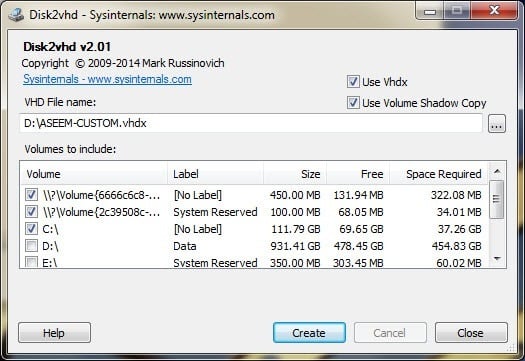
When you run it, you’ll see a screen like the one above. There really isn’t much you have to do here other than choose the location where you want to save the VHDX file and which volumes you want to include.
If you have a large hard drive, you can just let it save the file to the same partition as Windows. If not, choose another location like a second hard drive or an external USB hard drive. By default, it’s going to select all of the volumes it finds on your computer, which may not be want you actually want.
In my case, I have several hard drives connected to the computer, so I only want to select volume C:\, which is 37.26 GB in size. In addition, you want to make sure to select any other volumes that were created when you installed Windows, most likely the Boot volume and System Reserved volume. These are usually really small: in my case, the System Reserved volume is only 34 MB and the other volume, which has no label, is only 322.08 MB.
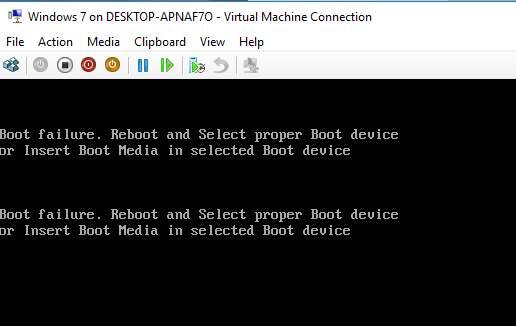
It’s very important that you select these other volumes in addition to the main Windows volume because if you don’t, the operating system won’t boot when you load it into Hyper-V. Instead, you’ll get a Boot Failure message! This is because those two extra volumes tell the system where Windows is located and how to boot it.
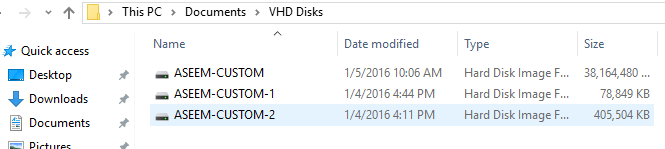
It will probably take some time to create the VHDX file depending on how big your Windows partition is. Once finished, you’ll have one really large file and two smaller files.
Install Hyper-V in Windows 8.1/10
Next, we have to install the Hyper-V tools in Windows 8.1 or Windows 10 Pro. If you have the Home editions, you’ll have to upgrade to Pro before you can install Hyper-V. Click on Start and type in windows features.
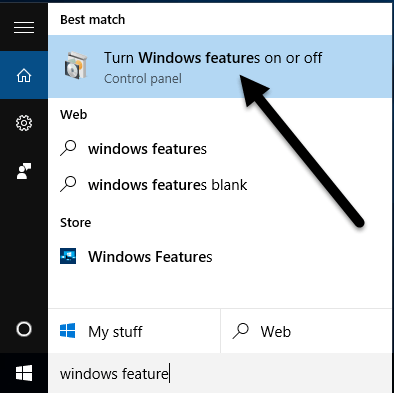
At the top, click on Turn Windows features on or off. A window will appear where you can check off extra items you want to install. Go ahead and check the box for Hyper-V. It should automatically check the boxes for Hyper-V Management Tools and Hyper-V Platform also.
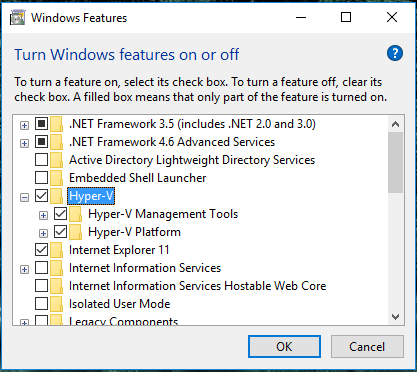
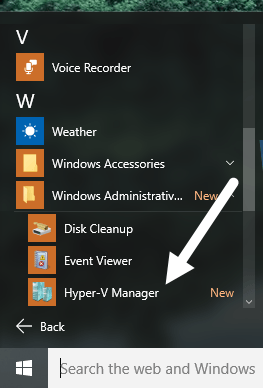
Click OK and let Windows install the features. You will also have to restart your computer. Once you boot back up, click on Start, All Apps and then scroll down to Windows Administrative Tools. You should see Hyper-V Manager listed there. You can also just click on Start and type in Hyper-V to search for it.
Configuring Hyper-V
Now for the fun part! Let’s get started with Hyper-V. Go ahead and open the Hyper-V Manager and you’ll see a blank workspace.
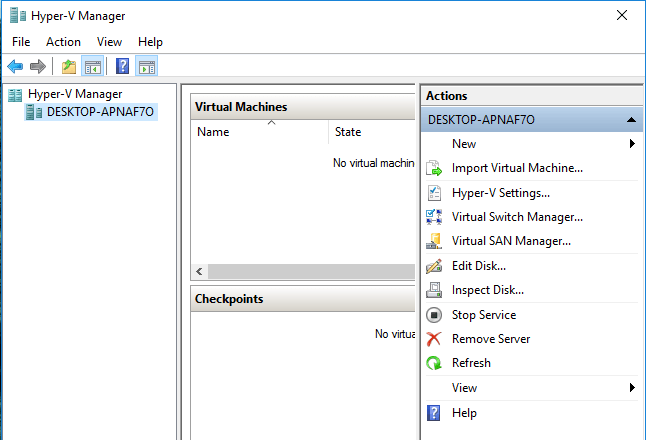
At the far left is the server, which should be the name of your computer. In the middle section are the list of virtual machines and checkpoints. On the right, you have a dynamic menu that changes depending on what item is selected in the left-hand sections. To get started, select the computer name at the far left.
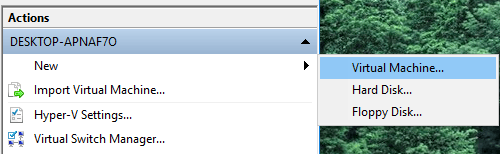
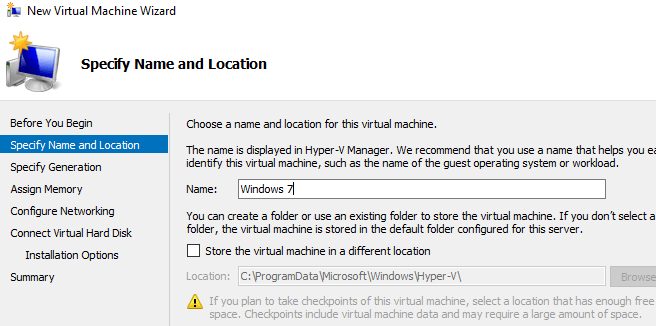
Now at the far right, click on New and then Virtual Machine. This will bring up the new virtual machine wizard. The first step is to give your virtual machine a name.
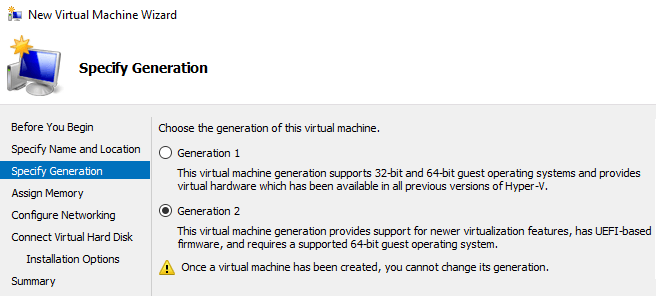
Next, you have to choose the generation for the virtual machine. If you are converting a 64-bit version of Windows to a virtual machine and your computer hardware supports UEFI, go ahead and choose Generation 2, since that allows for more advanced features. Use Generation 1 for 32-bit versions of Windows or if your machine is using legacy BIOS. Generation 2 also supports wide-screen displays when virtualizing Windows 8.1 or Windows 10.
If you have no idea what all that means, just choose Generation 1 to be on the safe side. Note that if the virtual machine fails to boot, you can easily just delete it and start this process again. Select a different generation and see if it boots up properly. Deleting the virtual machine inside Hyper-V does not delete your original VHDX files.
On the next screen, you have to choose the amount of memory you want to assign to your virtual machine. I left it at the default value of 1024 MB, but you can increase it if you have enough RAM available on your host machine.
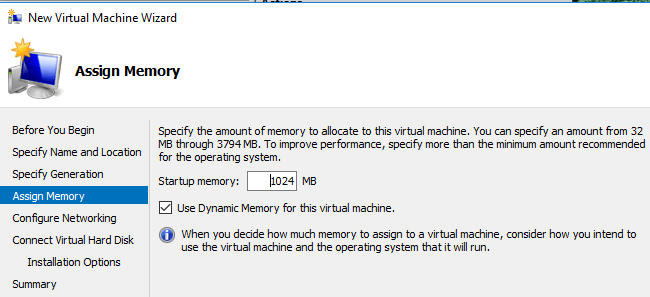
Go ahead and skip the Configure Networking screen for now because we will have to do that later. For now, just leave it at Not Connected. On the Connect Virtual Hard Disk screen, you need to select Use an existing virtual hard disk.
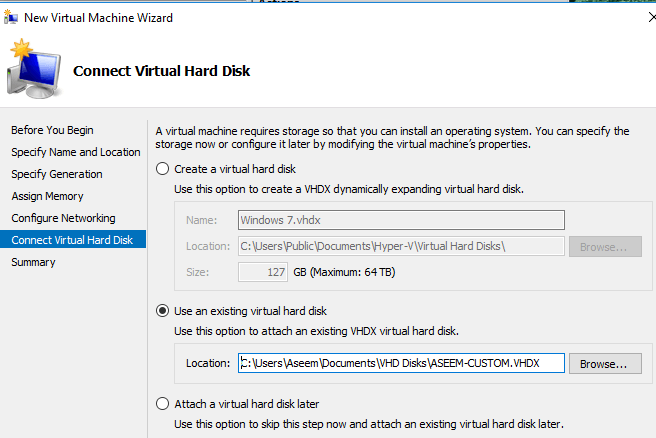
Click the Browse button and select the VHDX image that represents your actual Windows partition. This should be the really big VHDX file. We will have to manually add the other two VHDX drives after the wizard, which I will show further down. At this point, review the summary and click Finish.
Now you should see a new item listed under Virtual Machines. If you click on this, you’ll see a bunch more options in the right-hand pane also.
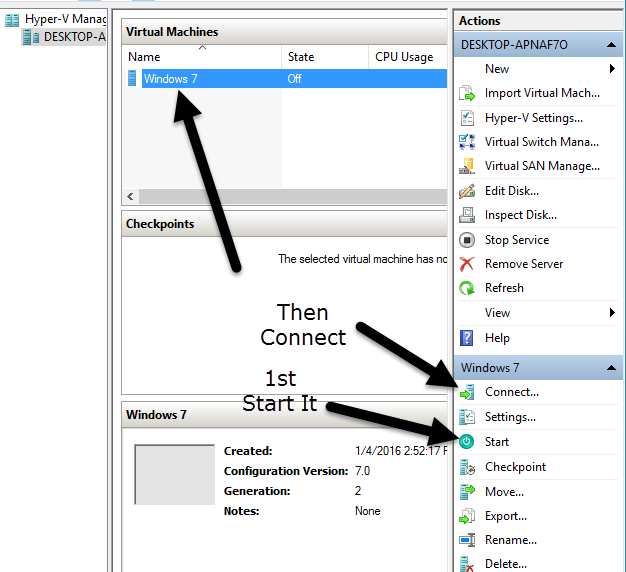
To start the virtual machine, select it and then click on Start. The State column will change to Running. Next to view the virtual machine, click on Connect. If you did this now, you’ll see that error message that I mentioned at the beginning of the article: Boot failure. We still need to add the other hard drives.
Select the virtual machine and click Turn Off. Then click on the Settings link. On the left hand side, you should see IDE Controller 0 and IDE Controller 1. Click on the Controller 0 first. If you chose Generation 2, you will see SCSI Controller only.
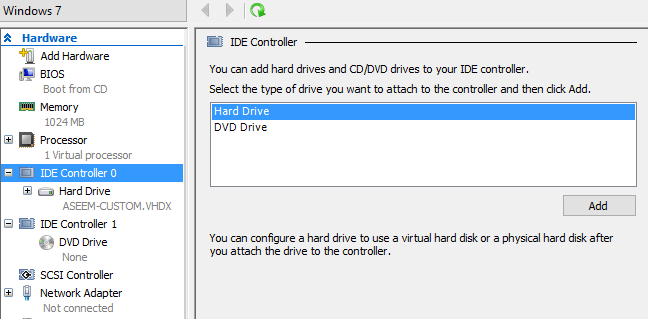
You will see that the first VHDX file we added in the wizard is already listed. Now we have to add the second and third files. Make sure Hard Drive is selected and then click Add.
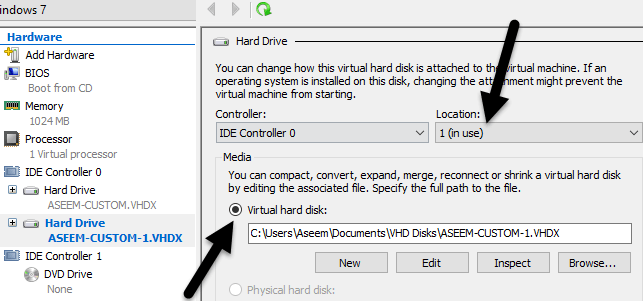
The Location box should automatically choose 1 since the 0 slot is taken by our first VHDX file. Each IDE Controller only has two slots available for adding drives. Click Virtual hard disk and choose your second VHDX file.
Now click on IDE Controller 1 and then click the Add button again. Do the same thing here, but choose your third VHDX file.
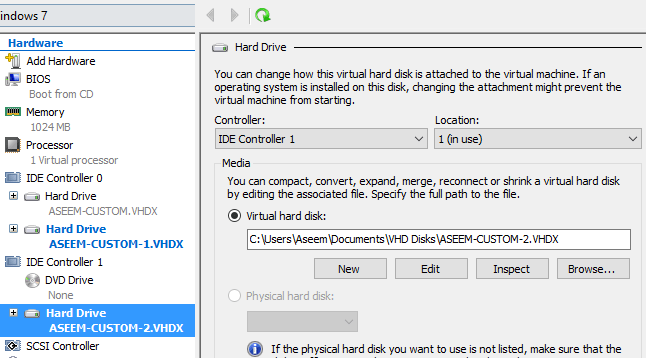
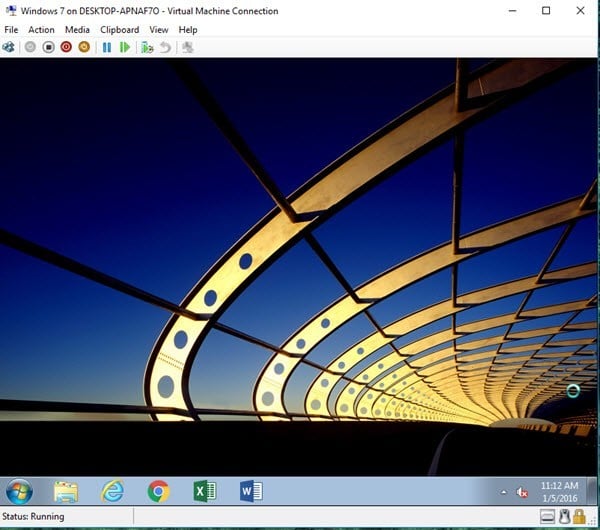
Now that we have all three VHDX files attached, we can click OK and start up our virtual machine. This time you should hopefully get a screen with Windows loading!
Configure Networking
Lastly, we need to setup networking for the virtual machine so that you can connect to the local network and to the Internet. To do this, click on Virtual Switch Manager at the top of the right hand menu.
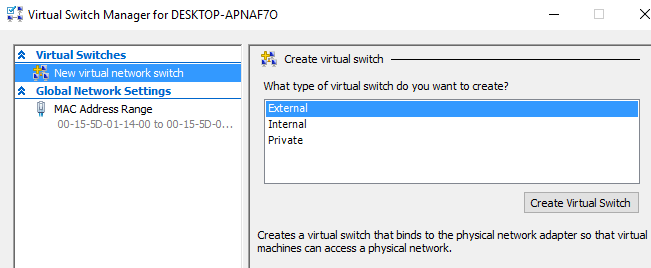
Click on New virtual network switch and then select External from the list box. Finally, click on Create Virtual Switch.
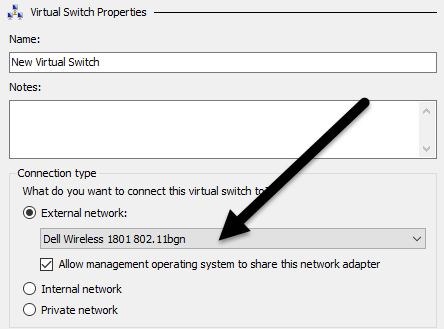
Give your virtual switch a name if you like and then choose the correct network from the dropdown box. If you have more than one network card, choose the one that is connected to the network and Internet. Once your switch has been created, we need to tell the virtual machine to use it. To do that, click on the virtual machine in Hyper-V manager and then click on the Settings link in the right pane.
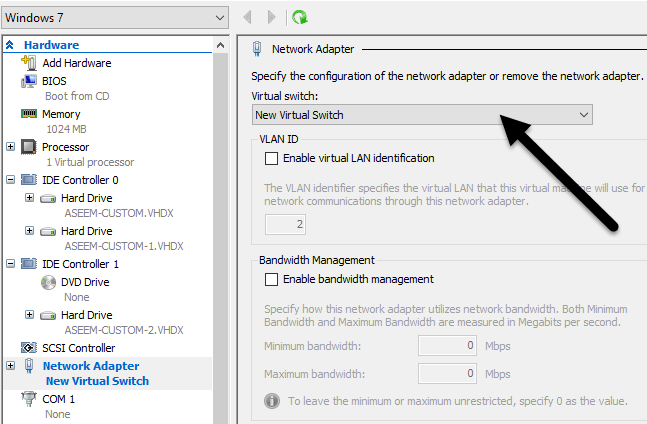
Click on Network Adapter and then choose the new virtual switch that you created in the previous step. That’s it! Now when you start up your virtual machine, it should get network access via the host computer.
Hopefully, this article helps you take your current PC and convert it into a virtual machine that you can run on the same PC or another PC if you like. There are lots of things that can go wrong in this process, so feel free to comment if you run into problems. Enjoy!