Apple wants to help you and offers several methods

If you recently bought a new Mac computer and want to transfer your data and settings from your PC to the Mac, there are a couple of ways to accomplish this task. In this article, I’ll mention the different methods I have used, from the easiest to the most technical.
It’s also worth noting that Apple provides a transfer service in their retail stores for free, which could end up saving you a lot of time. There is no clear guideline on what data they can transfer, but they will do their best to get as much moved over as possible. Set an appointment with the Genius Bar and bring in both of your computers.
Table of Contents
Luckily Apple wants to help new Mac users move their data over from a PC and created a program called Migration Assistant to help make the process simple. Let’s start with this method first.
Apple Migration Assistant
This program is installed by default on all Macs running OS X Lion or later. In order for it to copy data from your PC, you will need to install the Windows version of the program on your PC.
First, download the Windows Migration Assistant program. Go ahead and install it and click Yes whenever you get a prompt asking if you want to allow this program to make changes to your computer.
The assistant should load automatically, but if it doesn’t, you can just click on Start and the program should be listed in All Programs or All Apps.
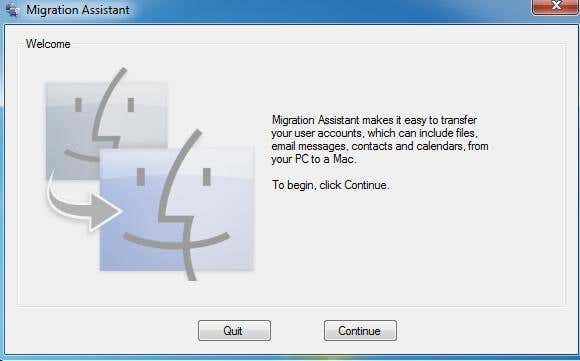
Click Continue and you’ll get a message saying that you should disable automatic Windows updates. This is to ensure the transfer process doesn’t get interrupted by a sudden restart due to updates. Check out my previous post on how to prevent Windows from restarting after installing updates. Skip down to the Control Panel settings section and follow those instructions.
Click Continue and the migration assistant will tell you to open the same program on your Mac computer.
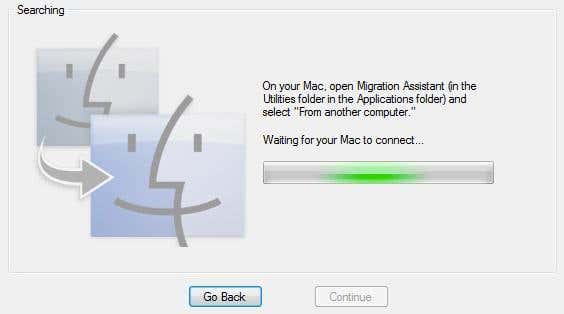
On your Mac, click on the Applications folder and then scroll down to Utilities. You should see Migration Assistant with the smiley faces.
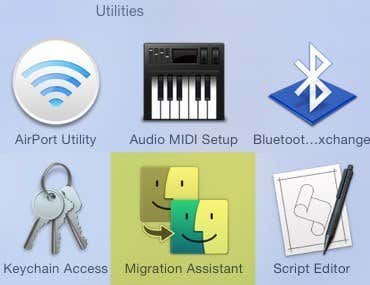
When it opens, go ahead and click Continue. You may get a message stating the firewall is turned on and that you should turn it off. Follow the instructions to turn off the firewall on your Mac.
Once you do this and click Continue, your Mac will close all applications and restart. It loads a special program on boot and you’ll see a dialog like the one below. Please excuse the bad screenshots since they had to be taken by an external camera.
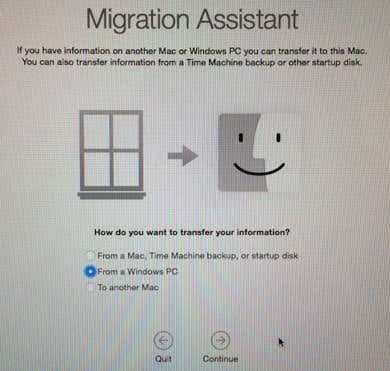
Click on From a Windows PC and then click Continue. Make sure your PC and Mac are connected to the same network, otherwise the two computers won’t be able to find each other. It may also be worth turning off the Windows firewall also if you are running into problems.
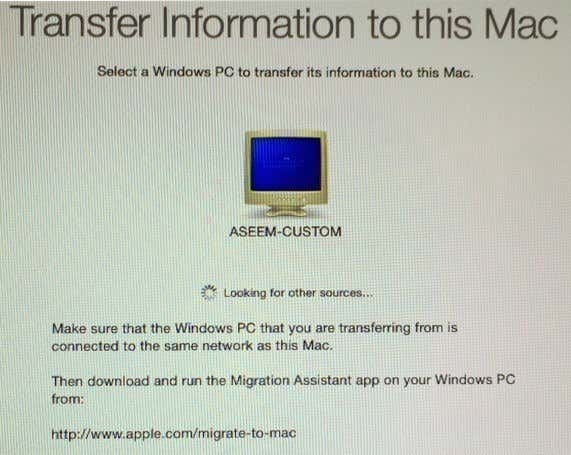
It took a few minutes, but eventually it did show my Windows PC. Once that shows up, you can click Continue and it will show you a security code. You have to go to the Windows PC and make sure the code is the same.
A couple of troubleshooting tips here. Firstly, when you click Continue here, it might show you the code on the Mac, but the code on the PC may never show up. Instead, it might just keep saying Waiting for Mac to connect. In this case, quit the assistant on the PC and restart it.
Secondly, for some odd reason, on my setup it showed a different code on the PC than the one of the Mac. I clicked Continue on my PC anyway and it worked just fine, but not sure why that happened. It could have been because I restarted the assistant program on the PC. Either way, it worked with the different codes.
Lastly, when you click Continue here, it might flash the code screen for a second and then instantly come back to the screen shown above. If this is the case, then restart the assistant app on the PC and that should fix the problem.
Once you click Continue on the PC, it will tell you that the program is ready to transfer data and that you should choose the data on your Mac.
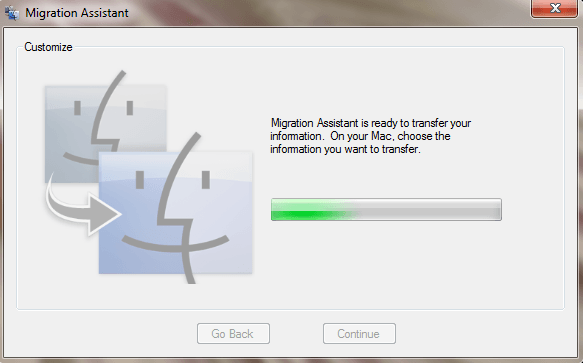
If you go back to your Mac, the code screen should be gone and you should now see a dialog where you can pick the data to transfer.
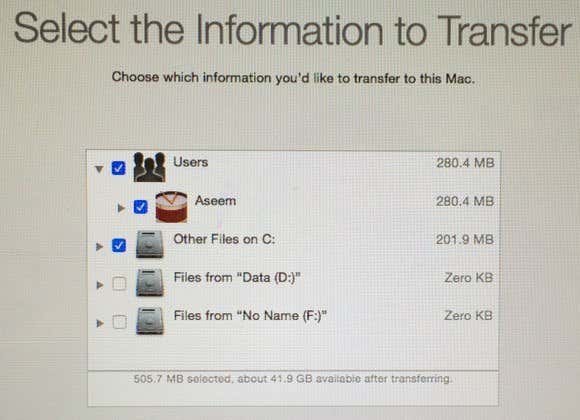
By default, it selects the common folders like Pictures, Documents, Videos, etc. It also tries to find other potentially useful content like contacts, mail, calendars, and bookmarks. Surprisingly, it also lists out any other hard drives installed on your PC and you can easily copy data from there too. At the bottom, it tells you how much data you selected and how much is available to transfer.
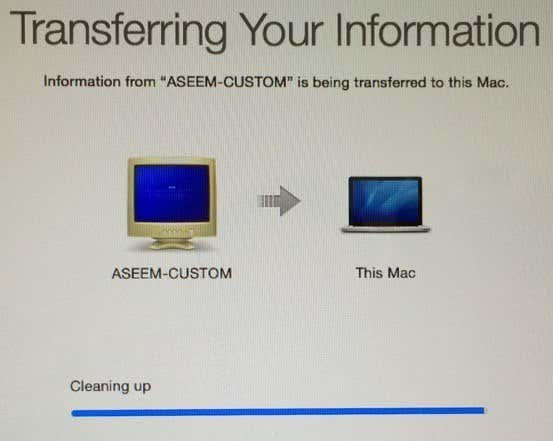
Click Continue and the data transfer will begin. You should know that the Mac will create a new user account and import all the data there. It does not modify any settings for your current user account, which is nice. Once completed, you’ll see a Cleaning up message and then a Quit button.
On the Windows side, you’ll see a Finishing Migration message followed by a message indicating that the transfer was completed successfully.
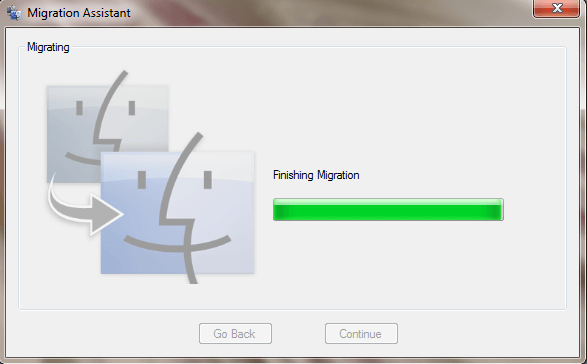
Once you restart your Mac, you’ll see the new user account and you should see all the data transferred located in that user profile. That’s about all there is to it!
It’s also worth noting that Migration Assistant cannot help you transfer any applications from PC to Mac for obvious reasons. Most applications have a PC and Mac version, such as Office and Adobe. If you need to run a Windows only app on your Mac, you can read my previous post on different programs you can use to run Windows on Mac.
Manually Transferring Data
If you want to manually transfer data without Migration Assistant, you can do so, but it requires a bit more work. You have to create a shared folder on your Windows machine and then connect to it from your Mac.
Note that if you have large amounts of data you need to transfer, it might be easier to simply use a portable hard drive, flash drive or network attached storage device.
Going through all the steps to share and connect would make this post too long, but luckily I already wrote a tutorial on connecting to a Windows shared folder from OS X.
In terms of manually getting data like contacts, email, bookmarks, etc, you would have to manually export the items and then import them into the appropriate program on your Mac. If you have any questions, feel free to comment. Enjoy!