Just in case your mouse goes kablooey

There was a time when having a mouse was weird. It was an expensive peripheral only a few professional users could justify. Today you can get a basic mouse for five bucks and just about every computer operating system is built around this ubiquitous pointing device.
So if something happened to your mouse today, how would you right-click? Heck, how would you left-click? It’s a scary thought, right? But by the end of this article you’ll know exactly how to take keyboard control of your mouse in any emergency and right click with the keyboard like a pro.
Table of Contents
Also, be sure to check out our YouTube channel where we made a short video explaining the different methods mentioned in this article.
Why Right Click With the Keyboard Instead of the Mouse?
There are two main reasons to operate a graphical user interface with the keyboard and no mouse. The first is an issue of accessibility. There are many people who lack the mobility or limbs to operate a mouse easily, while still having the ability to operate a keyboard.
The second has to do with hardware failure. Your trackpad or mouse could simply stop working for one reason or another and you probably need to operate your computer until a replacement or fix arrives.

In some cases, using keyboard shortcuts to operate your computer can also be faster and more efficient than using a mouse. Professional computer users already know this, since keyboard shortcuts are basically essential for professional workflows.
So it may turn out that you prefer some of these keyboard shortcuts to using your mouse. There’s nothing wrong with developing a style of computer control that fits your needs.
Use Mouse Keys In Windows 10
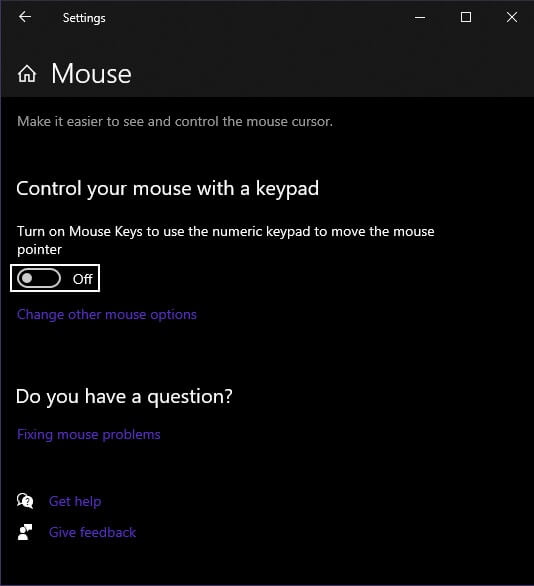
Windows 10 offers a feature known as “Mouse Keys”, which is designed to give users keyboard control of the mouse cursor. To activate Mouse Keys in Windows 10:
- Click Start.
- Type Mouse Keys.
- Click on Turn Mouse Keys on or Off.
You can also reach a more advanced set of Mouse Key settings by going to Control Panel > Ease of Access > Ease of Access Center > Make the Mouse Easier to Use > Set Up Mouse Keys
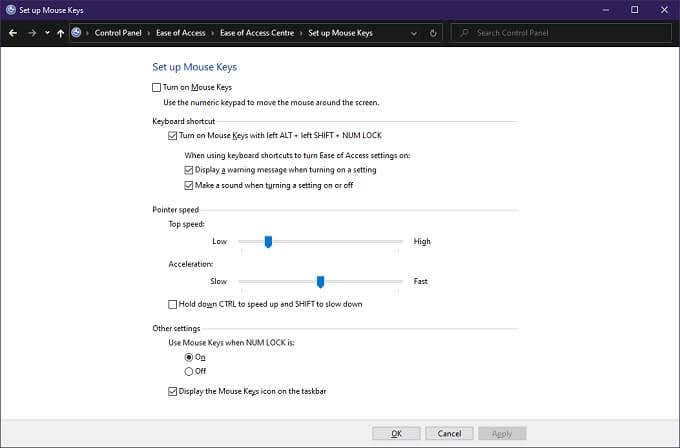
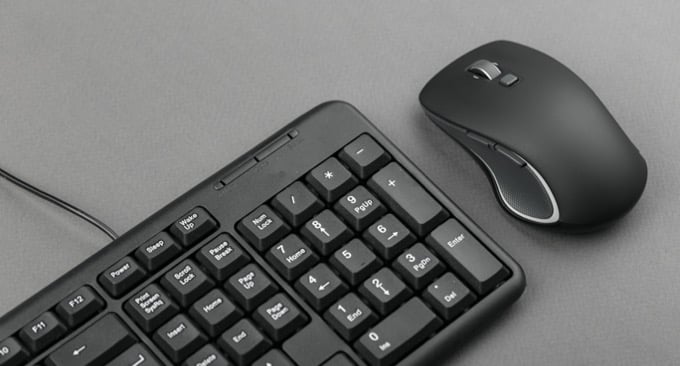
Once you activate Mouse Keys you can move the cursor around using the numerical keypad buttons. Now, “/”, “*” and “-” act as the mouse buttons. With “-” acting as the right mouse button. Under the advanced Control Panel settings for Mouse Keys, you can fine tune how the pointer behaves and right click with the keyboard if you want.
Use Mouse Keys In macOS Catalina
Not to be left out, macOS also has an accessibility feature that allows you to use the pointer via keyboard keys. As you might expect, it doesn’t work in quite the same way as the Windows take on the idea, but it works well.
To activate the feature:
- Click the Apple menu button.
- Choose System Preferences.
- Choose Accessibility.
- Now click Pointer Control.
- Click Alternative Control Methods.
- Activate Mouse Keys.
You can activate Mouse Keys quickly and easily by using Option-Command-F5 or, if you have a Mac with a Touch ID button, press it three times in succession.
Since many Magic Keyboards and MacBooks don’t have number pads, you can also use these keyboard key alternatives to right click with the keyboard. As shown in this official Apple diagram.
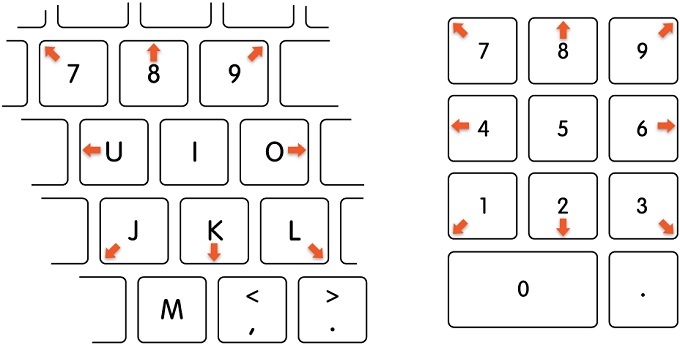
The “I” and numpad “5” act as the mouse click here. “M” and “0” will press and hold the button. In either scheme the full stop (period) button will release the mouse.
Right-Click In macOS
If you’re a Mac user you probably already know that the so-called “alternate click” isn’t set up by default. So if you try to right-click with the keyboard out of the box on a Mac, well, nothing happens.
You need to set up right-click behavior with the mouse in System Preferences under the mouse and trackpad options. Then your Magic Trackpad or Mouse will provide a right-click when you click with two fingers (on a trackpad) or on the right-hand side (with the Magic Mouse).

By default, however, you need to use the mouse and the keyboard to generate a right-click. Simply hold down the control button and then left-click. Don’t confuse it with the “options” button.
If you hold that down instead you’ll still get a popup menu in many cases, but not the right-click menu. For example, holding options and clicking on the WiFi icon opens advanced WiFi options.
Use a Right-Click Shortcut Key
In Windows, you can select items using Tab and the cursor keys.You can then use Enter to activate the item. Taken together, that more or less gives you the same functionality as left-clicking or double-clicking on items.
What most people don’t know is that you can also perform a keyboard shortcut to do a right-click. On some Windows keyboards, there’s a button that looks like this.
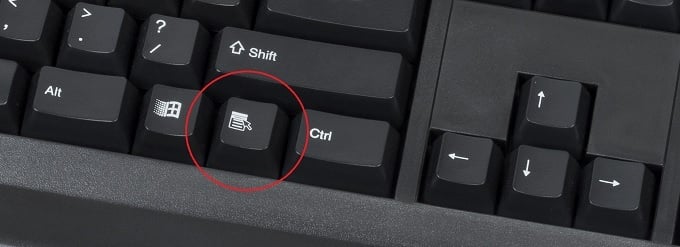
However, many modern keyboards don’t have this. Luckily Windows has a universal shortcut, Shift + F10, which does exactly the same thing. It will do a right-click on whatever is highlighted or wherever the cursor is in software like Word or Excel.
Who Needs a Mouse?
OK, maybe that’s overstating it. Still, if your pointing device stops working or you find a mouse too hard to use, then these keyboard-based workarounds can be invaluable.
If you are forced to use something other than a mouse in order to control the pointer thanks to a disability, you should consider investing in an alternative type of pointing device.
There are many specialized controllers designed for people with a variety of mobility issues. For example, eye-tracking cameras or voice-control. You can even use a piece of software such as Keysticks to use a standard off-the-shelf game controller to control your mouse pointer.
While the mouse pointer is still integral to most desktop operating systems today, you have plenty of choices when it comes to moving that pointer around.