Replace Notepad in Windows 7
Posted on December 11, 2009 at 5:29 am
If you’re a power user, you probably don’t like the default program used to edit text documents, namely Notepad. It’s been the de-facto text editor in Windows since the beginning of time and hasn’t changed a bit.
If you want to replace Notepad in Windows 7 with another text editor like Notepad2, for example, it can be a bit tricky! Luckily for you, I’ve tried out several methods and found one that works!
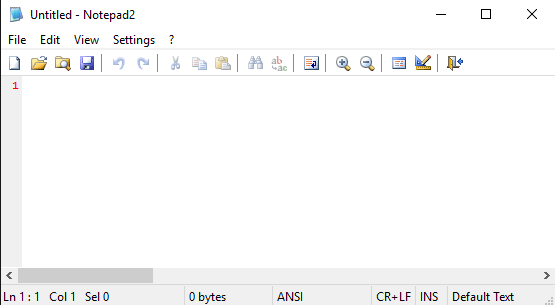
In this article, I will walk you through the steps to replace the default Windows Notepad with Notepad2. That way, whenever you double-click on a text file or right-click on a file and choose Edit, it will open in Notepad2 automatically! Sweet.
Replace Notepad with Notepad2
Step 1: First, download the latest version of Notepad2 from the link below:
http://www.flos-freeware.ch/notepad2.html
If you have a 64-bit version of Windows, make sure you download the x64 version under Other Modified Versions of Notepad2.
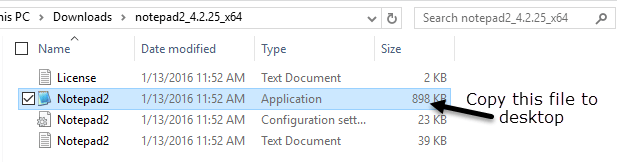
Step 2: Go ahead and extract the files to a folder on your computer. There should be 4 files.
Step 3: Turn off User Account Control in Windows 7. You can read my previous post on how to configure UAC in Windows 7. You need to drag the slider all the way down to Never Notify.
Note that after the whole procedure, you can restore your previous UAC setting. We are only changing it temporarily so that we can replace some system files. Make sure you restart your computer before going to the next step!
Step 4: Now create a new text file using Notepad or whichever text editor you like and paste the following text into it:
rem START BATCH COMMANDS
rem PLEASE MAKE SURE THAT USER ACCOUNT CONTROL (UAC) IS TURNED OFF AND PC HAS BEEN REBOOTED FIRST!
rem If you are using VISTA x32 version, then edit this file first by adding “rem ” in front of every line that contains the phrase “syswow64?. Then run the script again.
@echo off
PAUSEtakeown /f c:\windows\syswow64\notepad.exe
cacls c:\windows\syswow64\notepad.exe /G Administrators:Ftakeown /f c:\windows\system32\notepad.exe
cacls c:\windows\system32\notepad.exe /G Administrators:Ftakeown /f c:\windows\notepad.exe
cacls c:\windows\notepad.exe /G Administrators:Fcopy c:\windows\syswow64\notepad.exe c:\windows\syswow64\notepad.exe.backup
copy c:\windows\system32\notepad.exe c:\windows\system32\notepad.exe.backup
copy c:\windows\notepad.exe c:\windows\notepad.exe.backupcopy notepad2.exe c:\windows\syswow64\notepad.exe
copy notepad2.exe c:\windows\system32\notepad.exe
copy notepad2.exe c:\windows\notepad.exe
@echo on
rem END BATCH COMMANDS
Save the file as “replace.bat” or whatever you like, just make sure it has a .BAT extension and not a .TXT extension. Make sure you save the file in the same folder as the one that has the four Notepad2 files we just unzipped.
You can read my earlier post on how to create a batch file, which walks you through the steps of saving it properly.
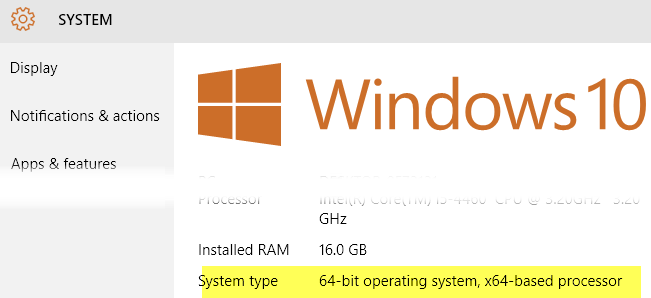
Before you close the file, however, you need to determine whether you are running Windows 7 64-bit or 32-bit. If you are running 64-bit, you’re set.
If you are running 32-bit Windows, you have to go through the script above and put the word “rem” in front of any line that has “syswow64” anywhere in the line. After doing that, you can save the file.
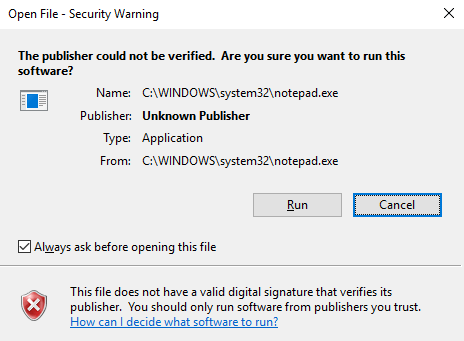
Step 5: Now run the script by right-clicking on it and choose Run as Administrator. This will help to make sure you don’t get an Access is Denied error during the script.
The script will give you a couple of warning message, just press any key to keep going. Then it will tell you whether or not it was successful in getting access to the notepad system files.
If it says Success and then asks your “Are you sure?”, type in Y and press Enter. You will have to do this three times.
That’s it! If you got the success message three times and typed in Y, Notepad is now replace with Notepad2!
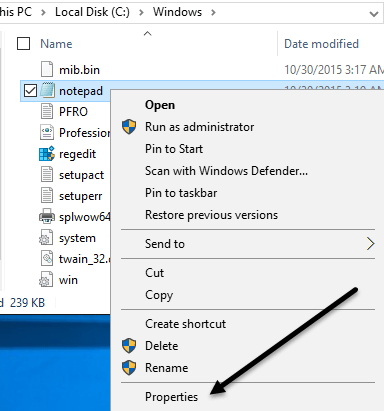
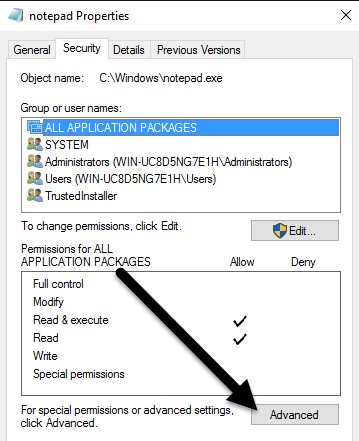
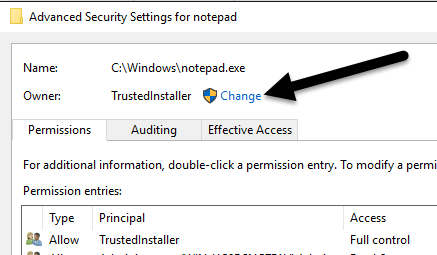
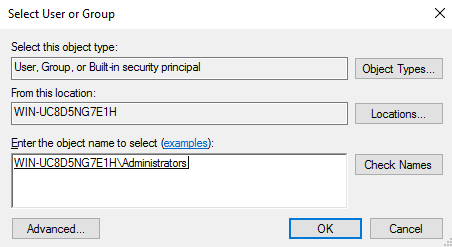
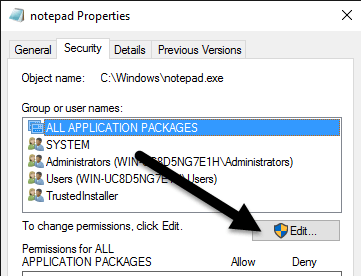
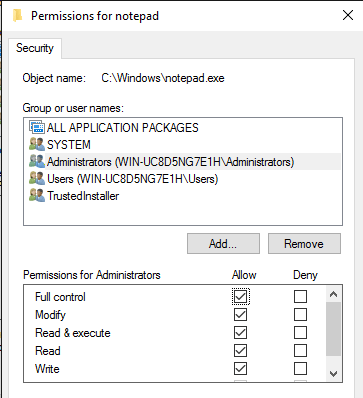
If you for some reason got a failure message that says “Access is Denied”, you might have to manually change the permissions on the Notepad app. The reason why this happens is because the files are protected by the Trusted Installer in Windows 7.
You can read my previous article on how to edit files that are protected by Trusted Installer. Basically, take owernship and then give the Administrators group Full Control.
You have to do this for all instances of the Notepad application. I have listed all the possible locations below for 32 and 64-bit Windows 7.
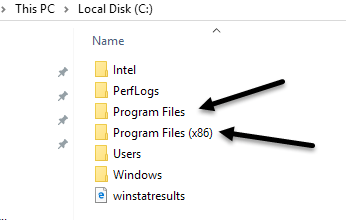
c:\windows\syswow64\notepad.exe
c:\windows\system32\notepad.exe
c:\windows\notepad.exe
Once you have taken ownership and given Full Control, make sure you restart the computer and then try to run the script again. At this point, it should replace all the files with the Notepad2 files.
Finally, if you want all the settings to be saved for Notepad2, you need to copy the Notepad2.ini file to the C:\Windows folder and give yourself Full Control of that file.
If you have any questions or it didn’t work for you, post a comment here and I’ll try to help! Enjoy!
» Filed Under Computer Tips
Related Posts
- How to Use the Remote Shutdown Command in Windows
- How to Open Multiple Programs in Windows at Once
- How to Fix Access is Denied, File May Be In Use, or Sharing Violation Errors in Windows
- Hide and Lock Text Files in Windows
- How to Create a Secured and Locked Folder in Windows XP
Sweet tip man. I never knew this was possible. Here’s my question though: you wrote about how to replace Notepad with Notepad2, but what if I want to replace it with Notepad++?
Would I just change the script to use the Notepad++ EXE file? Thanks for the great info!
Why not just right click on a txt file, choose “open with” and “set default program”? seems a lot easier to do it that way…my 2c
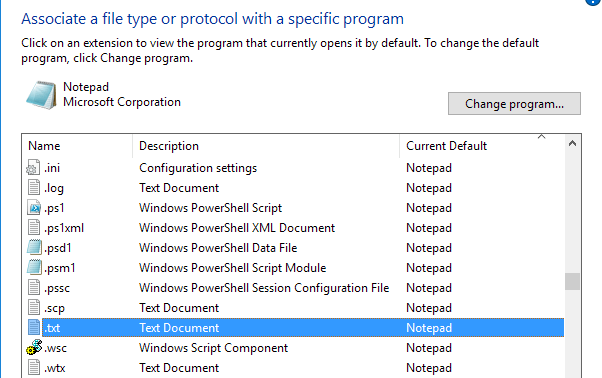
Ryan, in Windows, any file that doesn’t have a program already associated with it will open with Notepad, i.e. .ini, .bat, .log, etc. Instead of having to change all of those associations, you simply change the default program.
But when Patch Tuesday has a fix for notepad.exe, you have to do it all over again.
After skim reading the article, and looking through the comments I don’t understand why you couldn’t just do the following: rename notepad2.exe to notepad.exe and replace the file wherever it is (for example, %SystemRoot%\system32\notepad.exe)? Could someone clarify this please?
Well, I tried, but I get the following 3 errors when I try to click on a txt file to open it:
Load langs-xml failed!
Cannot load the dynamic library
Scintilla.ext is failed!
And I can’t go back to MS notepad.exe. I get the same errors.
There is an installer version, maintained by Kai Liu, you can find a link to it from the notepad2 homepage. It makes the process a bit easier.
I agree with Ryan… in my Notepad++ I just opened Settings > Preferences > File Associations and selected all files to be open with Notepad++. This includes .log, .txt, .ini, .vbs, .h and many others that I don´t use frequently.
I may be missing something but I don´t see the advantage to replace notepad instead of the file associations.
Try this for Notepad++. Sorry it’s in French.
crazyws.fr/blog/?p=1142
If you don’t see the advantage in using this .bat file, then this post isn’t for you. For me and many other people, this makes life much easier to replace the default MS notepad and use one of our choosing. Personally I prefer notepad++ and this tips works the same way, just replace notepad2.exe with notepad++.exe and run in installed folder. Thanks for the .bat file.
Well, after all is said and done, I ended up doing what Alex said, and went into Settings/Preferences and changed Notepad2 file associations.
At a later date I’ll do a repair to get the original Notepad back in the proper directories.
Works perfectly in XP.. Great work..
@TUPACALYPSE187
I also see a lot of advantages in replacing default MS Notepad. I just think it is much easier to change the file associations… I use notepad++ and you can change several associations at once in the preferences.
Merci bien, Cr@zy! Yours worked!
Works great in windows 7 ultimate x64. I had tried other methods without success.
Thank you!
Your welcome
Could not successfully complete the process (Vista32). As instructed, I placed ‘rem’ before each line referring to 64 and changed notepad2.exe to notepad++.exe. After to start the process, I was able to successfully take ownership of the two files, but when I answered ‘y’ and hit for the final (3rd time), Notepad quickly compiled and closed – I could not capture what happened.
I manually took ownership of the two files, rebooted and tried again. Same thing. No luck. I finally had to use the file association function in Notepad++. Seems to be working fine. I suppose I like the idea of being able to disconnect the file associations as needed (which Notepad++ allows me to do). I did a search for Notepad.exe and found the folowing: .mui files; files beginning with x86_microsoft…(and referring to c:\windows\winsxs files) – each containing an instance of notepad.exe.
Additionally, I now have two ‘prefetch’ files – one each for Notepad and Notepad++. No .ini files for either. Both programs seem to be working fine. I am concerned about saving my settings. Then I tried adding the Notepad++.exe location to the .bat file and ran it. It appeared to compile a little longer, but nothing changed functionally – at least as far as I can tell. This is way over my head. I appreciate your knowledge and have added you to my favorite tech sites. If anyone has time for comments to teach this beginner, I would appreciate it. Thank you…
Great article! I’ve been using Notepad for so long, I’ve become used to it kind of like a rock in your shoe. Imagine what it must be like with the rock gone!
I followed the procedure exactly to install Notepad2 in place of Windows notepad in Windows7 Pro. Now when I attempt to open a text file I get the following message:
“You May not have the appropriate permissions to access this item”
I have gone through the previous article “edit files that are protected…” for the new notepad.exe but I still get the same message.
Please help…
Thanks I have replaced StNotepad in my multiouch Tablet PC. I was looking for a notepad with Multitouch feature, to edit text in tablet mode. I found that StNotepad 2 got this feature with very common and useful gestures. Now I can edit text only with fingers no need of keyboard, mouse and stylus also. And more over it got its own special semitranparency, it’s awsome in Windows7.
Hmm, I’va succeeded in doing all these steps, but as soon as I return UAC to the default setting I get an error; “Windows cannot find the file specified…” every time I try to start Notepad2 or when clicking a txt-file. What’s up with that?
Also, since I’ve been trying and retrying, the backup of notepad.exe has been replaced by Notepad2.exe (running them consecutively a couple of times in a row is not a good idea), is anyone willing to share a Notepad.exe in 64-bit version, I’d appreciate it. At the moment I can’t edit txt-files in any real usable way, so I’d like to be able to at least revert to the old way.
By chance I tried one more thing. Since the dialog also mentioned “You might not have the right permission…” I made one last effort and see if I could figure this one out. When I checked the permissions of Notepad.exe in C:\Windows it only contained Administrators. I added myself to that list with the permissions of Full Control and whaddya know, it works!
I usually add Notepad2 as a file association for a few file types, but *not* as the default one – to avoid messing up Windows. I have run into a problem with this:
First I added several file associations with Notepad2.EXE in a “Program Files” subfolder – this worked. Unfortunately when I tried to change the settings I was unable to save them (no permission to the INI file, and no option to proceed as admin).
Then I tried adding a TXT file association with Notepad2.EXE in a different folder, i.e. not under “Program Files”. Windows 7 does not let me add the file association – it lets me browse to the Notepad2 folder and select the EXE file but when I click OK in the OpenFile dialog, Notepad2 is not added to the list of programs to choose from.
Hi
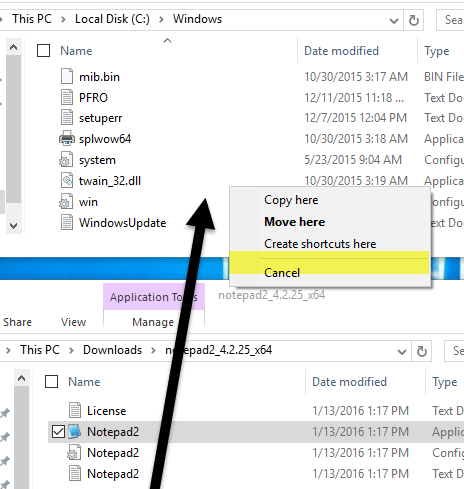
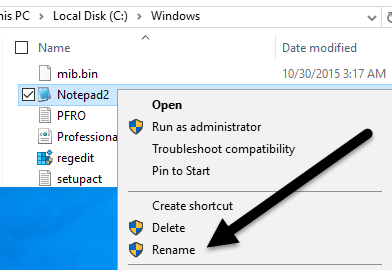
I had to add myself to security group for notepad.exe. I also had to do rename notepad2.exe to notepad.exe in the extracted source dir. Then perform an additional replace using this file in for the notepad C:\Windows.
how do you uninstall it if you install notepad2 this way? also is there a way to remove (Administrator) next to the title?
Are you kidding? It’s 2010 and I have to do all this to replace notepad with edlin? I suppose I’ll cave and hack my way through it because it has to be done.
I do appreciate the post though. Don’t get me wrong.
Is there some reason why the developers of notepad 2 and ++ et al don’t have a setup program that would allow us to replace notepad.exe with their version on on XP, Vista or 7?
Why can I not read documents from a flash stick used on windows 7 on my computer windows XP?
I would recommend adding the word PAUSE on its own line at the end of the batch file so the user can see that the files were copied properly. Otherwise, the command prompt closes and you may never see a access denied error.
Another thing to warn the user, is that ALL instances of notepad must be closed before you start the procedure.
Additionally, you may want to add the line
copy notepad2.ini c:\windows\notepad2.ini
or something similar to have notepad2 start saving your preferences.
Finally a note to the user…the batch file MUST be stored in the notepad2.exe directory or else it will not work.
Thank for the tip!
Works great, but items that I open through ‘Edit’ on the right click menu are not responding to my config file for Notepad 2 (different font size etc) however, if I open a file through ‘Open With’ and select Notepad2 it uses the config settings.
Can something be added to make the default right click menu ‘Edit’ respond to the config file that’s in the Notepad2 folder?
Hello everyone.
I took the suggestion of TUPACALYPSE187 and everything seems to have worked fine in my Windows 7 64bit machine except that I still have the same problem.
Notepad++ is still not my default text editor and now neither is notepad.
Also I cannot choose to make either one my default because the box to check for that is grayed out and always has been.
Is there an alternative that is similar to notepad++ that is any good and can be configured easier than notepad++?
How do I change back what the .bat file did?
I don’t think changing the actual Notepad.exe file is actually the best idea. In Notepad++, you can simply go to the Options dialog and click the File Associations tab and choose the files to open with Notepad++.
But just a quick warning about associating files with Notepad++: Don’t associate EXE, BAT, CMD, VBS or other command prompt or Windows script files with Notepad++ or the batch code or script inside the file will not run, instead it will show the code in Notepad++.
An alternative to what i mentioned above is to simply right-click any file in a folder dialog (or an open or save file dialog box) and click “Edit With Notepad++” (or similar). This may not work if you didn’t turn this setting on in Notepad++’s installer program.
And for those who want to revert back to Windows Notepad, log on as an administrator, and navigate to C:\Windows and delete notepad.exe (be careful; don’t delete notepad.exe.backup or you will lose notepad forever), and rename notepad.exe.backup to notepad.exe.
Do the same in C:\Windows\System32 and C:\Windows\syswow64 (it does not matter if one of those folders do not exist on your computer.)
How do you get the shortcut to say Notepad again – it still says Notepad2 after you do what you suggested in the previous post
Worked like a charm on Windows 7 Ultimate 64-Bit. Been searching for this for ages.
Thanks a lot. =) ;p
Thanks For great help, normally original notpad was not working on win 7 ultimate, now with this methode working well.