Dig out all those old CDs collecting dust

One common question I get from friends and co-workers is how to take a regular audio CD and convert the tracks into MP3 files. The days of carrying around a CD player are long gone, thanks to smartphones! However, why pay 99 cents on iTunes or the Google Play Store for music you might already own!? Instead, you should dig out all those old CDs and rip them to your computer, which you can then import into your iTunes music library and sync over to your phone.
The process is actually quite simple and only requires Windows Media Player, which is installed with Windows by default. In Windows 7 and Windows 8, you can rip the audio CDs directly to MP3 format, no need to convert them to from one format to another.
Table of Contents
To get started ripping music from an audio CD, go ahead and pop it into your CD/DVD drive. If Windows Media Player was not already open when you put the CD in, a small window will pop up called the Now Playing mode and when you hover your mouse over the album artwork, you’ll see a small button to rip the CD.
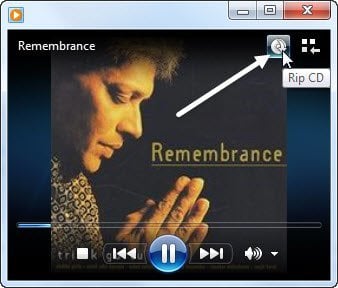
If you already had WMP open, then you’ll be in Library mode and you should see a few new menu items at the top: Rip CD and RIP Settings.
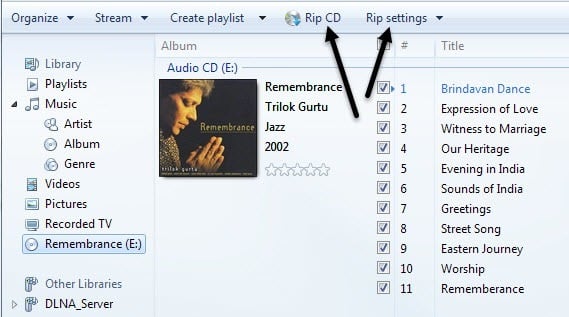
Library mode is better in the sense that you can choose exactly which tracks you want to rip instead of ripping the entire CD. To do that, you just uncheck any track you don’t want ripped before clicking the Rip CD button.
Note: Before you rip a CD, make sure you are connected to the Internet because WMP will look up information on the album and track and add that metadata to the file.
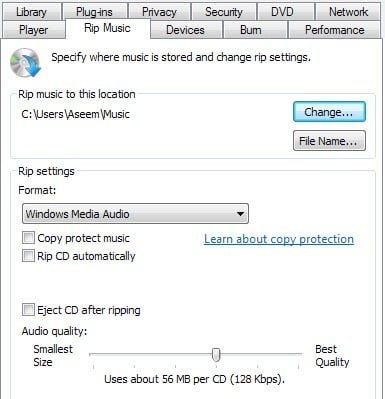
Also, before ripping, you should check the rip settings to make sure they are what you want in terms of format, quality, etc.
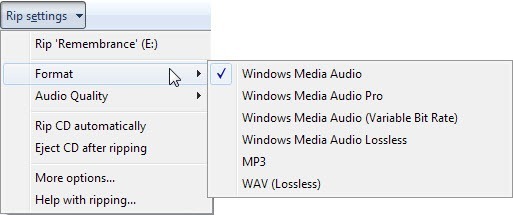
For the format of the output file, you can choose Windows Media Audio, Windows Media Audio Pro, MP3, and WAV. By default, the audio quality is 128 kbps, but you can rip it all the way up to 192 Kbps if you like.
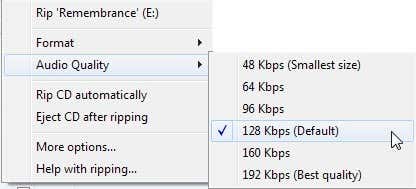
If you are ripping a lot of CDs and don’t want to change these settings for every CD, click on More options and then change the defaults. Here you can also see the default location for ripping music, which is probably the Music folder in your Users folder.
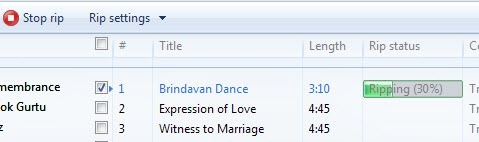
When you click Rip CD, the process will begin and the amount of time to rip the CD depends on your CD/DVD drive speed and CPU speed, but overall it should be a fairly quick process.
That’s about it! Ripping a CD is really easy nowadays and if you have a lot of old music CDs laying around, go ahead and rip them all before you lose them. If a CD has copyright protection on it, the ripping process may fail, but so far Windows Media Player has been able to rip just about every CD I’ve thrown at it. If you have any questions about ripping