A stranger could see your text and if they have your phone actually reply to them even if locked

By default, the iPhone will show the world your SMS texts and iMessages on your lock screen whether you have Touch ID or a passcode setup on your device. For most people, this isn’t a big deal and therefore they don’t change the setting.
However, it can actually be a big privacy or security issue. For one thing, you never know what kind of text you’ll receive and who might happen to see it. With default settings, anyone who is within eyesight of your phone can read messages when they arrive because your phone will light up.
Table of Contents
If they can physically touch the phone, they can not only read messages, but actually reply to them from the lock screen. This is true even if you have Touch ID or a passcode enabled.
From a security perspective, it can be dangerous for someone who has two-factor authentication enabled on websites. Many websites simply send you a code via text message, which can then easily be viewed by anyone in close proximity to you.
Thankfully, Apple has included a bunch of different options in the settings to control your privacy. In this article, I’ll show you how you can secure your text message so that only you see them.
Note that none of these settings below will help if you do not enable Touch ID or enable a passcode. Even if you configure your phone to show nothing on the lock screen, someone could easily just swipe to unlock your phone and read anything they want.
Show Previews
The first setting you can change is Show Previews, which will probably be enough for most people. Go to Settings, then Notifications, and tap on Messages.
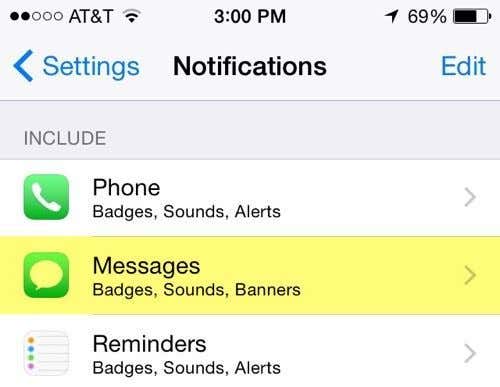
Scroll down to the bottom and you’ll see an option called Show Previews. Tap the little toggle button so that it is no longer green.
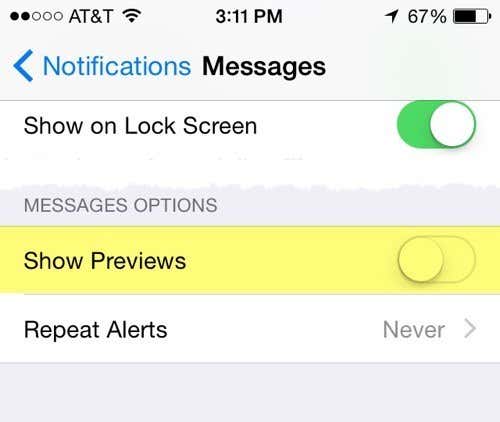
Now when you get a text or iMessage from someone, you will only see the name of the person and not the message. Instead of the message, you will just see default text like iMessage.
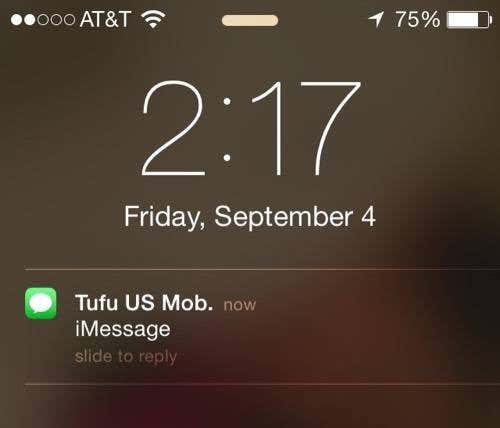
Note that when you hide previews, you can no longer reply to the message from the lock screen, even if that option is enabled. This makes sense because how can you reply to a message you can’t see?
Show on Lock Screen
For those who want more privacy and security, you can also go to Notifications – Messages again and turn off a couple of more items.
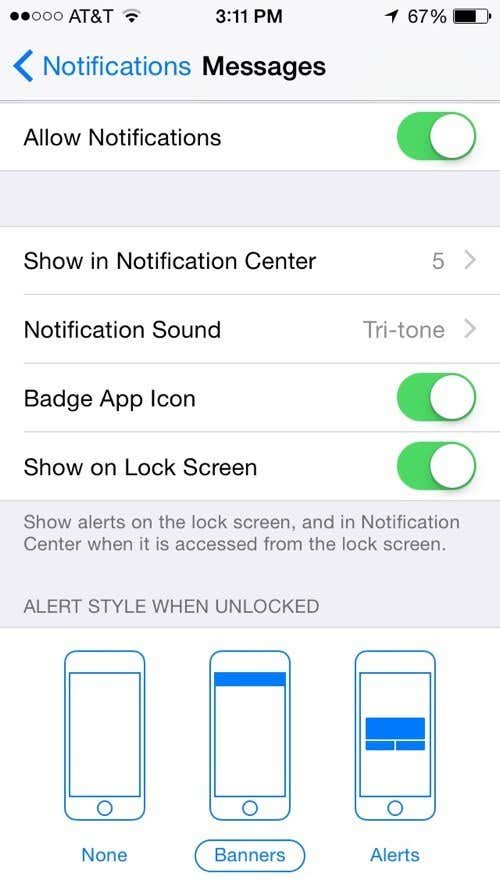
The next step would be to disable the Show on Lock Screen option. When you receive a message now, not even a notification will show up on the lock screen. Instead, the phone will either make the text message sound or vibrate if you have it on silent.
When you unlock your phone, a banner will show up across the top showing you the new messages. You’ll also still be able to see how many new messages have arrived because of the badge app icon.
The maximum level of security is to disable Badge App Icon, disable the notification sound and disable messages in the notification center. If you do that, you won’t even know when you have received a new message. You’ll have to manually open the Messages app to see any new messages. That’s probably a bit much, even if you want more privacy and security.
A good balance is to turn off Show Previews and to enable a passcode. That way you will still know when new messages arrive, but can only see them after you unlock your phone.
Text Message Forwarding
You should also be careful about how you use another “useful” feature on iOS called text message forwarding that can expose your messages to unwanted viewers.
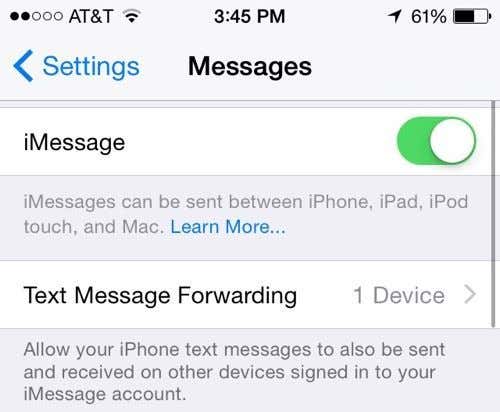
If you go to Settings, then Messages, you will see this option listed below iMessage. If you enable it, you can allow other devices to send and receive text messages as long as those devices are signed into the same iMessage account. Here I have one device enabled, namely my Macbook Pro computer.
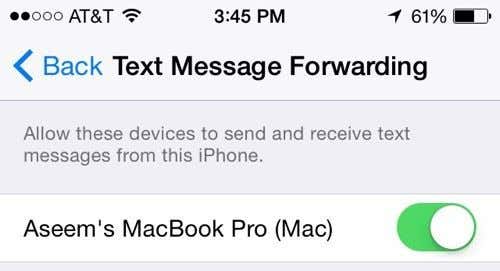
I’m only mentioning this because most people who have an iPhone also have Mac computers, iPad, iPod Touches, iMacs, etc. If you are logged into iMessage on everything and have text message forwarding enabled, then you also need to ensure that all of those other devices are secured too with a password at least.