A complex question with a complex answer

For a world that’s rapidly going all-digital, it might seem like a no-brainer to have electronic elections. Yet, for most of the world, the tried-and-tested paper-based voting system is still the preferred choice.
One reason for this is pure inertia. It’s not easy to simply change such a massive and entrenched system overnight. Another important factor is a cautious attitude when it comes to preserving the integrity of an election.
Table of Contents
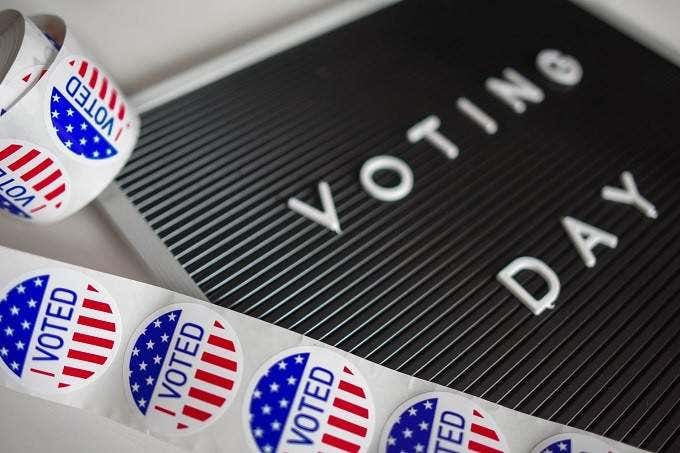
The nature of paper-based voting fraud is well-known, but once you go digital there are an entirely new set of variables at play. Nonetheless, electronic voting is coming, and when you next head to the ballots there’s a good chance you’ll be pressing a button on a machine rather than marking a piece of paper or punch card.
The big question then is whether it’s safe to vote electronically and is election hacking an issue?
What Does “Electronic” Voting Mean?
There are various forms of electronic voting and the safety concerns are different for each one. Electronic voting, broadly, means capturing votes using a computerized system. Voting machines that read punch cards are also strictly speaking under the broad umbrella of electronic voting. But those types of machines are not usually what people are talking about when they use the term “electronic voting”.
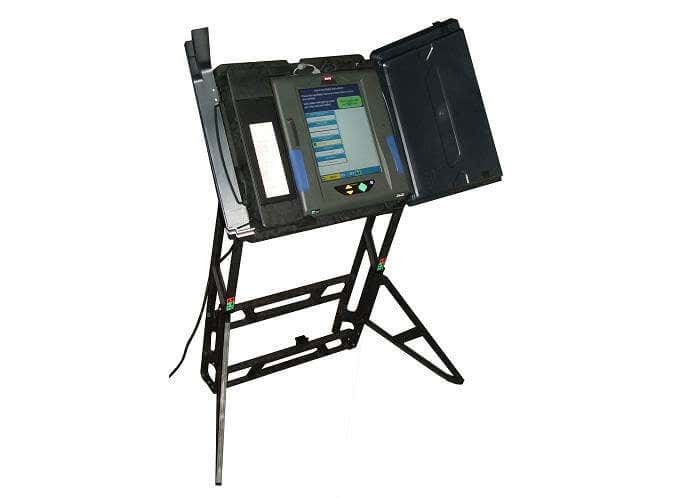
Instead they either mean the use of so-called “direct recording electronic systems” or alternatively online voting using a device like a computer or smartphone.
What Are The Benefits Of Electronic Voting?
Elections are expensive, labor-intensive and can span long stretches of time that affect productivity on a state or national level. If everyone could vote electronically it would mean very fast and accurate voting counts. Fewer people would need to be employed to manage the election. You also cut out the transport of tons and tons of paper, along with the security infrastructure to make sure those votes make it safely to where they are counted.
Standalone voting machines also offer lots of flexibility when it comes to the user experience. For example, voters with disabilities can choose from a number of accessibility options to help them cast a vote independently and with dignity.

Direct recording electronic systems have no paper versions of votes and all votes are recorded to some sort of memory device. That data is added to the count. Obviously, since it’s all electronic, there can be no miscounts and the results are available immediately. At least in an ideal world, that’s how it should work.
With online voting a major benefit would be that voters can cast their vote from home, from another country or anywhere else with an internet connection. Which may theoretically increase voter turnout and allow for the public to vote on more issues, more frequently. Rather than expensive referendums for only the largest issues. In other words, it could be a tool that allows for a more pure expression of democracy.
How Does Electronic Voting Work?
The short answer, from a voter’s perspective, is that it should work pretty much like paper-based voting. Assuming that you have been verified as eligible to vote, you’ll walk up to the machine, follow the instructions, and then cast a vote for your desired candidates. Your vote should then be securely stored and tallied.

Online voting would involve logging in to a voting system, going through some sort of identity verification process and then casting your vote. Online voting is not suitable for government elections and has far too many problems that affect integrity, but it does see use in private enterprise for things like shareholder voting.
With the advancement of various technologies we might one day see online voting secure enough for use in general elections.
What Are The Main Security Risks?
The security risks when it comes to electronic voting depend on the specific type of electronic voting under discussion.
The main risk with direct recording electronic voting machines is their lack of a paper trail. Electronic machines that use punch cards are making an electronic copy of a primary paper record. This means that officials can go back to the actual punch cards to verify the electronic count.

While it’s relatively easy to see if a paper card has been tampered with or rendered invalid, it may not be possible to know if the digital data in a DRE machine has been tampered with. So the safety of a given DRE machine relies strongly on data redundancy and how results can be checked against an independent record or how tampering with the data can be detected.
How Can Hackers Tamper With Electronic Voting?
First of all, it has to be said that there is no such thing as a 100% tamper-proof system. There will always be some measure of fraud or vulnerability in any voting system. So the real question is whether the general level of risk posed by electronic voting is acceptable. Especially compared to the risks of accepted analog voting systems.
One of the biggest problems with electronic voting is that detecting whether digital data has been tampered with can be difficult. Depending how that data is stored, encoded and transferred. This is why there has been reluctance to accept direct recording machines, because there’s no secondary record to check against.

This means that if these machines have been hacked and real fraud has occurred, we may never know. What we do know is that vulnerabilities in some machines have been demonstrated under laboratory conditions.
There are also a number of verified forensic findings of voting data that has been tampered with or that the machines themselves have been tampered with. In 2019 TV personality John Oliver released an excellent summary of the security problems electronic voting machines have exhibited in the USA and we recommend it as a good starting point to understanding the key issues.

However, we can summarize some of the main vectors of attack here:
- Access to the people who program and operate DRE machines
- Access to the software that’s loaded onto the DRE
- Direct physical access to a DRE machine (e.g. USB malware attack)
- Network access to DRE machines that aren’t isolated
As is usual with the nature of hacking, the weak points in security are often human in nature rather than digital. So dedicated hackers might target every link in the chain leading towards the final electronic count of voting machine data, with special emphasis on the human beings who form part of that chain.
Is It Safe To Vote Electronically?
This is a complex question and there’s no way to say that the answer is an unqualified yes or no. One issue is that two different voting machines may have very different vulnerabilities.
So the most important thing that you can do is find out which model and brand of voting machine you’ll be using in your state or local polling station. Do some research on whether that machine has been independently tested by security professionals to decide whether you’d be comfortable casting your vote with it.
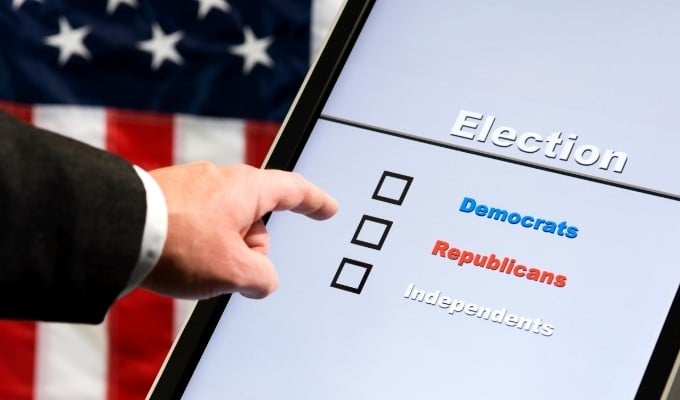
Electronic voting shouldn’t be viewed in isolation either. There are troubling indications that voter behavior “hacking” can happen via platforms such as social media using disinformation and concerted bot networks.
If you manipulate voter sentiment artificially, then you don’t need to hack DRE machines at all! So consider the quality of information you’re basing your vote on as well, it might be you who have been hacked and not the machine taking your vote.