Choose the one that best suits your needs

A common dilemma is when you have a video but only want the audio part of it. Maybe it’s the music from the video that you want to have in MP3 format, or something off YouTube that you want to listen to instead of watching.
There are a number of tools you can use if you’re looking to extract audio, sound, or background music from a video file. While some of those are simple, single-purpose audio converters, others are multi-tasking software apps that can help you solve different audio-related issues.
Table of Contents
Have a look at the best tools to extract audio from video and choose the one that suits your needs.
Extract Audio From Video Using Online Tools
If the video you’re working with isn’t huge and the only thing you need to do is extract the audio, one of the following online tools will do the job. These tools are free and easy to use. The biggest advantage is that you don’t have to install any software to use them.
Freemake Video Converter
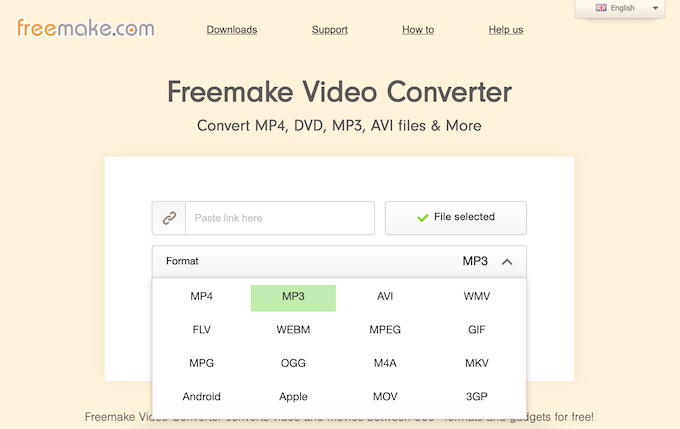
Freemake Video Converter is a free web tool that you can use to extract audio from your video file online. The converter has a very straightforward interface and supports more than 500 formats.
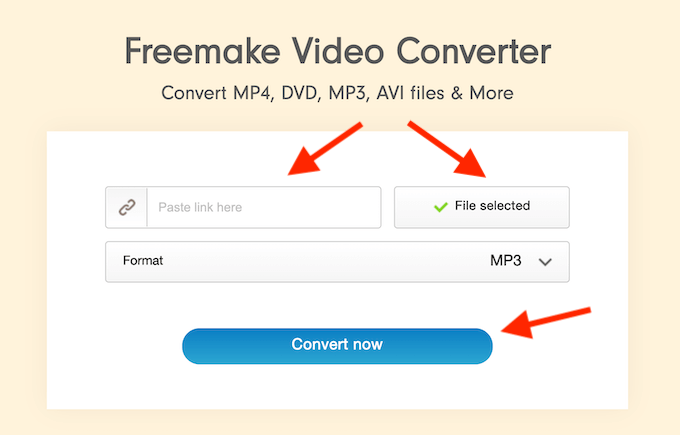
In order to separate audio from video, go to the website, then either paste the link to a video file or upload it to the website. Under Format, choose your preferred audio format and click Convert now. Your audio file will automatically download.
You can use Freemake Video Converter online, or download it for free and use it to trim videos, add subtitles, or even rip and burn DVD/Blu-ray.
Audio Extractor
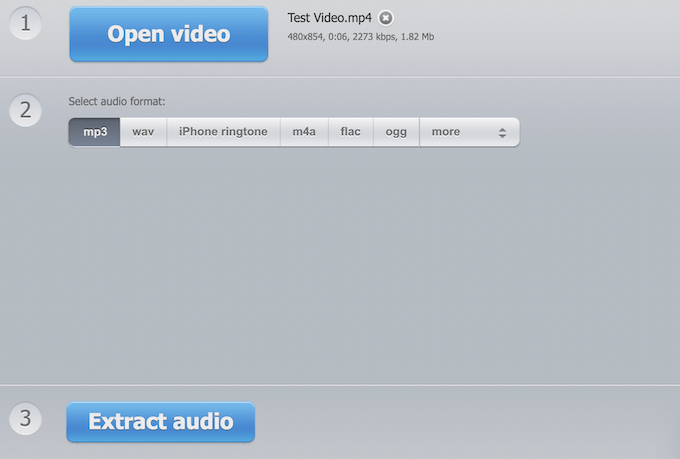
Audio Extractor is a single-purpose website that allows you to extract sound from video files of various formats. The process of separating your audio from video is even more straightforward here.
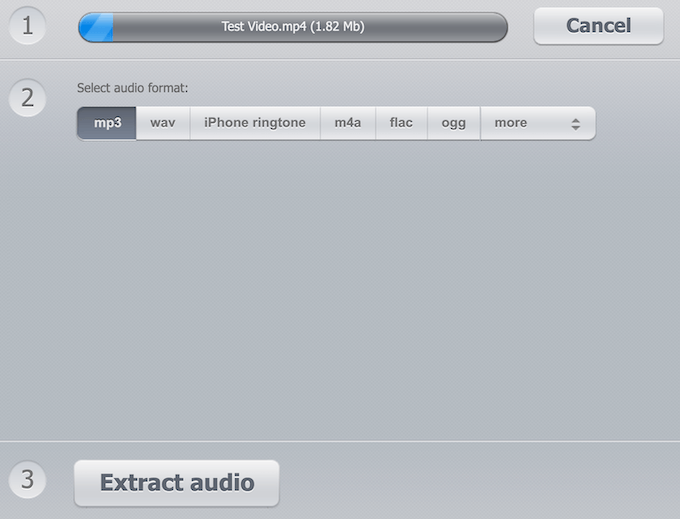
Go to the website and click the blue Open video button to select your file. Once your video is loaded, select the output audio format, and click Extract audio. The app will then take you to the download screen with your audio file.
Offline Tools To Extract Audio From Video
If you need more features or different audio and video format options, choose one of the following applications. While these tools let you do more with your video and audio files, some of them require a paid subscription. You’ll also need to download these apps before you can use them.
AoA Audio Extractor
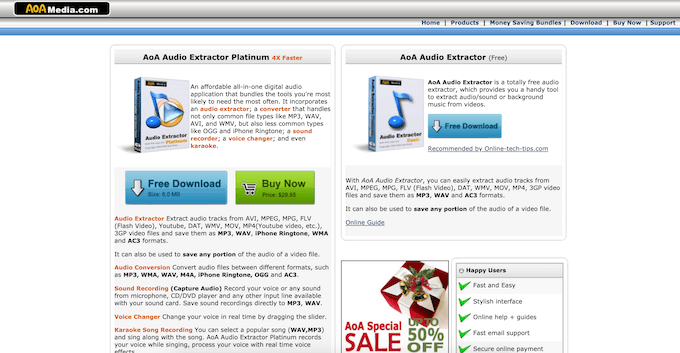
AoA Audio Extractor is an extremely useful application that allows you to pull audio from AVI, MPEG/MPG, FLV, DAT, WMV, MOV, MP4, or 3GP and save it into MP3, WAV, or AC3.
You can choose to download the free version or the AoA Audio Extractor Platinum for $29.95. Platinum offers more functionality, like audio conversion, sound recording, and voice changer on top of the standard audio extractor.
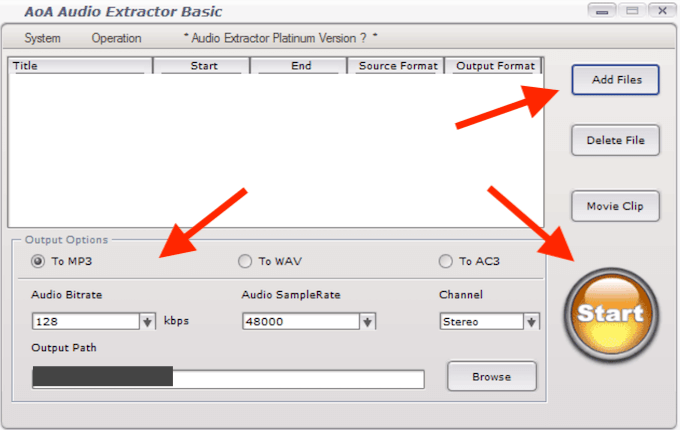
To extract audio from a video file, open the app and click Add Files. Choose one or multiple videos that you’d like to pull audio from. Under Output Options, select your preferred audio format. Make any other adjustments like defining the output path for your audio, then click Start. Find your audio file in the location you specified earlier.
Audacity
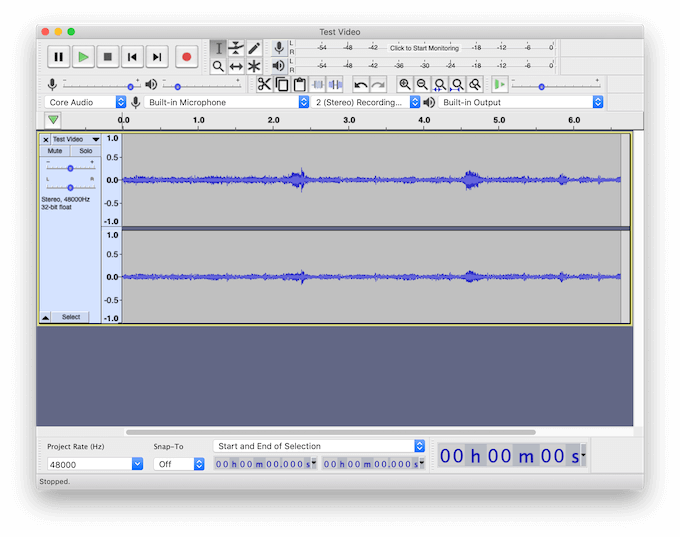
Audacity is a multi-purpose application that you can use to separate audio from video. It’s a free and open source audio editor that’s available on every PC platform.
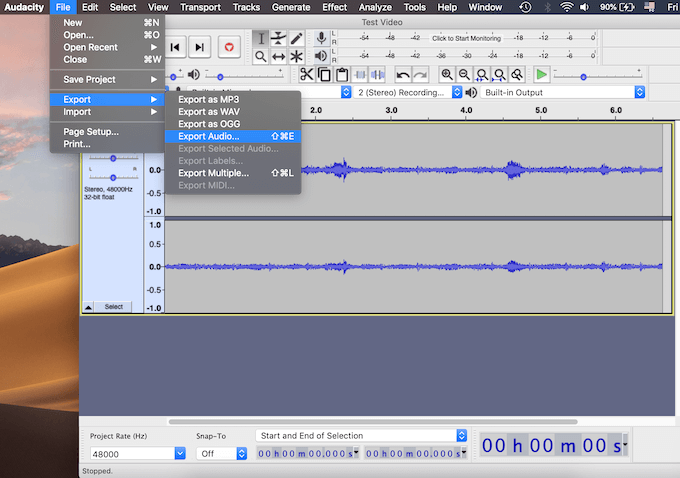
In Audacity, you can extract audio from video files using the LAME and FFmpeg library plug-ins. Open your video and follow the path File > Export > Export Audio. Select the audio format and file destination and click Save.
You can also use Audacity to complete other tasks, like removing background noise, improving your voice sound quality, and even using it for music production.
Adobe Audition
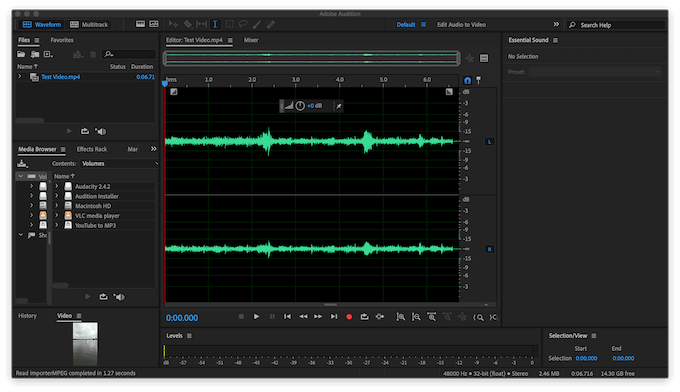
Adobe Audition is a premium option for advanced users and for those who need more from their audio converting software. Audition is pretty much Photoshop for your audio files. There are practically no limitations to what you can do in this software.
However, this comes at a cost. You can use the Adobe Audition free trial, but after 7 days you’ll have to buy one of the Adobe Creative Cloud subscription plans to continue using it.
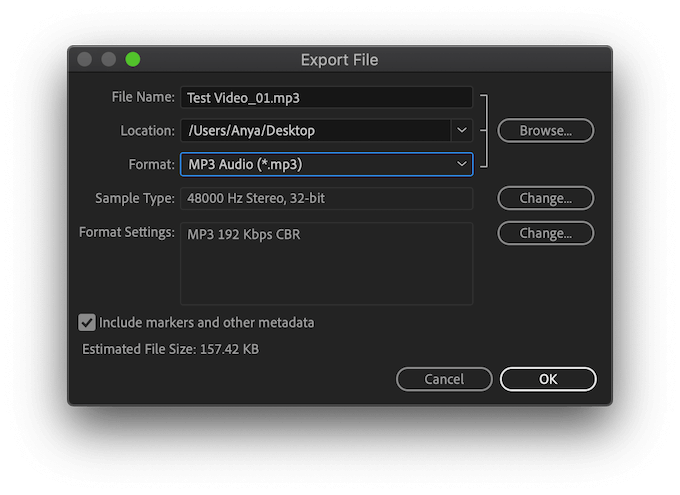
To separate audio from video, open the video file in Adobe Audition. From the ribbon menu on top of the screen, select File > Export > File…
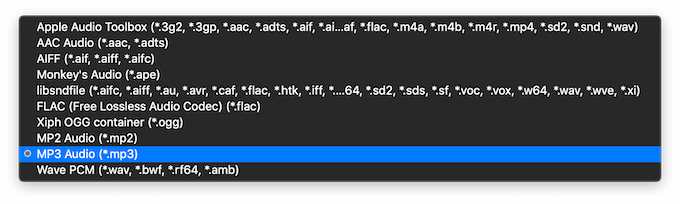
In the Export File menu, choose the desired audio format and file destination. Click OK to download your audio file.
Apps To Extract Audio From YouTube Videos
If you’re looking for an app that will work with YouTube videos specifically, have a look at the following audio converters. Make sure you only download public domain videos or the content that the owner has allowed to download to avoid copyright infringement.
MediaHuman YouTube To MP3 Converter
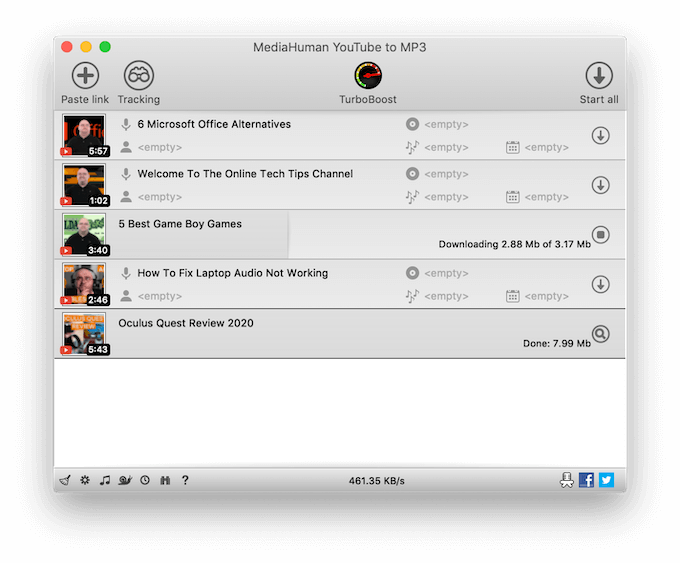
If you want an independent application specifically for separating audio from YouTube videos, MediaHuman audio converter should be your number one pick. This tool is free and easy to use.
To pull audio from YouTube, download and run the app, drop the YouTube link into the main window and click Start. You’ll have your desired audio file ready a few moments later. Some of the most useful features of this app include bulk downloads and an option to sync the app with iTunes.
VLC Media Player
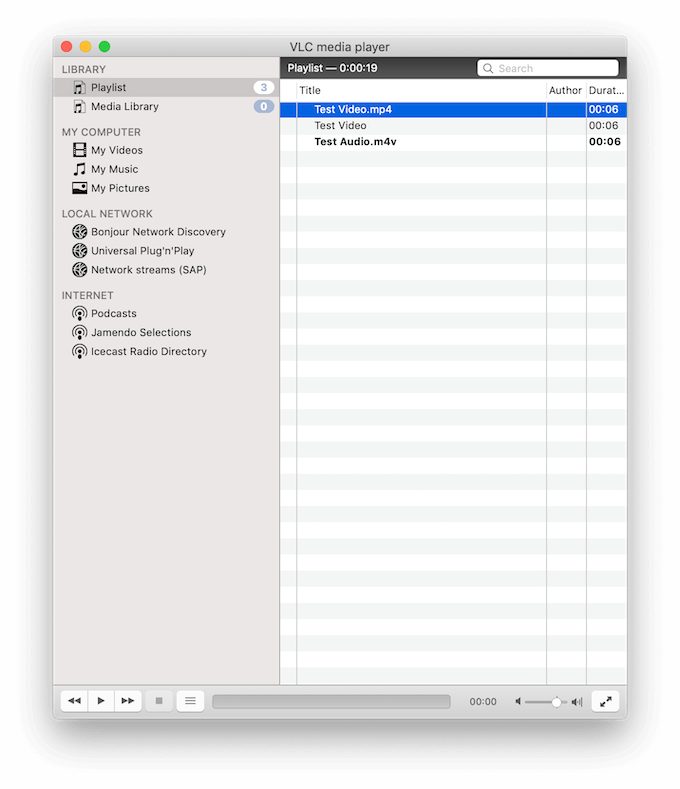
VLC Media Player is known as a video player primarily. However, VLC has many different editing and conversion capabilities. You can use VLC Media Player to rip audio from YouTube, as well as pull audio from other video files.
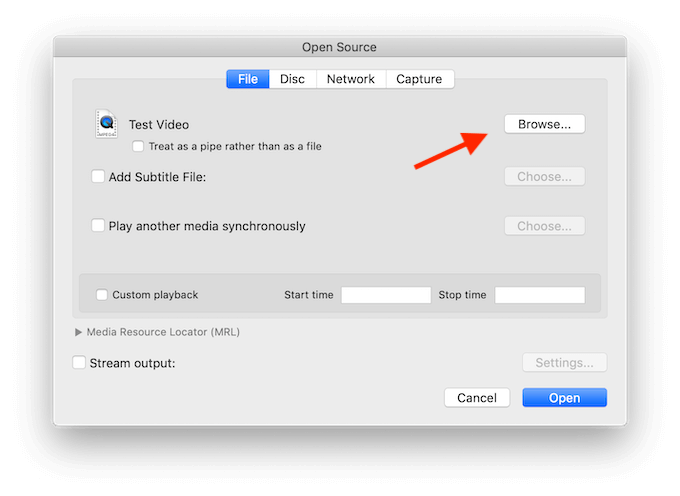
To extract audio from video, from the VLC ribbon menu choose File > Advanced Open File.
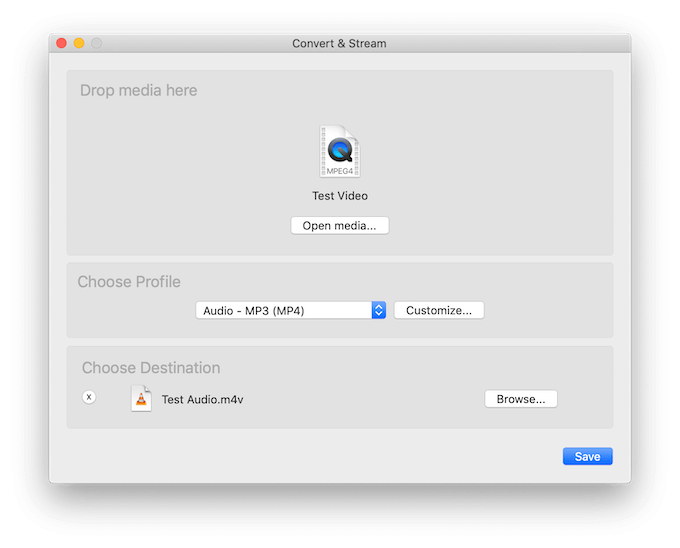
When you open your video file in the app, go back to the File menu and select Convert / Stream. You’ll find your audio file saved in your chosen destination.
VLC Media Player is free and available to download on all major platforms.
Enjoy Audio And Video Separately
Now that you know how to extract audio from any video, you can use this skill to save time and effort in everyday life. Listen to your favorite YouTube videos as if they were podcasts, or pull the music from video clips and use it as a ringtone.
Have you tried extracting audio from video before? What tools did you use? Share your experience with audio editing in the comments below.