Sometimes you don't want people to see what you are doing

You’ve probably run into the situation at home or at the office where you were doing something confidential on the computer and someone else came by right at that time. If you haven’t planned ahead of time, the only thing you could do is try to minimize the application, which is fairly slow and will give the other person enough time to see what you were doing.
In this article, I’m going to show you a couple of methods for quickly hiding your applications and windows, some of which will be more obvious than others. Depending on who you are trying to hide the windows from (boss, kids, wife, etc), your optimal method may be different.
Table of Contents
CTRL + ALT + DEL
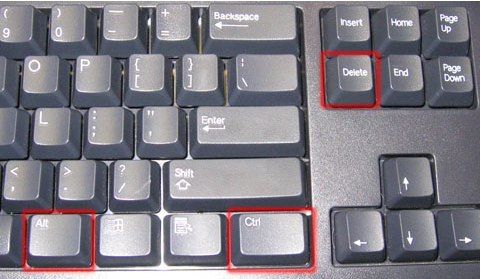
My favorite method by far is to simply press CTRL + ALT + DEL and then press Enter. By default the Lock Computer button is highlighted. Pressing the three keys will bring up a dialog with a few options like Lock this computer, Switch user, Log off etc. Pressing Enter will automatically select Lock this computer.
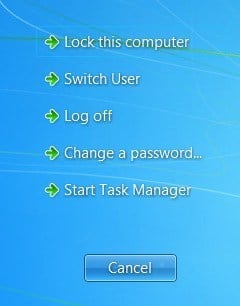
This is the best method to hide everything on your desktop. The only downsides are it’s not very subtle and you have to press the same key combo plus your password to unlock the computer.
If you have a keyboard that has the Windows key on it, you can also press Windows Key + L. This is a much faster method to lock your PC than pressing CTRL + ALT + DEL and then pressing Enter.
Windows Key + D
If you don’t want to have to enter your password again, you can try a different keyboard shortcut. No matter how many programs or windows you have open on your desktop, you can minimize all of them by pressing Windows Key + D.
This will minimize everything that is open on the desktop. Of course, you have to have a Microsoft keyboard that has the actual Windows key on it.
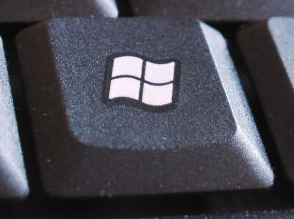
This key combo is very similar to the Show Desktop button that used to be on the taskbar in Windows XP. If you really liked that feature, you can enable the Show Desktop icon in Windows 7 too. I also tested adding the quick launch toolbar to Windows 8 and enabling the Show Desktop icon there too. Windows Key + D also works just fine on Windows 7 and Windows 8 without having to enable the Show Desktop icon.
Screensaver Shortcut
Another nifty way to hide your desktop is to start up the screen saver. All screensavers are stored in Windows using the .SCR file extension. Go ahead and perform a Windows search for *.scr and you should get a list of all the screensavers on your computer.
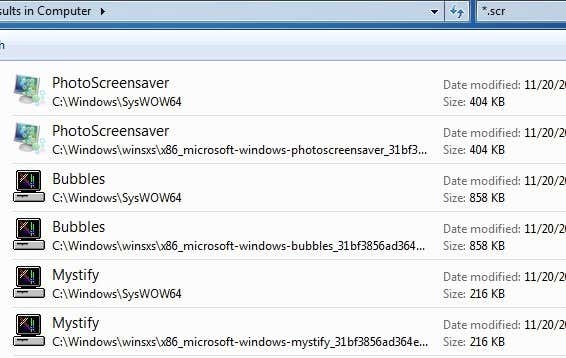
Now all you have to do is create a shortcut to any of these files on your desktop or quick launch bar. Just double-click on the shortcut and your screensaver starts up automatically, no need to wait for the idle time to kick in!
You can create a shortcut to the .SCR file by right clicking on it, going to Send To and choosing Desktop (create shortcut).
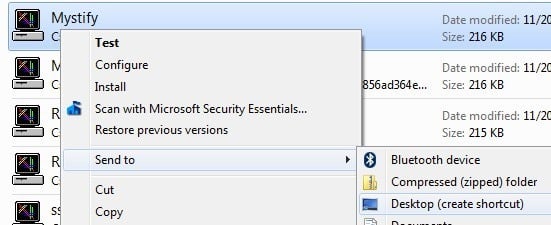
If that’s not fast enough for you or your hands tend to be on the keyboard more than the mouse, then you can also use a program called AutoHotKey to assign a hotkey to run the .SCR file whenever you want. There is a bit of a learning curve to using AutoHotKey, but it is quite powerful even if you use only a small fraction of its features.
Third Party Utilities
All of the methods above require keyboard interaction, which is ok for laptop users, but may be slower for desktop users who have their hands on a mouse most of the time. There are some really good freeware utilities that will let you hide individual applications or all applications using hotkeys or mouse clicks.
Windows Hide Tool
Windows Hide Tool is probably my favorite little program for hiding Windows programs because it’s easy to use and works very effectively. The best part is that it removes the program icon from the Windows taskbar in addition to hiding it from your desktop. This will make it seem like the program wasn’t even running on your system.
Once you install it on your system, a small blue icon will appear in your notification area. By default, clicking on the icon will hide the active window on your desktop. Clicking on the icon again will bring that application back.
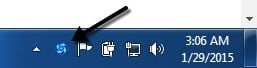
If you right-click on the icon, you’ll see a bunch of options like Hide All Windows, Show All Windows, Hidden Windows, etc. Those are all pretty obvious as to what action they will perform.
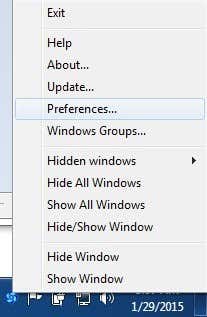
If you click on Preferences, you’ll be able to set up the hotkeys and change what happens when you either single-click or double-click on the icon in the notification area.
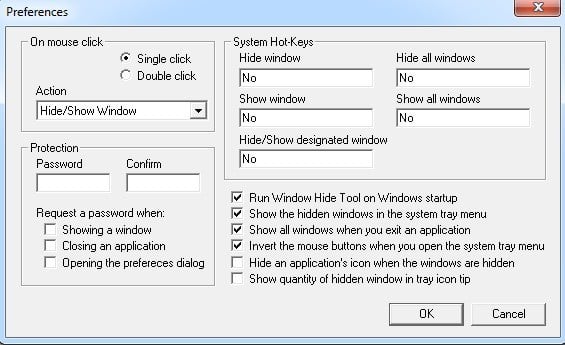
By default, single clicks will hide/show the currently active window. You can change this to multiple combinations or hiding/showing all windows. What’s also cool about the program is that you can set a password when showing a window, closing an application or when opening the preferences dialog for the program.
So even if you leave your computer and someone tries to bring up the hidden program, they will have to type in a password in order to see it. There are no hotkeys set up initially, but you can quickly set them here by clicking in the box and then pressing the key combo you want.
ClickyGone
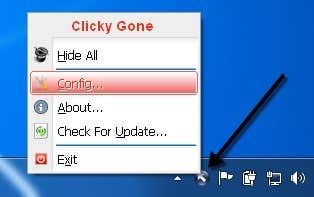
ClickyGone is another program that pretty much does the same thing, but with different options. Once you install it, an icon will appear in the notification area. Right-click on it and choose Config.
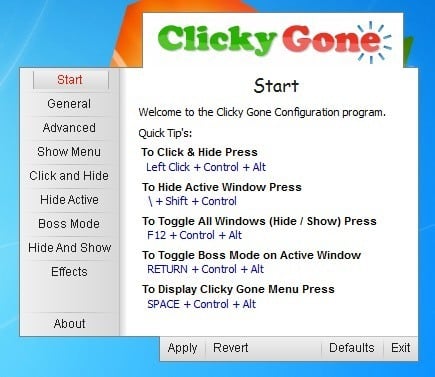
The Start screen tells you the current shortcuts for hiding windows in various ways. To click and hide, for example, you need to press and hold down CTRL + ALT and then click anywhere on a window. That program will disappear and can be bought back by using the Toggle All Windows keyboard shortcut, by right clicking on the icon in the system tray or by pressing the Clicky Gone Menu keyboard shortcut.
It’s worth noting that the program lists out the shortcuts with the modifiers at the end rather than the beginning. For example, to hide the active window, press SHIFT + CTRL and then press \. The way it shows it in the program, you would think you need to press \ and then SHIFT + CTRL, but that won’t work.
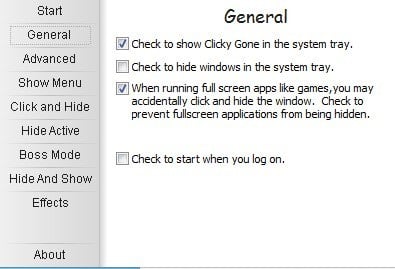
On the General tab, you can choose whether to show the icon in the system tray or not, whether to show hidden programs in the system tray and whether to prevent accidental clicks on full screen apps.
All of the screens after Advanced basically let you adjust the hotkeys for performing various tasks like hiding the active window, clicking to hide, showing the ClickyGone menu, etc. The only feature this program doesn’t have that I liked in Windows Hide Tool was the ability to set a password before bringing back hidden windows.
Hopefully, these are enough tools and options for you to properly hide your data and applications from prying eyes. If you have any questions, feel free to comment. Enjoy!