If you are disciplined, it's ok to do this

One of the most important and occasionally most annoying features of Windows is Windows Update. On the second Tuesday of each month Microsoft releases their software updates and patches for Windows, which are usually numerous, and most computers receive these updates automatically if Windows Update is turned on.
You might notice your computer slow down while these updates are installed in the background. After they are installed, the computer will normally automatically restart 5 minutes after the installation is finished.
Table of Contents
If you are sitting at your computer, you can either restart immediately or you can choose to postpone and be reminded again after a certain interval. However, if you are not near your computer, it’ll just restart after the time interval. If you were in the middle of some work and happened to be away from the computer for a while, then you could end up losing some of your work because of the auto-restart.
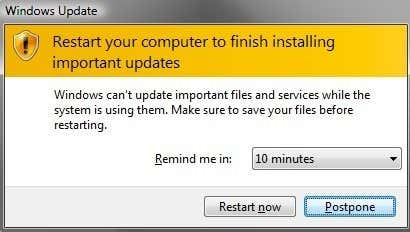
I definitely think that the default settings are good for most users since the updates are usually security related and should be installed ASAP in order to avoid malware, spyware or hacking attempts.
That being said, I also feel that certain aspects can be tweaked for power users like myself. I routinely check for updates when I want and install them on my own. If you have the discipline to restart your computer every once in a while, then it’s ok to disable the auto-restart feature and delay the nagging reminders that pop up every 10 minutes.
I’ll show you how to configure both of those settings in Group Policy and I’ll also go through a couple of other settings there and in the Control Panel. Unfortunately, all of this only works on Windows 7 Pro, Ultimate and Enterprise and Windows 8 Pro. If you have the Starter, Home or non-Pro versions of Windows, you can’t get into Group Policy settings.
Windows Update Group Policy Settings
First, let’s talk about how to disable the auto-restart and how to change the interval that you get reminders from Windows for installing the updates. We have to do both of these tasks in the Group Policy editor.
To get to the Group Policy editor, click on Start and type in gpedit.msc. In Windows 8, you can start typing while at the Start Screen.
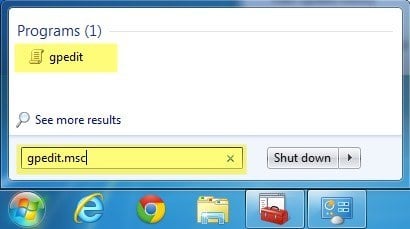
Now navigate down to the following security settings:
Local Computer Policy – Computer Configuration – Administrative Templates – Windows Components – Windows Update
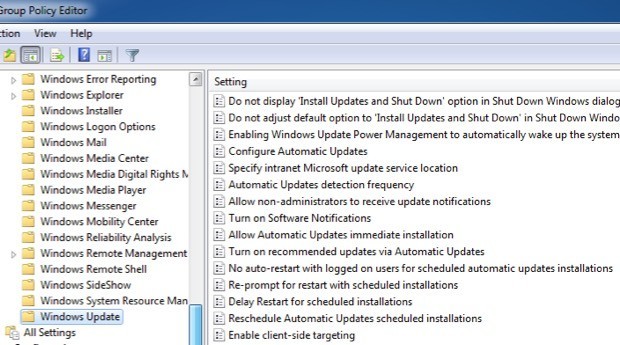
You’ll now see a bunch of options on the right hand side related to Windows Update. There are basically two settings that we have to manipulate to get what we want.
No auto-restart with logged on users for scheduled automatic updates installations
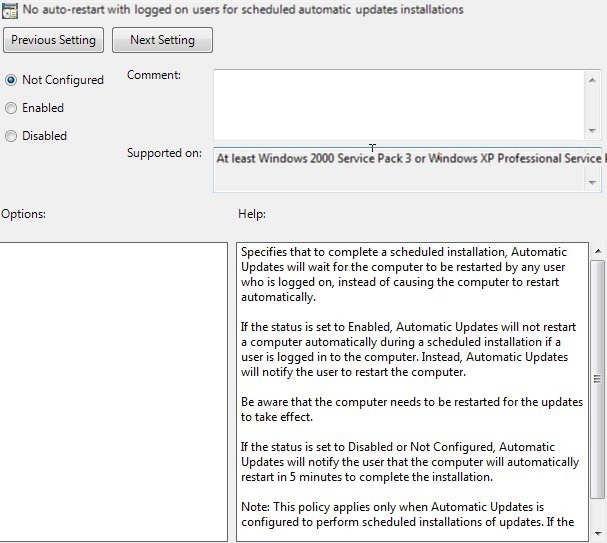
Set it to Enabled and Windows will wait for the logged on user to restart the computer instead of automatically trying to restart. As you can see in the Help box, the user will still be reminded to restart the computer, but it won’t happen automatically.
You should also note that this setting would only apply if Windows Update is configured to install updates automatically. I’ll talk about those settings in the Control Panel section.
Re-prompt for restart with scheduled installations
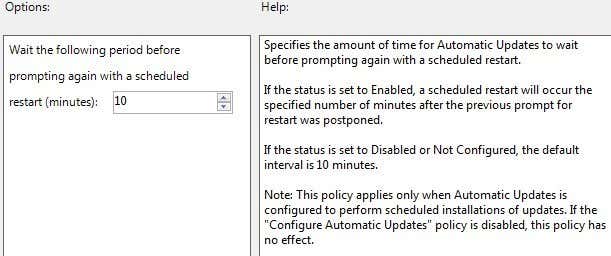
Using this setting, you can configure the restart message to come up again, but at a longer interval. Go ahead and double-click on the setting and set it to Enabled. You’ll see the default value is 10 minutes. Go ahead and change it to something like 1440 minutes, which is one day. This is better if you want to still be reminded, but not so often.
There are a couple of other useful settings to know about here in addition to the above two.
Delay Restart for scheduled installations
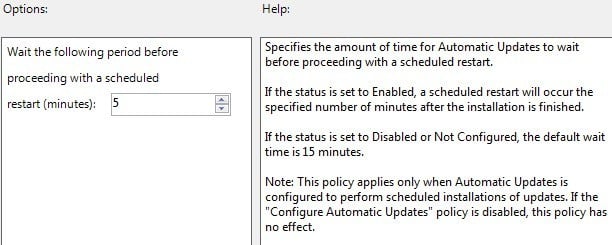
If you don’t want to completely disable automatic restarts, you can delay them using this setting. Instead of the normal 5-minute interval, you can specify a longer period for Windows to wait before performing an auto-restart. In my case, I would probably still miss the longer interval too, so I don’t use this option, but it’s worth knowing about.
Allow automatic updates immediate installation
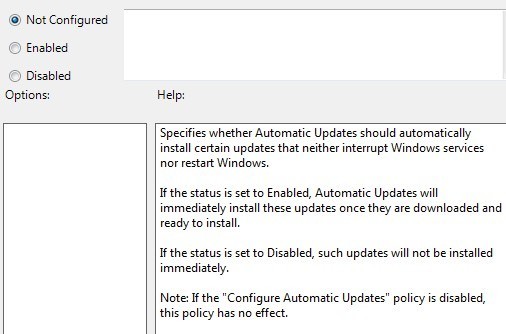
In the Windows Update Control Panel settings if you have chosen the Download updates, but let me choose whether to install them option, then you might run into issues where certain updates won’t be installed even though they don’t require a reboot or interfere with Windows services.
If you enable those settings, Windows will install those updates only and wait for you to decide when to install the rest of them.
Windows Update Control Panel Settings
Now let’s take a quick look at the Control Panel settings for Windows Update. First, click on the Change settings link on the right hand side.
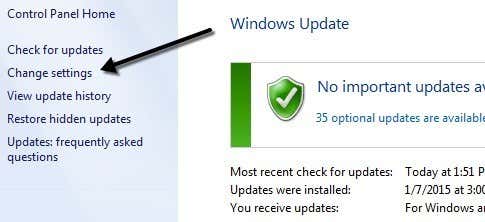
You’ll see several different settings with a couple of checkboxes. The first thing to understand is that there are three types of updates for Windows: important updates, recommended updates and optional updates.
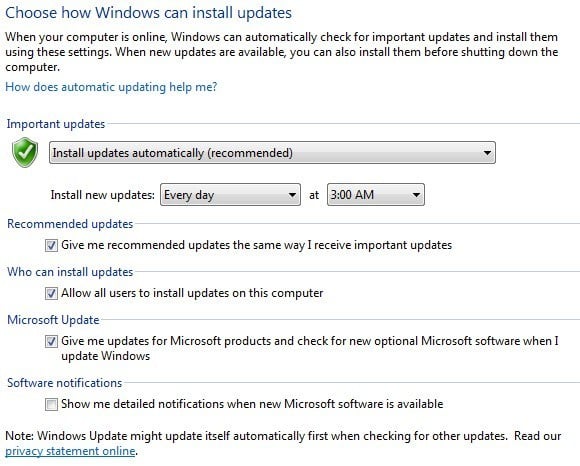
Important updates fix critical problems whereas recommended updates usually deal with noncritical issues. If the Give me recommended updates the same way I receive important updates box is checked, then recommended updates would follow the same settings you have for important updates.
Optional updates are never downloaded or installed automatically, regardless of how your settings are configured.
The first section deals with important updates and the recommend option is Install updates automatically. With this setting, you’ll get the auto-restarts and the reminders.
You can also choose Download but let me choose whether to install them, Check for updates but let me choose whether to download or install them and Never check for updates.
There is a section called Microsoft Update and this basically will give you updates related to other Microsoft products you might have installed on your system. I recommend leaving that checked, as it can be quite useful if you use a lot of other Microsoft software.
So hopefully that explains how you can configure Windows Update to your liking without putting your computer at risk. If you have any questions, post a comment. Enjoy!