How to open multiple programs in Windows at once
Posted on April 7, 2008 at 5:22 am
Why would you ever want to open multiple programs at once in Windows? Recently, I had someone at my office ask me how they can open several desktop applications at one time without having to click on each application individually.
Normally, I would have called the person lazy and told them to stop bothering me, but since this person was performing a repetitive task and needed to open the same applications every day, I thought I would come up with a solution.
I also found that I usually open a couple of programs every morning no matter what: Firefox for Internet browsing, Outlook for checking email, and Visual Foxpro for writing code (since I’m a programmer). So instead of clicking on three icons, I decided to create what is called a Batch file to open all three applications for my at once!
You can create batch files in Windows XP and Vista very easily, all you need is Notepad!
How to create a batch file in Windows
1. Open up Notepad
2. Copy and paste the line below as the first line in the file:
@echo off
Echo off basically tells Windows to not give you any messages or popup windows when running the commands in the batch file.
3. Now we need to actually call the executables for the three programs that we want to open. So in our example, I want to open Firefox, Outlook, and Foxpro. The next three lines would look like this:
start “Firefox” “C:\Program Files\Mozilla Firefox 3 Beta 3\firefox.exe”
start “Outlook” “C:\Program Files\Microsoft Office\Office12\Outlook.exe”
start “Foxpro” “C:\Program Files\Microsoft Visual FoxPro 9\vfp9.exe”
There are three parts to each command above and here’s what it means:
start – That is the command used in batch files to open programs
“App Name” – The second parameter is the name of the application you are going to be opening. You can put any name you like here since it only uses this parameter for title purposes.
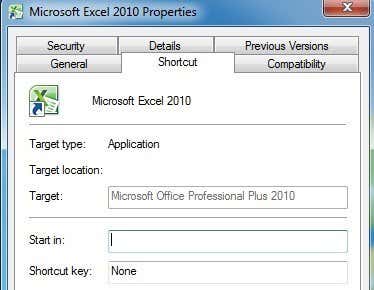
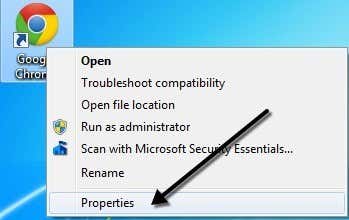
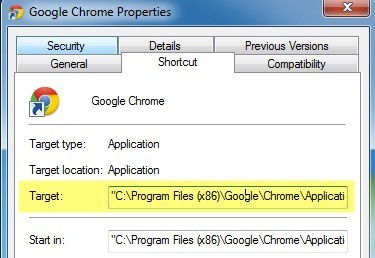
“App Path” – The last parameter is the actual path to the executable file for the program. You can always find the path of a program by right-clicking on the icon and going to Properties. For example, if I wanted to know the path to the executable file for Firefox, I would right-click and choose Properties.
Now all I need to do is look at the path in the Target box and simply copy and paste that into my batch file script.
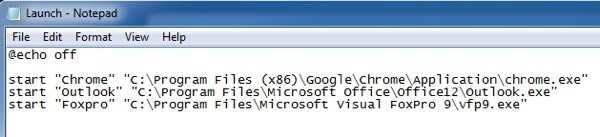
So now your batch file should look something like this:
Now all you have to do is actually save it as a batch file, which is very easy. Go to File and click Save As. Give your file a name like “TEST.BAT“. Note that I added the .BAT to the file name. Lastly, change the Save As Type to All Files instead of Text file.
That’s it! You should now go ahead and test out your batch file and see if all of your programs load up. One thing I have found is that loading applications via a batch file is much faster for some reason. I’m not really sure why, but my Firefox, Outlook and Foxpro apps all load within 2 to 3 seconds whereas if I open them up individually, each one takes at least 5 seconds.
Anyone else ever create their own batch file and if so, what did you use it for? Enjoy!
[tags]batch files, open multiple programs at once, batch scripts, windows batch files[/tags]
» Filed Under Computer Tips
Related Posts
- How to create Microsoft Outlook shortcuts for email and tasks
- How to create custom Run commands in Windows
- How to change the default location for installing applications in Windows
- How to read and open .DAT files in Windows
- Merge multiple Powerpoint (PPT) files/presentations
Comments
25 Responses to “How to open multiple programs in Windows at once”
-
Pingbacks
-
Cómo abrir varios programas al mismo tiempo en Windows » zona de software blog freeware programas shareware gratis internet pc windows bajar descargar utilidades multimedia programas gratis Says:
[...] en: Online Tech Tips. [...]
April 7th, 2008 at 12:47 pm


I can’t seem to get it to open my applications. I have local admin rights if that helps.
This is what I have in my batch file
@echo off
start“Outlook”“C:\Program Files\Microsoft Office\Office11\Outlook.exe”
start“Firefox””C:\Program Files\Mozilla Firefox\firefox.exe”
Is this correct?
Am I missing spaces or something.
Also in your example is it supposed to say office12 my exe files are in office11 folder?
Hi Phil,
I think your only problem is the spaces. It should look like this:
@echo off
start “Outlook” “C:\Program Files\Microsoft Office\Office11\Outlook.exe”
start “Firefox” ”C:\Program Files\Mozilla Firefox\firefox.exe”
Notice that I just added spaces between start and word “Outlook” and then between “Outlok” and the phrase “C:\Program…\”.
And that’s fine that your Office executable are in Office11, it just depends on which version you have installed on your computer. Office12 is for Office 2007.
Let me know if you were able to get it working or not. Thanks!
Okay, I was wondering if the office12 was for 2007.
I added the spaces and I get 1 error for each of programs I am trying to open. I copied the targets directly from the properties window.
This is the message I get:
Windows cannot find oFirefoxo. Make sure you typed the name correctly, and then try again. To search for a file,…
Any ideas?
Thanks!
Hi Phil,
What is the version of your OS? Are you running Windows XP or Vista? I think it may be an issue with the syntax, so try the following:
@echo off
start “C:\Program Files\Microsoft Office\Office11\Outlook.exe”
start “C:\Program Files\Mozilla Firefox\firefox.exe”
Basically, I removed the first parameter from the start line so it should just read start and then a space and then the path name to the exe file in quotes. Try that and let me know.
I’m running Windows XP Pro SP2 with all the latest updates. Lenovo T60
I changed my batch file and it still didn’t work and I figured I’d just copy and paste what you posted and it still nothing.
Could their be any AV software that could be blocking this?
Again thanks for your help
hm I was messing around with this some more. I have a folder on my Desktop with FirefoxPortable
start “” “C:\Documents and Settings\pgastwirth\Desktop\firefox 3 beta5\FirefoxPortableTest\FirefoxPortable.exe”
This opens up fine. But I still get errors for these
start “” “C:\Program Files\Microsoft Office\Office11\Outlook.exe”
start “” “C:\Program Files\Mozilla Firefox\firefox.exe”
I keep checking my file paths to make sure that they are correct.
Oh well, I’ll keep trying. Eventually I should get. Something can’t be right.
Thanks
I figured it out. For some reason when I copied and pasted the code from you site. The quotation marks were different characters than when I actually press the quotation key on my keyboard. After I replaced the quotation marks, this batch worked. If anybody wants to open a website add this
Start “” “C:\Program Files\Internet Explorer\iexplore.exe” http://www.online-tech-tips.com
I’m guessing this will do the same for Firefox but I have not personally tested this. Now I’m going to try to get firefox to open up multiple tabs.
Thanks for all your help with this. I knew it was something simple.
Works absolutely perfect. Thanks a lot.
how would you add a password in the outlook string. I have a password I have to enter once outlook opens.
Phil, glad you got it working!
Bill, I didn’t know it was possible to password protect Outlook! Are you using a third party program? And you have to enter a password into Outlook before you can view emails?
Couple of things,
just a thought
1. Password protect Outlook — only third Party but then if you put it into a BAT file and kept it in plain text you would be defeating the purpose
2. To open Firefox in multiple tabs add the different sites with a Concat symbol between the diff urls ( its a pain IF you do work with multiple wdws of Firefox – whenever you hit Ctrl N it starts the new wdw with two tabs populated)
Hey Thanx for the BAT
C:\progra~1
instaed of program files
works with folders too.
Use the entire folder name.
This works for me
@echo off
Start E:\downloads\portables\fox\FirefoxPortable\Firefox1.exe
Start E:\downloads\portables\fox\FirefoxPortable\Firefox2.exe
Start E:\downloads\portables\fox\FirefoxPortable\Firefox3.exe
I have all my portables on a drifferent drive!
Ah, thank you!
I like my machine to boot quickly, so I start my AV, Copernic Desktop Search, Palm Hotsync, and Pidgin IM client after I boot. I used to use ZoneAlarm, too.
-grant
Also, I create a shortcut to my *.bat on my desktop, edit the properties, and have it start minimized.
You can also use the Multiple command in SlickRun to open multiple programs at once.
I know these are old posts, but I am trying to get a batch file to work on vista to open multiple programs (new at this) and I can’t get it to work, I have tried MANY variations including the following:
@echo off
Start “-k runservice” “C:\Program Files\Apache Software Foundation\Apache2.2\bin\httpd.exe ”
Tried not including the “-k runservice” , tried it at the end between the quotes at the end of the path (that’s how it is given in the path) checked spaces. Tried putting at end with and without quotes separately…. Sometimes I get an error message, sometimesnothing happens, but Apaches does not start …. I am running Vista… any suggestions???
P.S.
When I use a command prompt window and try running httpd.exe from the Apache bin directory it doesn’t work either. Whether or not I include the -k runservice. tried many variations. Although a command window makes a fleeting appearance at times.
when I tried “Start httpd.exe” I got this error message, no other configuration gave me an error message..
C:\Program Files\Apache Software Foundation\Apache2.2\bin>httpd.exe
httpd.exe: Could not reliably determine the server’s fully qualified domain name
, using 192.168.1.204 for ServerName
(OS 10048)Only one usage of each socket address (protocol/network address/port)
is normally permitted. : make_sock: could not bind to address 0.0.0.0:80
no listening sockets available, shutting down
Unable to open logs
This has been great for me. One thing… In the batch file, I open windows explorer to a specific path. This works as planned except it opens windows explorer without the explorer bar. How do I make it automatically open the explorer bar to folders?
All I can say is, Wow! I’ve been automating with hotkeys, but your short tip on how to write .bat files to open multiple files displayed a whole new world. I’ve got five progs I run at the end of each computer session opening at once using your script.
Here’s what I wanted to ask, as an extension of this script: what I’d REALLY like is to open each program, have the program do a task (like “scan,” and then “clean”). Have been scouring for as many sources as possible, but haven’t found a .bat script that I understand well enough to do this.
Probably a prog that would record my actions=keyboard/mouse would work? Any suggestions?
Thanks again so much,
Sami
i am trying to open Internet Explorer which isn’t my defult browser to a web page that isnt compatable with my defult browser, but it keeps opening in my default browser! any help? Here is the code i had used:
start “C:\Program Files\Internet Explorer\iexplorer.exe” website_address
Is it possible to have them run in a certain order?
nvm i got it working i had misspelling for ie