Procedure is the same, regardless of the software

The color splash effect is a cool photo effect where a picture is first converted to black and white, then color is added back to certain parts of the image. This works really well in images with a lot of bright color because it looks much more dramatic when the rest of the image is converted to black and white and one items remains in color.
In this article, I’m going to show you how you can color splash your photos on the desktop and on your smartphone (iOS and Android). Note that I’m only going to mention the tools that I have used myself, but there are many alternatives on all platforms, so feel free to choose another tool if you like. The procedure for adding the color splash effect is pretty much the same regardless of which tool or platform you use.
Table of Contents
Here’s a quick before and after example of the color splash effect added to one of my family photos:
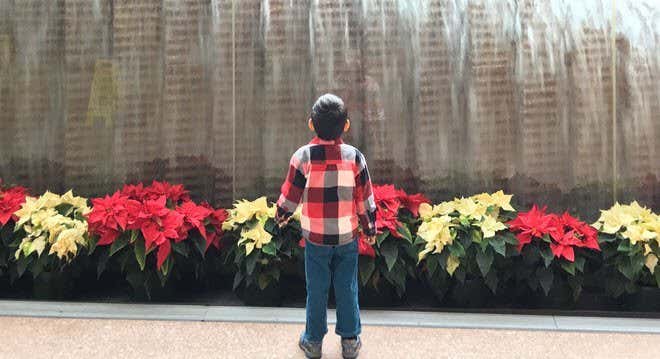
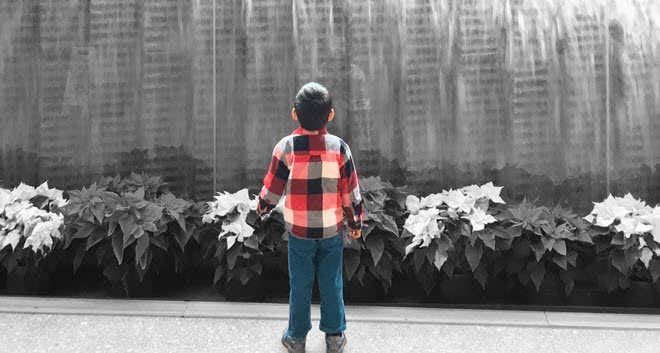
When choosing a photo to color splash, here are my guidelines for getting the best results: choose a photo that has a lot of bright colors across the entire photo and make sure the part of the photo you color splash takes up a large percentage of the photo. If you have a photo with one object that is very bright and the rest is darker or neutral colors, color splashing the bright part won’t make much of a difference.
If the part you choose is too small, the effect won’t look good either. As you can see from above, the boy in the above picture doesn’t take up a lot of the photo and therefore the effect is not as dramatic. He is wearing bright colors, so that helps a bit.
Desktop Tool
On the desktop, the best way to color splash a photo is to use an online tool. They are free, easy to use and don’t require you to install anything on your hard drive. The first online tool I recommend is Fotor. Click Get Started and wait for the editing interface to load.
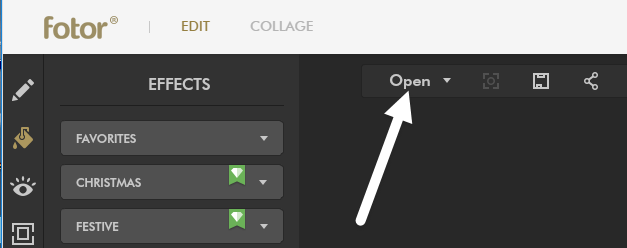
Now click on the Open button and choose the location where you want to import your picture from. Once the picture is loaded, click on Color Splash in the left-hand side of effects.
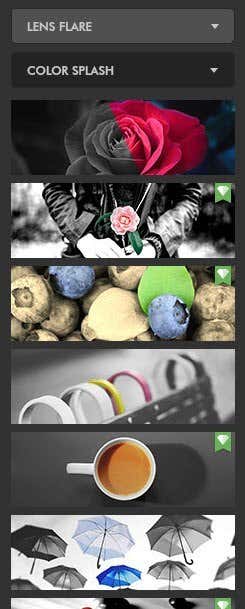
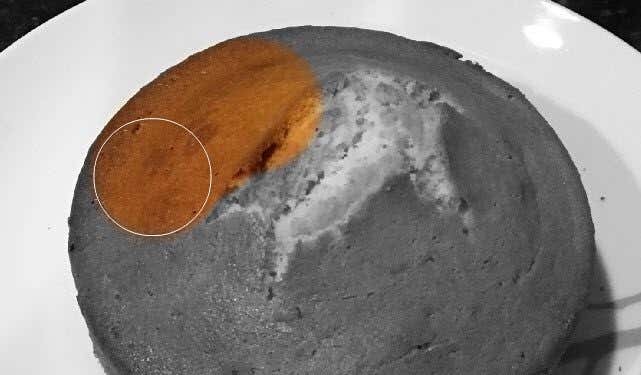
You can choose from a couple of free effects, which don’t have the small diamond icon at the top right. I chose the top one with the flower and it worked just fine for me. Now you adjust the brush size and start coloring in the part or parts of the photo you want to add color back to.
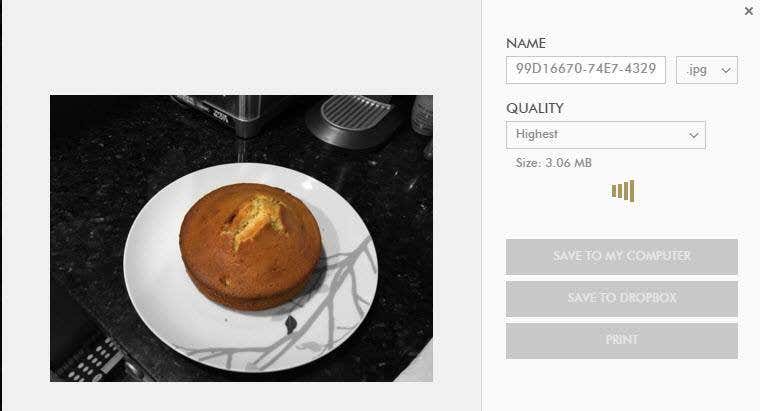
Once you have added the effect to your image, click on the Save icon at the top next to the Open button. You can now save the file to your computer for free and it doesn’t add any kind of watermark or anything like that.
iOS App
My favorite app on the iPhone for the color splash effect is Color Splash by Pocket Pixels. It costs $0.99, but is totally worth it. I find the app on the phone or iPad to be a lot better to use than the online tool I mentioned above.
Using your finger is actually the perfect way to add color back to the photo and pinching and zooming with your hands makes it super easy to edit only the parts you want.
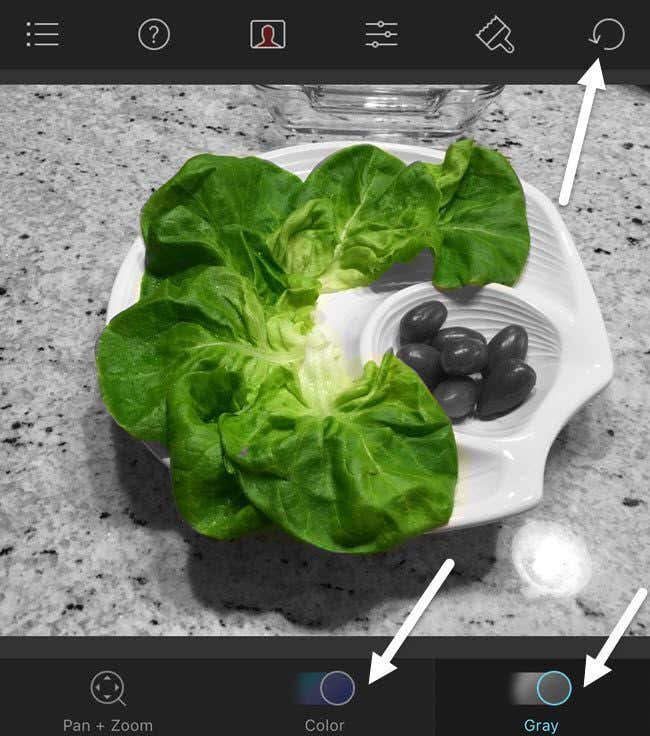
As you can see, it’s really easy using the app to color in complex objects with lots of curves using just your fingers. Once you load an image, it will be grayed out and you can start coloring in by tapping on Color at the bottom and then moving your finger across the image. When you want to move the image, tap Pan + Zoom or just use the pinch motion with your fingers.
Tap on Gray if you added too much color and want to black and white parts of the image again. At the top right, you can undo your actions easily. When you are done, just tap the icon at the top left to save the image to the camera roll, share the image or load a new image.
Android App
On Android, I used Color Splash Effect by a company called City Photo Editor. There are a lot of other free options, so you have quite a bit of choice. Some of the other programs are full photo editors and one small feature is the color splash effect.
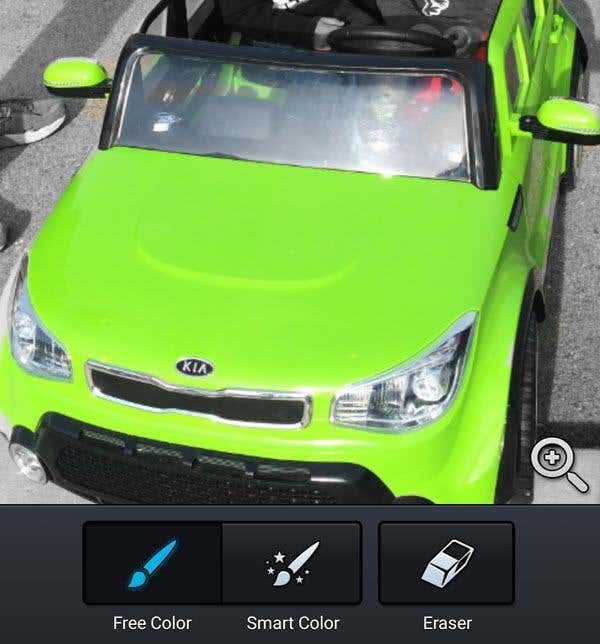
This program is pretty much the same as all other color splash apps. Tap the magnifying glass in order to zoom and move the picture around. Then tap on Free Color or Smart Color to start coloring in the image. Use the Eraser to make parts black and white again.
Overall, color splashing is really easy to do on all platforms and mostly takes time and patience. Now you can post cool photos to Facebook or Instagram and impress your friends or followers! If you have any questions, feel free to comment. Enjoy!